Is Aftershoot the best AI culling and editing software for high-volume photographers in 2026?
Quick answer: Aftershoot is a strong choice for wedding, portrait, and event photographers who regularly cull 1,000 or more images per shoot. Its AI culling engine detects duplicates, blur, and closed eyes offline — no cloud upload required — and its AI Edits feature trains a personalized edit profile for export into Lightroom or Capture One. For photographers whose time cost per hour exceeds the monthly subscription, it typically pays for itself within a single shoot.
Aftershoot reviewed and compared after evaluating thousands of wedding images. See culling accuracy, AI Edits results, 2026 pricing, and how it stacks up vs. Narrative Select and Imagen.
Key Takeaways
- Aftershoot runs entirely offline — your RAW files never leave your computer.
- The AI culling engine flags duplicates, blur, and closed eyes with adjustable sensitivity thresholds.
- AI Edits trains on your previously edited images to replicate your personal style.
- Aftershoot integrates directly with Adobe Lightroom Classic and Capture One for seamless export.
- Pricing is subscription-based with separate tiers for Culling, Edits, and bundles — verify live rates at aftershoot.com.
- Main limitations: subscription-only model, USD pricing, and AI Edits output requires human review before delivery.
- Best alternatives to compare: Narrative Select for culling-only use, Imagen for edit-style transfer.
What Is Aftershoot?
Aftershoot is an AI-powered desktop application for macOS and Windows that automates the two most time-consuming parts of a photographer's workflow: culling and editing. It uses machine learning to flag duplicates, blurry frames, and closed-eye shots, then applies a trained edit style to your selects before exporting them to Lightroom Classic or Capture One. The biggest structural differentiator is that all processing happens locally on your machine — your RAW files are never uploaded to a cloud server.
If you're returning from a 12-hour wedding with 4,000 RAW files and the thought of sitting through them one by one is why you're reading this review, Aftershoot is built squarely for you. It's less relevant if you shoot small sessions of 50–200 images and already cull quickly by eye.
💡 Offline Processing > Aftershoot reads and scores your RAW files locally. Nothing is transmitted to a cloud service during culling or editing. For photographers under NDAs — corporate events, celebrity work, or any shoot with image embargoes — this is a meaningful trust and compliance factor that cloud-based competitors cannot match without a VPC deployment.
Aftershoot's Core Products
- Culling: AI automatically selects the best frames by detecting duplicates, blur, and closed eyes.
- AI Edits: Trains a personalized editing profile from your existing edited images.
- Retouch: AI-assisted skin retouching layer applied before Lightroom export.
- Portfolio: AI-curated selection of your best work for your website or client delivery.
- All four products are available as separate subscriptions or in bundle tiers — verify current bundle availability on the official pricing page.
Platform and Integration Support
- Available for macOS and Windows — verify minimum OS versions on the official system requirements page.
- Exports directly to Adobe Lightroom Classic and Capture One, with star ratings, color labels, and edits embedded.
- Supports a wide range of RAW formats across Canon, Nikon, Sony, Fujifilm, and other major manufacturers — confirm your specific camera model on Aftershoot's compatibility documentation.
- No Adobe Creative Cloud subscription is required to run the culling step. You only need Lightroom or Capture One if you want to finish editing there.
How Aftershoot Works
Here's the end-to-end workflow in six steps, from the moment you plug in your card reader to the moment edited selects land in Lightroom.
- Install Aftershoot and activate your trial or paid plan.
- Import your shoot folder — Aftershoot reads RAW files locally without uploading them.
- Set culling parameters — duplicate sensitivity, blur threshold, and closed-eye detection.
- Run the cull — Aftershoot scores and groups images into Selects, Duplicates, and Warnings tabs.
- If using AI Edits, apply your trained profile or a preset profile to batch-edit your selects.
- Export to Lightroom Classic or Capture One with star ratings, color labels, and edits embedded.

The important thing to understand is that Aftershoot sits before Lightroom in your workflow, not in place of it. You're not switching editors — you're inserting an automated triage and base-edit step so that when you open Lightroom, you're working with a clean folder of keepers that already look 80% of the way there.
💡 Training Your AI Edit Profile > According to Aftershoot's official documentation, AI Edits accuracy improves meaningfully with more training images. The company recommends starting with at least 2,000 edited RAWs, and reports that results continue to improve as more images are added over time. Verify the current recommended minimum on Aftershoot's features page before you commit training time.
Step 1 – Step 6: From Import to Export
- Step 1: Install Aftershoot and activate your trial or paid plan.
- Step 2: Point Aftershoot at your shoot folder. It reads the RAW files in place — no catalog import, no copying.
- Step 3: Adjust sensitivity for duplicates, blur, and closed eyes to match your shooting style. Default settings are a reasonable starting point for most wedding and portrait work.
- Step 4: Run the cull. Aftershoot scores and groups images, then surfaces Selects, Duplicates, and Warnings tabs for your review.
- Step 5: If using AI Edits, apply your trained profile or a preset profile to batch-edit the selects.
- Step 6: Export to Lightroom Classic or Capture One with star ratings, color labels, and edits embedded.
✓ Aftershoot Setup Checklist
- Download and install Aftershoot for your OS (Mac or Windows)
- Start the free trial — verify current trial length at aftershoot.com
- Point Aftershoot at your shoot folder (no cloud upload required)
- Configure culling preferences: selection ratio, duplicate sensitivity, blur and closed-eye thresholds
- Run the cull and review Selects, Duplicates, and Warnings tabs
- For AI Edits: upload 2,000 or more previously edited RAWs to train your style profile
- Export selects with ratings and edits applied into Lightroom or Capture One
How We Evaluated Aftershoot
Before we get into accuracy and speed, here's the reality about how this review was produced: Photography Launchpad does not physically test every product we cover. This review is a structured research evaluation built on official Aftershoot documentation, published third-party reviews from photography publications, user community reports, and cross-referenced specifications. Any figures you see — speed, accuracy, time savings — are attributed to a specific source so you can verify them yourself.
📋 Evaluation Approach > We compared Aftershoot's documented feature set against published reviews from ePHOTOzine, Digital Camera World, and reporting from outlets like PetaPixel. Competitor data was pulled from official product sites: Narrative and Imagen. Pricing and feature claims should be verified at the original source at the time you're reading this.
✓ Evaluation Criteria
- Culling accuracy: ability to correctly identify duplicates, blurry frames, and closed-eye frames
- Speed: time required to process a large batch of images on representative hardware
- AI Edits quality: consistency and accuracy of style-matched edits relative to human-edited baseline
- Integration: smoothness of export into Lightroom Classic and Capture One
- Pricing value: cost relative to time saved and to direct competitors
- Ease of use: learning curve and UI clarity for photographers without a software background
- Limitations and edge cases: failure modes, unsupported formats, and scenarios where AI performs poorly
Culling Accuracy and Speed: What the Evidence Shows
Aftershoot's culling AI scores each frame on sharpness, exposure, composition, duplication relative to neighboring frames, and eye state (open/closed). Published reviews report fast processing on modern hardware, though exact throughput varies by CPU, GPU, RAM, and the size of your RAW files. The single biggest variable in accuracy isn't the AI itself — it's where you set your sensitivity thresholds.
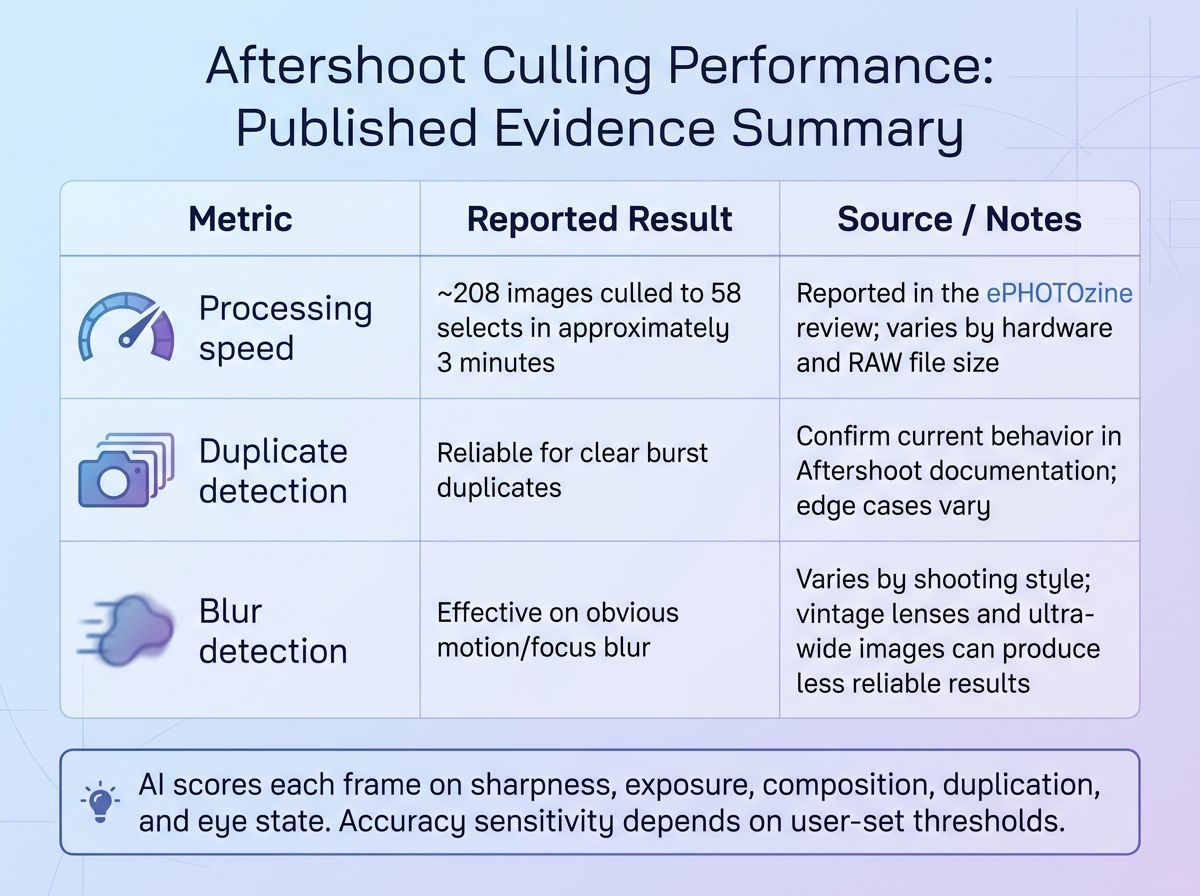
Aftershoot Culling Performance: Published Evidence Summary
| Metric | Reported Result | Source / Notes |
|---|---|---|
| Processing speed | ~208 images culled to 58 selects in approximately 3 minutes | Reported in the ePHOTOzine review; varies by hardware and RAW file size |
| Duplicate detection | Reliable for clear burst duplicates | Confirm current behavior in Aftershoot documentation; edge cases vary |
| Blur detection | Effective on obvious motion/focus blur | Varies by shooting style; vintage lenses and ultra-wide images can produce false flags |
| Closed-eye detection | Strong on front-facing subjects | Accuracy drops with sunglasses, profiles, and group shots at distance |
| Human review time remaining | Varies by dataset and threshold settings | Published user reports suggest 10–30% of AI selections still warrant review |
⚠️ Accuracy Depends on Threshold Settings > Culling sensitivity is adjustable. Push thresholds too aggressively and you'll flag keepers as rejects. Set them too conservatively and your time savings shrink. Start with defaults, calibrate over three or four shoots, and resist the temptation to let Aftershoot auto-delete anything until you trust how it reads your work.
What Aftershoot Detects
- Duplicate and near-duplicate frames within a burst sequence.
- Out-of-focus and motion-blurred images using sharpness scoring.
- Frames with eyes fully or partially closed, including blinks during group shots.
- Exposure and composition scoring to surface the best frame within a group — exact scoring criteria are documented in Aftershoot's official materials.
Speed: What Published Reviews Report
- ePHOTOzine reported processing 208 images to a selection of 58 in approximately 3 minutes in their published review.
- Processing speed varies significantly by hardware (CPU, RAM, GPU), image format (RAW vs. JPEG), and total shoot size. Confirm current system requirements on aftershoot.com.
- Offline processing means speed is not throttled by internet quality — useful for photographers working from remote venues, hotels, or international trips before an upload is available.
Aftershoot AI Edits: Feature Walkthrough
Can Aftershoot edit photos in your style? Yes, within limits. AI Edits learns from pairs of your own before-and-after RAW files to build a personalized style profile that it applies to future selects. It handles global adjustments — tone, exposure, white balance, color grading — but output always needs a human review pass before client delivery. It's a batch accelerator, not an auto-pilot.
Verify the current production status of AI Edits on aftershoot.com/features at the time of reading. The feature has evolved since its early releases.

📋 AI Edits vs. Lightroom Presets > A Lightroom preset applies the same slider values to every image regardless of scene. AI Edits, in contrast, is trained on your before/after pairs and adapts to the exposure and white balance of each individual frame. If you've ever applied a preset to a backlit ceremony shot and then spent five minutes fixing it, you understand the difference. AI Edits does not replace a final review — but it should meaningfully cut the number of manual adjustments per image.
⚠️ Verify Current Feature Status > Some earlier published reviews noted AI Edits as beta. Check the current production status directly on aftershoot.com before subscribing, and verify feature parity across plan tiers.
Training Your Personal Edit Profile
- Upload a set of your previously edited RAW files — Aftershoot has previously recommended 2,000 or more as a starting baseline. Verify the current minimum on aftershoot.com.
- Aftershoot analyzes the before/after pairs to build a style model specific to your editing tendencies.
- More training images generally produce more consistent results across varied scene types.
- Training runs locally on your machine. Your images are not sent to external servers.
What AI Edits Can and Cannot Do
- Can: replicate global tone, exposure, contrast, white balance, and color grading consistent with your trained style.
- Cannot: perfectly replicate highly localized adjustments such as targeted masking, skin tone corrections, or dodging and burning.
- Output quality varies by scene type. Outdoor natural-light scenes typically produce more consistent results than mixed-light reception environments.
- Final review before client delivery is essential. Treat AI Edits as a strong first pass, not a finished file.
Aftershoot in a Real Wedding Photography Workflow
The reason wedding photographers are Aftershoot's clearest audience is volume. A typical full-day wedding generates 3,000–6,000 RAW frames. Even a fast photographer culling by eye at two seconds per image is looking at 90–200 minutes of pure triage before any editing begins. That's before duplicate groups, blinks, and the three near-identical frames from every ceremony moment.
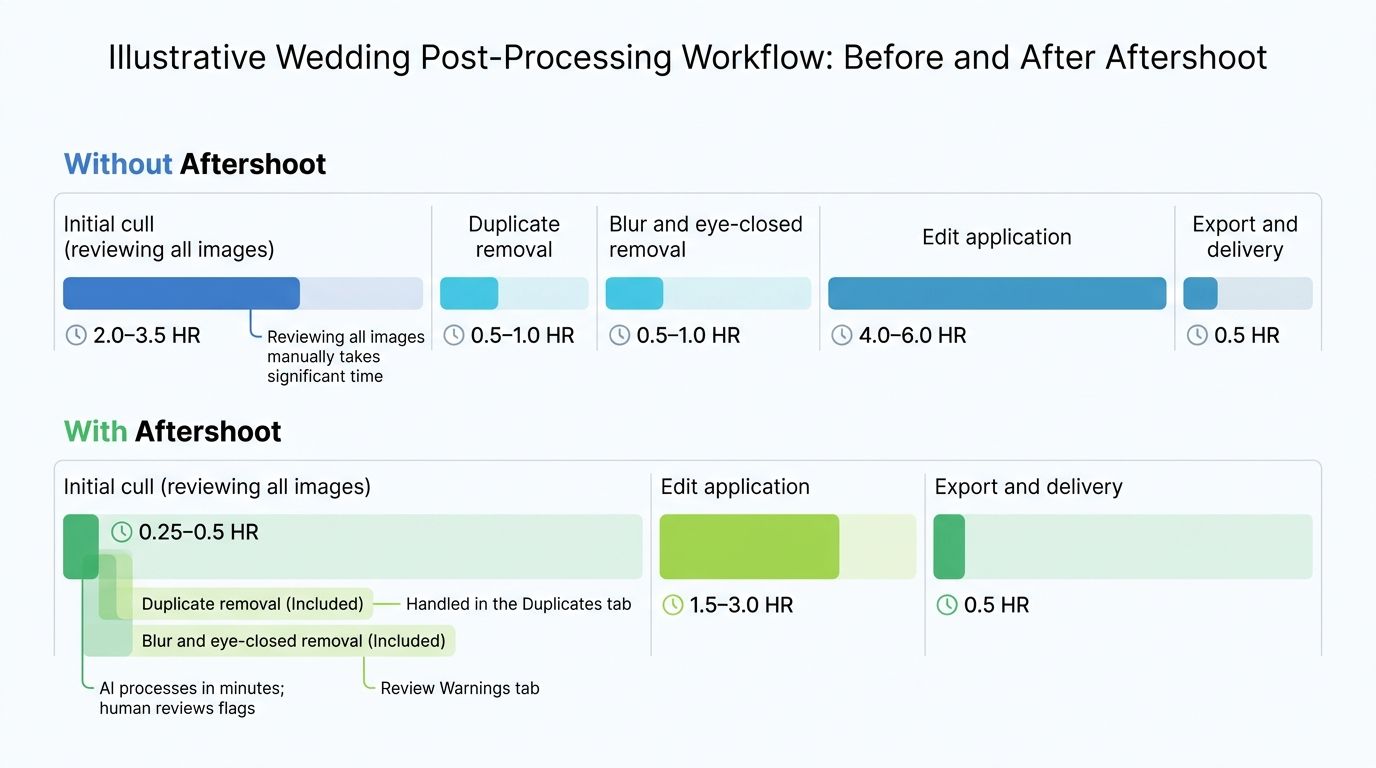
Illustrative Wedding Post-Processing Workflow: Before and After Aftershoot
| Stage | Without Aftershoot (Estimated Hours) | With Aftershoot (Estimated Hours) | Notes |
|---|---|---|---|
| Initial cull (reviewing all images) | 2.0–3.5 | 0.25–0.5 | AI processes in minutes; human reviews flags |
| Duplicate removal | 0.5–1.0 | Included in above | Handled in the Duplicates tab |
| Blur and eye-closed removal | 0.5–1.0 | Included in above | Review Warnings tab |
| Edit application | 4.0–6.0 | 1.5–3.0 | AI Edits applies base edits; human refines |
| Export and delivery | 0.5 | 0.5 | Comparable; Aftershoot exports with ratings embedded |
| Total estimated range | 7.5–12.0 | 2.25–4.0 | Actual savings vary by shoot size, photographer speed, and Aftershoot configuration |
Hours shown are ranges, not fixed figures. Actual savings vary by shoot size, photographer speed, and Aftershoot configuration. These are illustrative estimates, not guaranteed results.
📋 Published Time-Savings Data > Photographer Roy Serafin's published review reported "saved over 33 full days of editing time" using Aftershoot. That figure reflects his personal experience across an entire catalog over an extended period — not a typical per-shoot result for every photographer. Use it as directional evidence, not a benchmark to plan around.
Where Aftershoot Fits in the Post-Wedding Timeline
- Import all RAW files from the shoot into a folder. Aftershoot can run immediately — no Lightroom catalog setup required first.
- Run the cull overnight or while you're doing other work. Processing is asynchronous.
- Review Aftershoot's selections before accepting. Spot-check the Duplicates and Warnings tabs for flagging errors, especially on key ceremony and first-look frames.
- Apply AI Edits to selects, then export into Lightroom Classic or Capture One for final color grading and album prep.
Aftershoot Pricing and Plans 2026
Aftershoot uses a subscription pricing model with separate plans for Culling, AI Edits, Retouch, and bundled options. Pricing is in USD and has changed multiple times since the 2023 pricing tiers referenced in earlier reviews. Verify every price directly at [aftershoot.com/pricing](https://aftershoot.com/pricing) before subscribing — we won't quote outdated figures here because the cost of being wrong is your money.
Aftershoot Plans Overview
| Plan | What's Included | Billing Options | Best For |
|---|---|---|---|
| Culling only | AI culling engine with duplicate, blur, and closed-eye detection | Monthly / annual | Photographers who prefer Lightroom presets or Imagen for edits |
| AI Edits only | Personalized style training + batch edit application | Monthly / annual | Photographers with existing culling workflow |
| Retouch | AI skin retouching layer | Monthly / annual | Portrait and beauty photographers |
| Bundle (Culling + Edits) | Full end-to-end automation | Monthly / annual | Wedding and event photographers running high volume |
| Free trial | Full access for a limited period | Verify current trial length at aftershoot.com | Everyone — test before you subscribe |
Prices and plan contents must be verified at [aftershoot.com/pricing](https://aftershoot.com/pricing) at the time of reading. Plan structure and bundle availability change periodically.
💡 Free Trial Available > Aftershoot offers a free trial — confirm the current length and terms on aftershoot.com. The trial is the lowest-risk way to measure culling accuracy against your own image library before you commit. Use it on a real recent shoot, not a test folder.
Is Aftershoot Worth the Subscription Cost?
- Value is highest for photographers who process large volumes regularly — wedding, event, and commercial photographers are the clearest beneficiaries.
- A useful mental model: if the monthly subscription costs less than one hour of your post-processing time, and Aftershoot saves you more than that, it pays for itself.
- Photographers who shoot infrequently or in small volumes may not recoup the subscription cost. Start with the free trial and measure your personal savings before signing up for an annual plan.
- Compare the full-year cost against competitor pricing (see the comparison section below) before committing.
Aftershoot vs. Narrative Select vs. Imagen vs. FilterPixel
The short version: Aftershoot is the most all-in-one option. Narrative Select is the specialist's culling tool. Imagen is the edit-style-transfer leader. FilterPixel is the budget entrant with varying camera-format support. The right choice depends on whether you want one subscription that does everything or two tools that each do one thing exceptionally well.
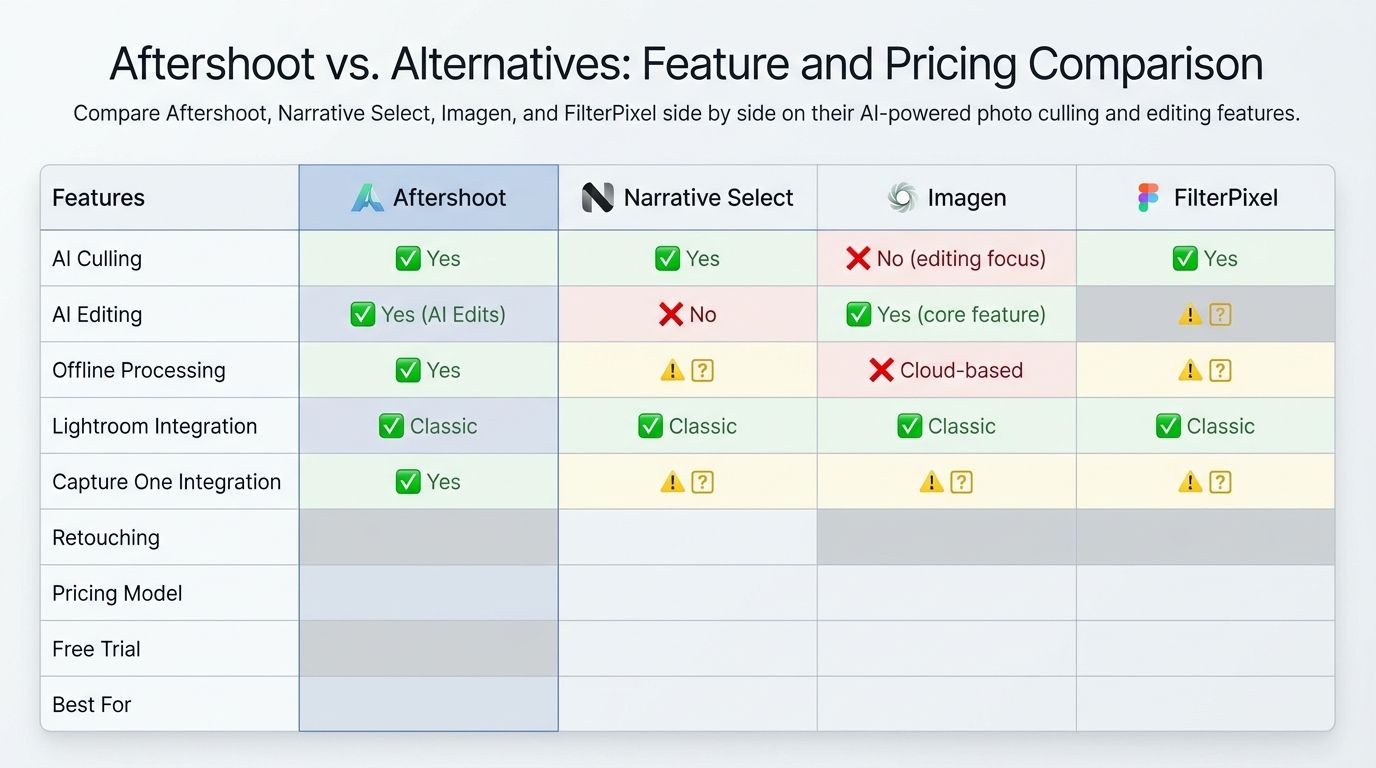
Aftershoot vs. Alternatives: Feature and Pricing Comparison
| Feature | Aftershoot | Narrative Select | Imagen | FilterPixel |
|---|---|---|---|---|
| AI Culling | ✅ Yes | ✅ Yes | ❌ No (editing focus) | ✅ Yes |
| AI Editing | ✅ Yes (AI Edits) | ❌ No | ✅ Yes (core feature) | ⚠️ Verify at publish time |
| Offline Processing | ✅ Yes | ⚠️ Verify at narrativeapp.com | ❌ Cloud-based | ⚠️ Verify at publish time |
| Lightroom Integration | ✅ Classic | ✅ Classic | ✅ Classic | ✅ Classic |
| Capture One Integration | ✅ Yes | ⚠️ Verify at narrativeapp.com | ⚠️ Verify at imagen-ai.com | ⚠️ Verify at publish time |
| Retouching | ✅ Add-on | ❌ No | ⚠️ Verify | ❌ No |
| Pricing Model | Subscription (USD) | Subscription (verify) | Per-image or subscription (verify) | Subscription (verify) |
| Free Trial | ✅ Yes | ✅ Yes | ✅ Yes | ✅ Yes (verify) |
| Best For | All-in-one for high-volume photographers | Culling purists | Style-matched editing specialists | Budget-conscious evaluators |
All competitor feature and pricing data must be verified at the official sites — [narrativeapp.com](https://narrativeapp.com), [imagen-ai.com](https://imagen-ai.com), and the FilterPixel official site — at the time of reading. The AI photo software market changes quickly.
💡 Capture One Integration > Aftershoot supports Capture One export, which matters if you've already invested in Capture One Pro. Check whether Narrative Select and Imagen have added Capture One support since the last time you looked — the Capture One integrations page is the authoritative source.
When to Choose Aftershoot Over Alternatives
- Choose Aftershoot if you need both AI culling and AI editing in one subscription rather than paying for two separate tools.
- Choose Narrative Select if you only need culling and prefer a simpler pricing structure — verify current pricing at narrativeapp.com.
- Choose Imagen if your primary goal is style-matched AI editing and you already have a culling workflow you're happy with. Review their current pricing at imagen-ai.com.
- Choose FilterPixel if you want a budget option but verify RAW compatibility for your specific camera body before subscribing.
Pros and Cons
✓ Pros
- Processes images entirely offline — no cloud upload of client files
- Detects duplicates, blur, and closed eyes with adjustable sensitivity
- Integrates directly with Lightroom Classic and Capture One
- AI Edits learns from your own editing history to replicate your personal style
- Saves significant time for high-volume shoots such as weddings and events
- Free trial available to test before committing
✗ Cons
- Subscription-only model — no one-time purchase option
- Pricing is in USD, which may be a consideration for international photographers
- AI Edits output requires human review — not a fully automated delivery pipeline
- Requires a relatively modern Mac or PC — verify current system requirements on aftershoot.com
- Accuracy varies depending on threshold configuration and shooting conditions
Who Should Use Aftershoot — and Who Should Wait
Here's the honest cut: Aftershoot is built for a specific kind of photographer. If that's you, it's one of the best time investments you'll make this year. If it isn't, the subscription will sit mostly unused.
✓ Aftershoot Is a Strong Fit If You:
- Regularly shoot weddings, events, or portrait sessions with 1,000 or more images per job
- Spend 2 or more hours culling before you can begin editing
- Use Adobe Lightroom Classic or Capture One as your primary editing platform
- Want to keep client image data local rather than uploaded to the cloud
- Are willing to invest time upfront training the AI Edits profile with your existing catalog
✓ Consider Waiting If You:
- Shoot fewer than a few hundred images per session and cull quickly
- Primarily shoot video or shoot in JPEG only — verify RAW format support on aftershoot.com
- Are not yet consistent in your editing style — AI Edits needs a consistent set of training images to perform well
- Prefer a one-time software purchase over a recurring subscription
Limitations to Know Before You Subscribe
No review is complete without the parts the marketing page won't tell you. Here are the honest trade-offs.
⚠️ AI Culling Is Not 100% Accurate > No AI culling tool eliminates the need for human review. Aftershoot will occasionally flag a keeper as blurry or mark a unique frame as a duplicate — especially at higher sensitivity settings. For important events — weddings, newborn sessions, one-time commercial shoots — review Aftershoot's selections before deleting anything. Keep the originals until you've delivered.
⚠️ Pricing Changes Frequently > Aftershoot has changed its plan structure and pricing multiple times since launch. Any figures you see in older reviews are likely outdated. Verify current pricing at aftershoot.com/pricing immediately before subscribing — not a week before, not from memory.
⚠️ System Requirements Matter > Aftershoot's AI processing is computationally intensive. Older MacBook Airs, entry-level Windows laptops, and machines with limited RAM will see significantly longer processing times. Verify current minimum RAM, GPU, and OS requirements on aftershoot.com/features before committing to an annual plan.
Edge Cases Where AI Culling Struggles
- Low-light reception or nightclub photography where most frames have similar motion-blur characteristics.
- Burst sequences with very subtle expression differences — the AI may not reliably pick the best micro-expression within a tight bracket.
- Unusual or vintage lens rendering that the AI hasn't been trained to recognize as sharp (soft Petzval renderings, Helios swirl, etc.).
- Fisheye or ultra-wide images where distortion affects sharpness scoring.
Frequently Asked Questions
Is Aftershoot worth the subscription?
For photographers who regularly cull 1,000 or more images per shoot, Aftershoot typically pays for itself quickly in time savings. Photographers with smaller volumes or infrequent shoots may not recoup the subscription cost as easily. The free trial is the best way to measure your personal return before committing.
How accurate is Aftershoot's AI culling?
Accuracy depends on threshold settings and shooting conditions. Aftershoot reliably identifies clear duplicates, heavily blurred frames, and closed eyes, but may misclassify images at the edges of these categories — particularly in difficult lighting or with subtle expression differences. Human review of selections is recommended before deleting any originals.
Does Aftershoot work offline?
Yes. Aftershoot processes all images locally on your computer and does not require your RAW files to be uploaded to the cloud. An internet connection is only needed for account activation and software updates.
Does Aftershoot work with Capture One?
Aftershoot supports export to Capture One as well as Adobe Lightroom Classic. Verify current integration details and any version requirements on aftershoot.com/features at the time of reading.
How much does Aftershoot cost in 2026?
Aftershoot offers multiple subscription tiers including Culling-only, AI Edits, and bundle options. Pricing has changed since early published reviews. Check the current rates and any available discount or annual billing options directly at aftershoot.com/pricing.
Can Aftershoot replicate my editing style?
Yes — the AI Edits feature trains a personalized style profile from your previously edited RAW files. Consistency of output improves with more training images. It's best suited to global adjustments like tone, exposure, and color grading. It does not replicate localized manual edits such as dodging, burning, or targeted masking.
What cameras and RAW formats does Aftershoot support?
Aftershoot supports a wide range of RAW formats from major manufacturers. Photographers using Fujifilm, Sony, Nikon, Canon, and others should verify their specific camera model and firmware version are supported on the official Aftershoot compatibility page before subscribing.
How is Aftershoot different from Narrative Select?
Aftershoot offers both AI culling and AI editing in one platform, while Narrative Select focuses primarily on culling. Aftershoot also includes Retouch and Portfolio features. The right choice depends on whether you need an end-to-end solution or a culling-only tool. Compare current pricing on aftershoot.com and narrativeapp.com before deciding.
Final Verdict: Is Aftershoot Worth It in 2026?
Aftershoot is worth it if you shoot high-volume weddings, events, or portrait sessions and your time is worth more per hour than the subscription costs per month. For most working photographers in those categories, that math works out inside a single shoot. The offline processing is a genuine privacy and reliability advantage over cloud-based competitors, and the combination of culling plus AI Edits in one subscription is the most complete single-tool offering in this category.
💡 Our Verdict > Aftershoot is well-suited to high-volume photographers who process 1,000 or more images per shoot and work in Lightroom Classic or Capture One. The offline processing and dual culling-plus-editing capability make it one of the more comprehensive single-tool solutions available. The subscription model and the requirement for human review of AI output are the main trade-offs to weigh against time savings.
If you want to actually know whether it works for your specific workflow, skip the review paralysis and run the free trial on a real recent shoot. One wedding folder will tell you more than ten reviews will. Start at aftershoot.com, verify current pricing, and measure your own time savings before you commit to an annual plan.