What are the best alternatives to Adobe Lightroom in 2026?
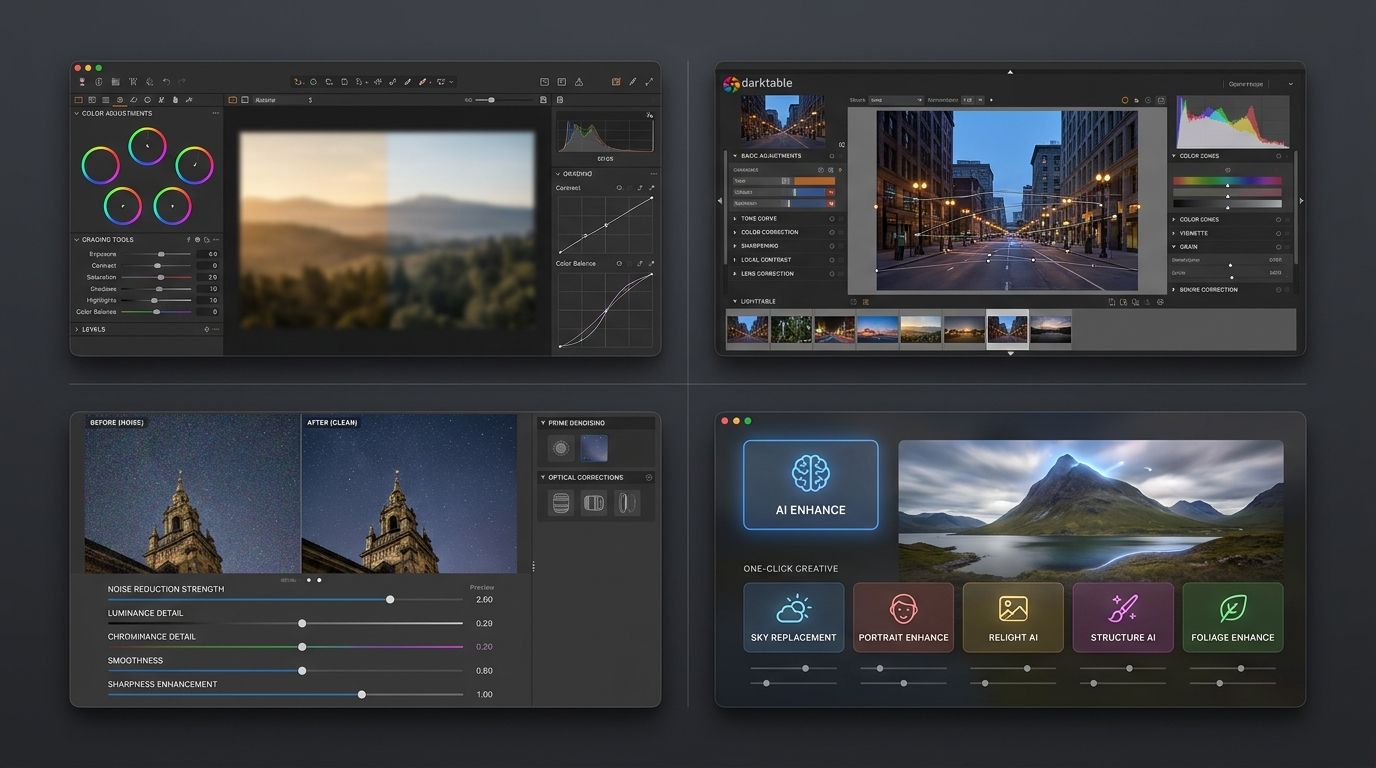
Quick answer: The best Lightroom alternatives in 2026 include Capture One Pro (best for professionals), DxO PhotoLab (best RAW rendering), ON1 Photo RAW (best all-in-one value), Darktable (best free option), and RawTherapee (best free open-source). Each offers non-destructive RAW editing without Adobe's subscription, with pricing ranging from free to around $300 or more for a perpetual license depending on the tool and region.
Compare the best Adobe Lightroom alternatives in 2026 — free, paid, and open source. See pricing, platform support, DAM features, and which tool fits your workflow.
Key Takeaways
- No single "best" tool exists. The right pick depends on your OS, budget, and workflow needs.
- Capture One Pro is the go-to for studio and professional photographers who need precise color control.
- Darktable and RawTherapee are powerful, fully free, and open source across Windows, macOS, and Linux.
- DxO PhotoLab's DeepPRIME noise reduction is widely regarded as class-leading for high-ISO RAW files.
- Mobile photographers on iOS should consider Photomator or Darkroom as capable Lightroom replacements.
- Migrating from Lightroom is possible, but Develop edits do not transfer. Export XMP sidecars and finished TIFFs first.
- Pricing listed is approximate and varies by region. Always verify on the vendor's official pricing page.
Why Photographers Are Leaving Lightroom in 2026
Here's the reality: a lot of photographers aren't leaving Lightroom because they dislike the software. They're leaving because of how Adobe sells it, how the pricing compounds over years, and how uneasy recent policy changes have made them feel about handing photos to a cloud service they don't control.
The good news? You have real options now. A few years ago, "Lightroom alternative" meant compromise. Today it means choice.
Here are the main reasons photographers go looking for something else:
- No perpetual license. Adobe's Photography Plan is subscription-only — stop paying, lose access to the app.
- Cumulative cost. Over five to ten years, subscription fees can easily exceed the one-time cost of a competing tool.
- Terms of Service anxiety. Updates to Adobe's terms in recent years prompted widespread discussion about content access and AI training.
- Performance on large catalogs. Photographers with libraries in the hundreds of thousands often report slowdowns in Lightroom Classic.
- Better competitors. RAW rendering, noise reduction, and DAM features in rival tools have caught up — and in some cases pulled ahead.
⚠️ Note on Adobe's Terms of Service > Adobe updated its Terms of Service in recent years in ways that raised user concern about content access and AI model training. Adobe has since clarified its position publicly, but policies evolve. Before drawing conclusions, review Adobe's current Terms of Use directly rather than relying on secondhand summaries.
The Subscription Cost Problem
Adobe's Photography Plan runs on a recurring monthly or annual subscription. There is no perpetual license option for Lightroom — not Classic, not CC. If you cancel, your develop module loses its edit panel and reverts to a limited viewer.
Add it up over five years and the math gets uncomfortable. The same money could buy two perpetual licenses to competing tools with room to spare. For photographers who already know their workflow and don't need constant new features, paying indefinitely for software you've already mastered feels wrong.
Privacy, Data, and AI Training Concerns
In 2024, Adobe updated its general terms in a way that many users interpreted as granting broader access to their content. Adobe later issued clarifications stating it does not use customer cloud content to train generative AI models without permission.
Whether you find that reassuring is a personal call. The simpler answer for many photographers has been to pick software that runs locally, keeps files on their own drives, and never requires a cloud round trip. Several of the tools below do exactly that.
Performance, DAM Limitations, and Feature Gaps
Lightroom Classic's catalog model is powerful, but photographers managing six-figure libraries commonly report lag on imports, previews, and smart collections. Lightroom's DAM is also a walled garden: your star ratings and keywords export cleanly via XMP, but Develop edits are locked inside Adobe's format.
Meanwhile, Capture One's color tools, DxO's DeepPRIME noise reduction, and Darktable's scene-referred pipeline have genuinely closed — or in specific areas, surpassed — the gap. For a long time, Lightroom was the obvious default. In 2026, it's just one option among many.
Quick-Pick Recommendations by Use Case
Not everyone has time to read 4,000 words before choosing software. If you want the short version, pick from the list below based on your situation, then jump to that tool's section for the detail.
- Best for professionals and studio work: Capture One Pro
- Best RAW rendering and noise reduction: DxO PhotoLab
- Best all-in-one value with perpetual license: ON1 Photo RAW
- Best AI-powered editing for enthusiasts: Luminar Neo
- Best free and open-source option: Darktable
- Best free alternative with advanced tone-mapping: RawTherapee
- Best for iOS and Apple Silicon Mac: Photomator
- Best for Linux: Darktable or digiKam
💡 How to use this guide > Jump directly to the tool section that matches your use case, or scroll to the comparison table below for a side-by-side view before diving into details. Every tool section follows the same pros / cons / best-for structure so you can skim.
Side-by-Side Comparison: Lightroom Alternatives at a Glance
Let's break down the actual costs and capabilities side by side. All prices are approximate as of 2026 and vary by region. Always verify on the vendor's page before buying.
| Tool | Pricing Model | Approx. Starting Price | Platforms | DAM Included | Best For |
|---|---|---|---|---|---|
| Capture One Pro | Subscription or Perpetual | ~$24/mo or ~$299 perpetual | macOS, Windows | Yes | Studio pros, color-critical work |
| DxO PhotoLab | Perpetual | ~$139 (Essential) / ~$229 (Elite) | macOS, Windows | Basic | High-ISO RAW quality |
| ON1 Photo RAW | Perpetual + optional upgrade | ~$99.99 | macOS, Windows | Yes | All-in-one Lightroom replacement |
| Luminar Neo | Subscription or Perpetual | ~$79/yr or ~$149 perpetual | macOS, Windows | Limited | AI-driven edits for enthusiasts |
| Darktable | Free, open source | Free | macOS, Windows, Linux | Yes | Technical photographers, Linux users |
| RawTherapee | Free, open source | Free | macOS, Windows, Linux | No | Advanced tone-mapping fans |
| Affinity Photo 2 | Perpetual | ~$69.99 | macOS, Windows, iPad | No | Photoshop-style editing on a budget |
| Photomator | Subscription or Perpetual | ~$29.99/yr or ~$99.99 perpetual | iOS, iPadOS, macOS | Via Apple Photos | iPhone and iPad users |
| Darkroom | Freemium + Subscription | Free / ~$49.99/yr Pro | iOS, iPadOS, macOS | Via Apple Photos | Apple ecosystem workflow |
| digiKam | Free, open source | Free | macOS, Windows, Linux | Yes (best in class free) | Catalog and metadata management |
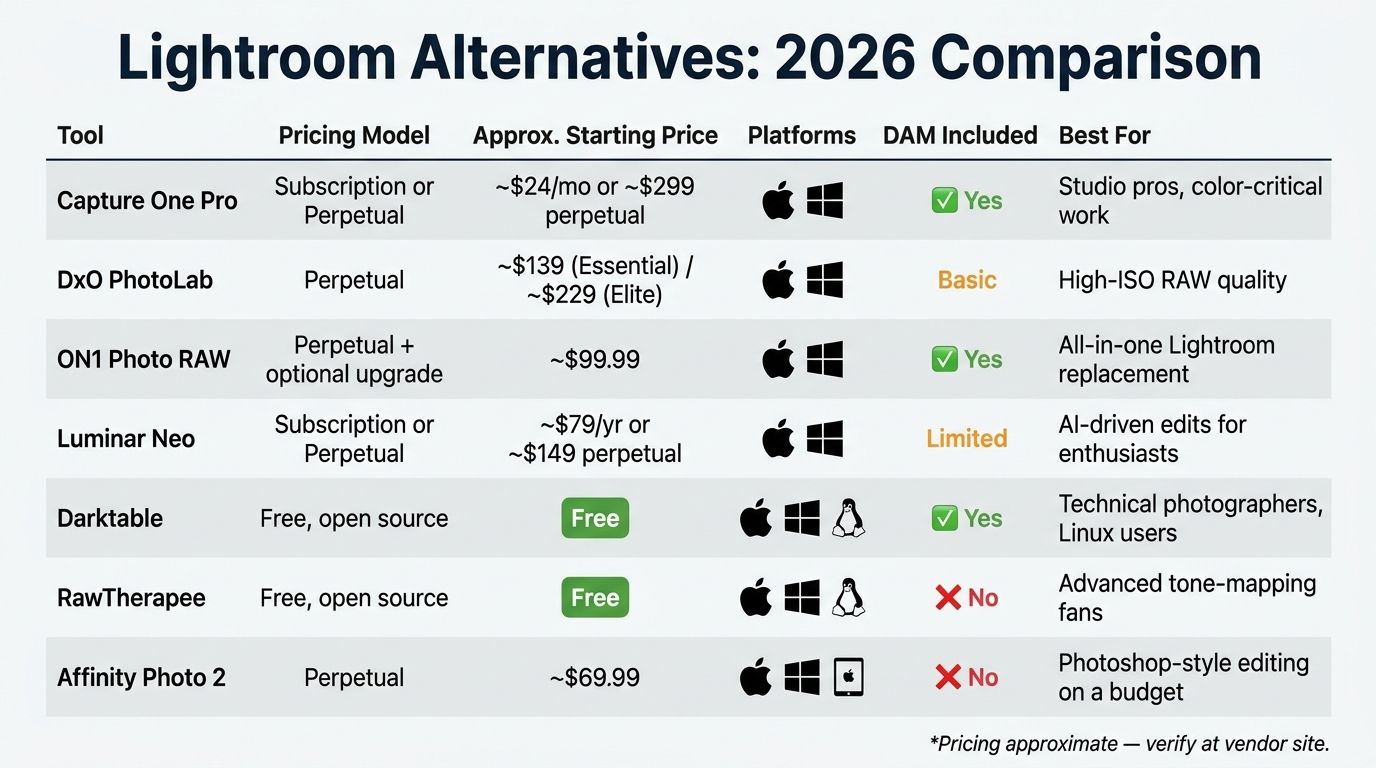
⚠️ Pricing disclaimer > Prices are approximate, vary by region, and change frequently. Always check the official vendor pricing page before purchasing. Last verified 2026.
Best Paid Lightroom Alternatives
The paid tools below all offer perpetual license options (with Capture One and Luminar also offering subscriptions). You pay once, you own the version. Future upgrades are optional.
Capture One Pro — Best for Professionals
Capture One is the name you hear most often in commercial, fashion, and studio environments. It's built around the twin pillars Lightroom users don't always get: color science and tethered shooting.
The color tools go deeper than Lightroom's HSL panel. You get a dedicated color editor with skin-tone uniformity, advanced masking with layers, and a tethered capture workflow that still sets the industry standard. According to Capture One's official pricing page, you can choose either a subscription or a perpetual license, though plans and camera-specific editions have changed over the years.
Pros: - Exceptional color rendering and skin-tone handling - Industry-standard tethered shooting - Robust DAM with layers, styles, and advanced masking - Perpetual license option still available
Cons: - Expensive relative to Lightroom's monthly fee - Camera-brand-specific editions (Fujifilm, Sony) have been consolidated - Steeper learning curve - Support for brand-new camera models can lag Adobe by weeks
Best for: Studio photographers, fashion and commercial shooters, and serious enthusiasts who want color accuracy above all else.
DxO PhotoLab — Best RAW Rendering and Noise Reduction
If you shoot at ISO 6400 and above, DxO PhotoLab deserves a serious look. The DeepPRIME and DeepPRIME XD noise reduction engines are regularly called out by DPReview and other reviewers as class-leading for high-ISO RAW files.
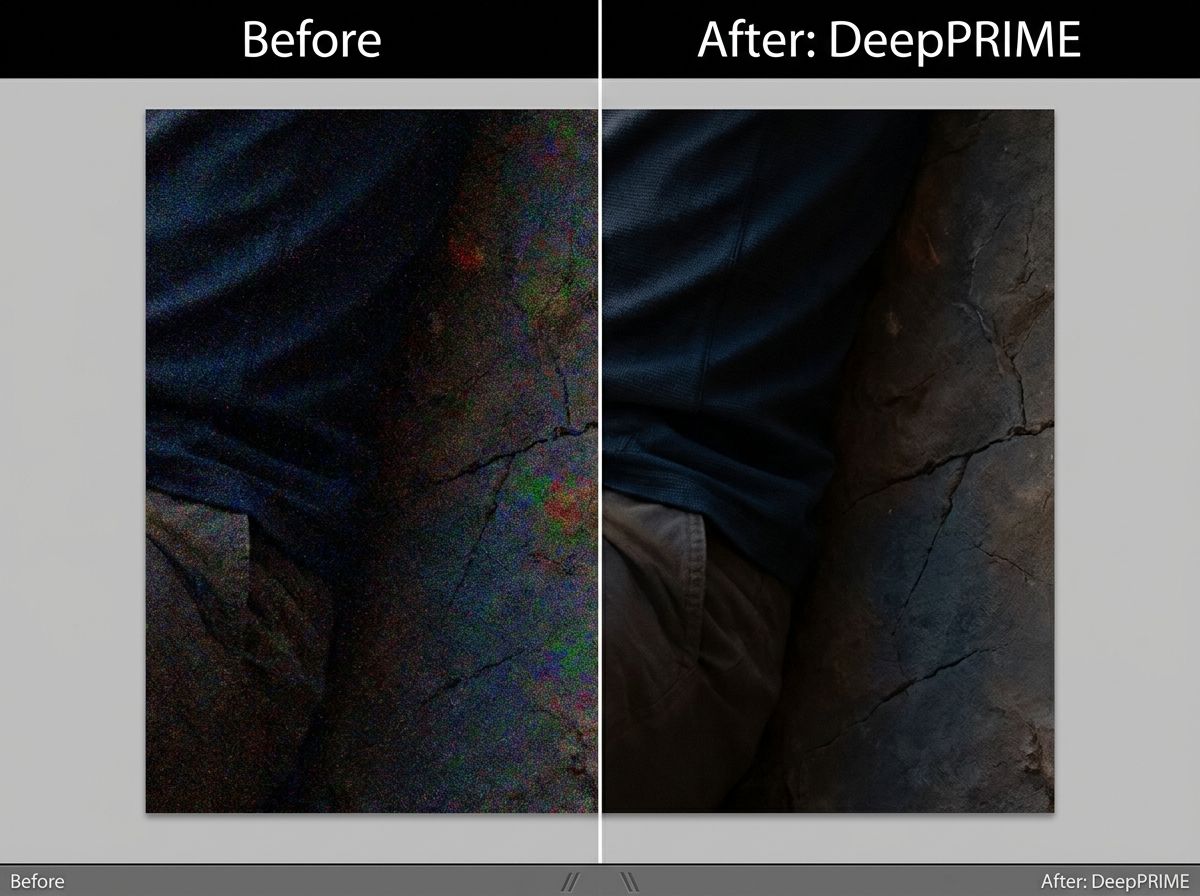
The other secret weapon is DxO's optical module system. When you import a RAW file, PhotoLab identifies your camera-and-lens combination and applies lens-specific corrections automatically — distortion, vignetting, chromatic aberration, and sharpness fall-off. According to DxO's product page, the library covers tens of thousands of body-lens pairs.
The weakness is the DAM. PhotoLab's library features are basic compared to Lightroom. Many photographers pair DxO with a dedicated catalog tool.
Pros: - Best-in-class high-ISO noise reduction - Automatic lens corrections via optical modules - Perpetual license (Essential and Elite editions) - Excellent RAW rendering quality
Cons: - Weak DAM — not a library replacement on its own - Can feel slow when exporting large batches with DeepPRIME applied - Masking tools are improving but still trail Lightroom and Capture One
Best for: Wildlife, sports, concert, and event photographers who prioritize technical RAW quality and don't mind using a separate catalog tool.
ON1 Photo RAW — Best All-in-One Value
ON1 Photo RAW is the closest spiritual successor to Lightroom Classic for photographers who want a perpetual license and don't want to piece together multiple tools. According to ON1's product page, it combines RAW editing, non-destructive layered editing, AI masking, and a built-in DAM in one application.
The all-in-one model matters. You import, organize, edit, and export without jumping apps. ON1 also works as a plug-in inside Lightroom and Photoshop, which makes it unusually friendly for gradual migration — you don't have to burn the bridge on day one.
Pros: - Perpetual license with optional annual upgrade - Genuine all-in-one workflow (DAM + editor + layers) - Wide RAW format support - Works as a plug-in for Lightroom and Photoshop
Cons: - RAW rendering is considered a step behind Capture One and DxO by some reviewers - Resource-intensive on older machines - UI density can feel overwhelming at first
Best for: Enthusiasts and prosumers who want the Lightroom experience without the subscription.
Luminar Neo — Best AI-Powered Editing for Enthusiasts
Luminar Neo takes a different angle. Instead of competing on RAW purity, it leans into AI: sky replacement, portrait retouching, relight, structure enhancement, and background removal are one-click features. The Luminar Neo product page lists subscription and one-time purchase options, plus a growing set of paid extensions.
AI tools are powerful but opinionated. Results vary by image. A sky replacement on a crisp landscape looks convincing; the same tool on a complex tree-lined horizon can fight you. Treat these as creative shortcuts, not scientific processors.
Luminar Neo is also not a full DAM. Catalog features are lighter than Lightroom Classic, so photographers with large libraries often keep it as a secondary editor.
Pros: - Fast, beginner-friendly AI tools - One-time purchase option available - Approachable interface - Decent set of creative extensions
Cons: - Limited DAM - AI output quality varies by image - Smaller community and fewer learning resources than Lightroom - Skylum has changed its pricing model multiple times — verify terms before buying
Best for: Hobbyists and social-media-focused photographers who want dramatic edits in minutes.
Affinity Photo 2 — Best Budget One-Time Purchase
Affinity Photo 2 isn't a Lightroom clone. It's closer to Photoshop — a pixel editor with full RAW development, focus stacking, HDR merging, and panorama stitching. For the price, the feature set is extraordinary. One payment, no subscription, no catalog lock-in.
The caveat is that there's no DAM. You open files from folders. If your Lightroom use revolves around catalog management, keyword hierarchies, and smart collections, Affinity alone isn't enough — you'll want to pair it with digiKam or another organizer.
Pros: - Very affordable one-time purchase - Broad feature set across RAW, pixel editing, HDR, and panorama - Available on macOS, Windows, and iPad - Strong, growing community
Cons: - No catalog or DAM - RAW rendering is capable but not class-leading - Interface is pixel-editor-first, not library-first
Best for: Photographers who want a Photoshop-style editor with RAW support at a low one-time cost.
Best Free and Open-Source Lightroom Alternatives
If you want to actually escape Adobe without opening your wallet, free tools in 2026 are stronger than most photographers realize. Three in particular — Darktable, RawTherapee, and digiKam — are mature, actively developed, and cross-platform.
💡 Open source vs free-to-use > Open-source tools (Darktable, RawTherapee, digiKam) are free and have publicly available source code, which means they're auditable and community-maintained. Some free-to-use tools are closed-source freeware with limitations. Both categories are covered below.
Darktable — Best Free Overall
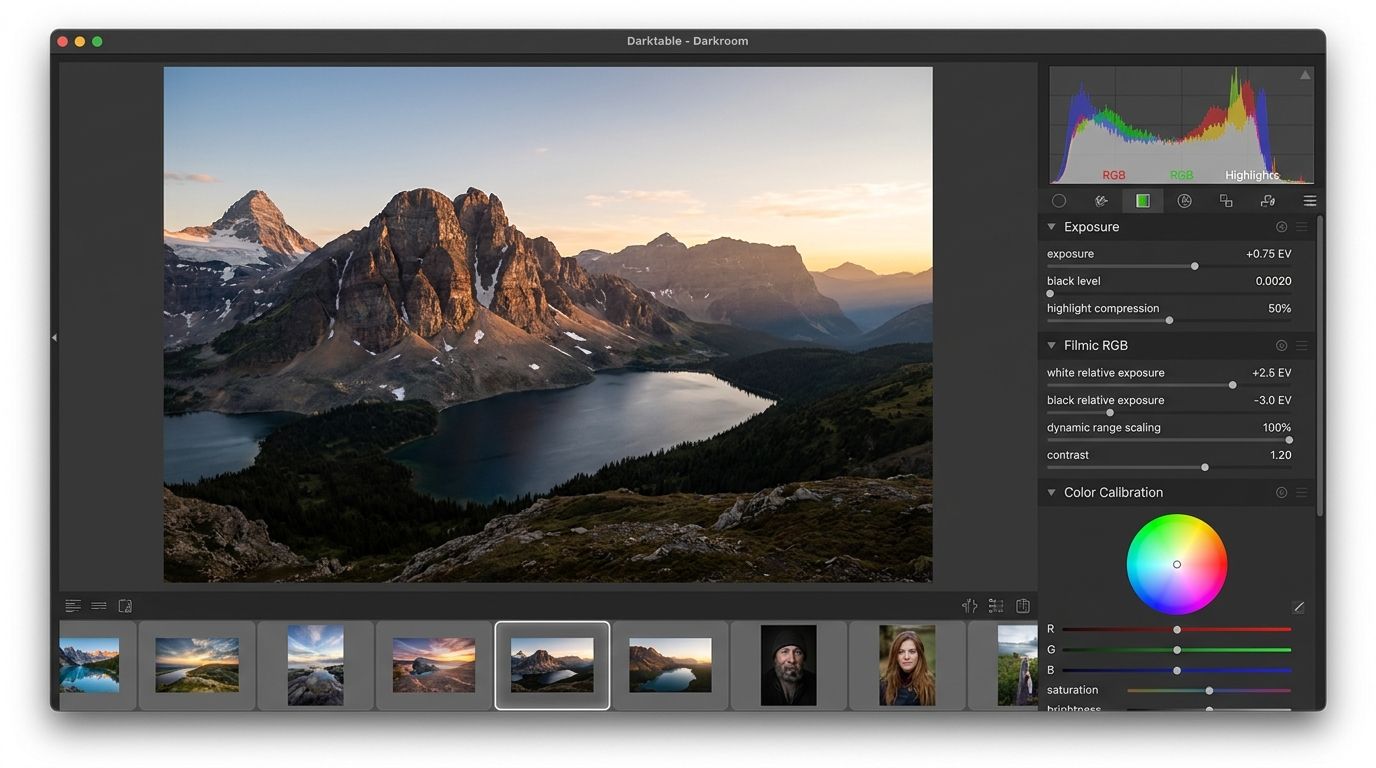
Darktable is the headline free alternative. The Darktable project is open-source, cross-platform (Windows, macOS, Linux), and genuinely capable. It uses a non-destructive, module-based editing paradigm with a built-in "lighttable" for organizing images — similar in concept to Lightroom's Library and Develop split, though the interface is distinctly its own.
Recent releases have introduced a scene-referred workflow and the filmic RGB tone mapper, which give Darktable a modern color pipeline comparable to what you'd find in professional-grade tools. The learning curve is real — modules stack in a specific order, and the terminology differs from Lightroom.
Pros: - Completely free, no subscription, no catch - Strong RAW support across major camera brands - Built-in DAM via lighttable - Active development and community - Native Linux support
Cons: - Steep learning curve for Lightroom migrants - Interface is not immediately intuitive - Documentation sometimes trails new features
Best for: Technically inclined photographers who want a fully featured free RAW editor and are willing to invest learning time.
RawTherapee — Best Free Advanced Tone-Mapping
RawTherapee sits at the opposite end of the free spectrum from Darktable's DAM-plus-edit model. There's no library module. It's a pure processor — and a formidable one. The tone-mapping, exposure, and demosaicing controls are deeper than most paid applications.
Photographers who love dialing in curves, wavelets, and HDR tone-mapping gravitate here. The workflow assumes you'll bring your own file organizer, which is why RawTherapee pairs naturally with digiKam.
Pros: - Exceptional processing controls - Free, open-source, cross-platform - Multiple demosaicing algorithms - Strong community
Cons: - No library management - Interface feels dated - Slower batch processing on large sets
Best for: Photographers who want granular control over tone-mapping and color science without spending money.
digiKam — Best Free DAM and Library Manager
digiKam is the DAM powerhouse of the free world. Face recognition, GPS mapping, keyword hierarchies, albums, metadata tag batching — the catalog feature set rivals paid tools. It's especially entrenched in the Linux photography community but runs on macOS and Windows as well.
digiKam does include RAW editing, but it's not the main attraction. Most users run digiKam as their catalog and send images to Darktable or RawTherapee for serious development.
Pros: - Powerful DAM, arguably the best free catalog available - Completely free and open source - Excellent metadata and tagging tools - Linux-friendly
Cons: - RAW editing is not class-leading - UI can feel complex for newcomers - Less beginner-friendly than paid tools
Best for: Photographers who primarily need catalog and library management and prefer open-source software.
Honorable mentions: ART (a Darktable/RawTherapee fork with a simpler UI) and Photopea (browser-based Photoshop alternative) are worth knowing about if the three above don't fit.
Best Lightroom Alternatives for Mobile (iOS and Android)
Mobile RAW editing has gotten serious. If you shoot RAW on an iPhone, iPad Pro, or a mirrorless camera that you offload to mobile, you don't need Lightroom Mobile to get professional-grade results.
💡 iOS vs Android coverage > The strongest mobile RAW editing ecosystem currently lives on iOS and iPadOS. Android options exist but are more limited for full non-destructive RAW workflows. Be aware of that gap when planning a mobile-first workflow.
Photomator — Best for iPhone and iPad
Photomator comes from the Pixelmator team — the same people behind Pixelmator Pro on macOS. It's native Apple Silicon, integrates deeply with iCloud Photos, and offers non-destructive RAW editing with ML-based subject masking, color adjustments, and repair tools.
Pricing is either a modest annual subscription or a one-time purchase. Check the App Store for current terms.
Pros: - Polished native Apple experience - iCloud Photos sync across devices - Strong RAW support - One-time purchase option
Cons: - Apple ecosystem only — no Windows, Android, or Linux - Smaller user base than Lightroom Mobile
Best for: iPhone and iPad photographers already in the Apple Photos ecosystem.
Darkroom — Best for Apple Ecosystem Workflow
Darkroom is another native iOS, iPadOS, and macOS app with non-destructive editing, batch processing, and preset management. It syncs via iCloud and reads RAW files from most recent camera models.
The freemium model is generous — you can do a lot before hitting the premium wall. When you want advanced features (curves, colour grading, batch export presets), you subscribe.
Pros: - Fast, intuitive UI - Cross-device sync via iCloud - Free to start - Thoughtful workflow design
Cons: - Apple only - Advanced features require subscription
Best for: Enthusiasts who want a fast, polished experience across iPhone, iPad, and Mac.
Snapseed — Best Free Mobile Option
Snapseed is Google's free editor, available on iOS and Android. It supports RAW files, offers a selective adjustment brush, healing tool, and a wide filter set. There's no catalog — it's purely an editor.
Development has slowed in recent years, but the app still runs well and remains the most capable free option on Android.
Pros: - Completely free - Available on both iOS and Android - Capable RAW support - Easy to learn
Cons: - No library management - Limited export control - Not suited to professional batch workflows - Infrequent updates
Best for: Casual and hobbyist mobile photographers who want free RAW editing on any smartphone.
Best Lightroom Alternatives for Linux
Linux photographers have been underserved for years. Adobe has never shipped Lightroom for Linux, and running it through Wine or a VM is a compromise. The good news is that the best free Lightroom alternatives are not only Linux-friendly — they were often Linux-first.
💡 Linux installation note > All tools in this section are available via their official websites and commonly through package managers like apt, Flatpak, and Snap depending on your distribution. Check the official project page for the most current installation method for your distro.
Darktable on Linux
Darktable is one of the most mature and actively developed RAW editors on Linux. Native packages are available for every major distribution — Ubuntu, Fedora, Arch, openSUSE — plus a Flatpak that works across distros.
The combination of non-destructive editing, lighttable DAM, and a scene-referred filmic pipeline makes it the closest Linux equivalent to Lightroom's end-to-end workflow. The Linux user community is especially active, which means tutorials, presets, and help are easy to find.
RawTherapee on Linux
RawTherapee ships as native packages, AppImage, and Flatpak for Linux. Technically minded Linux photographers often prefer it for the granular exposure, color, and tone-mapping controls.
Pair it with digiKam for library management and you have a complete, free, open-source workflow that runs natively on your distribution of choice.
digiKam on Linux
digiKam is especially well-established on Linux via KDE's standard packaging. It delivers the most Lightroom-like DAM experience on the platform: face tagging, GPS mapping, keyword hierarchies, and album management.
The natural pairing is digiKam for organization and Darktable or RawTherapee as the external editor for RAW development. Set them up together and you've essentially recreated Lightroom's Library and Develop split on Linux — for free.
Which Lightroom Alternative Is Right for You?
So, how do you pick? Match your situation to the tool.
| If you are... | Consider this tool |
|---|---|
| A professional needing precise color control | Capture One Pro |
| Shooting high ISO in challenging light | DxO PhotoLab |
| Wanting an all-in-one perpetual license app | ON1 Photo RAW |
| Looking for the best free option | Darktable |
| On Linux | Darktable or digiKam |
| On iPhone or iPad | Photomator or Darkroom |
| A beginner on a budget | Darktable (desktop) or Snapseed (mobile) |
| Wanting fast AI-driven edits | Luminar Neo |
💡 Try before you buy > Every paid tool on this list offers a free trial, usually 14 to 30 days. Download one or two and run them on actual images from your own library — not sample files. That's the only way to know if the color rendering, interface, and speed fit your workflow. Check vendor sites for current trial terms.
How to Migrate from Lightroom to a New RAW Editor
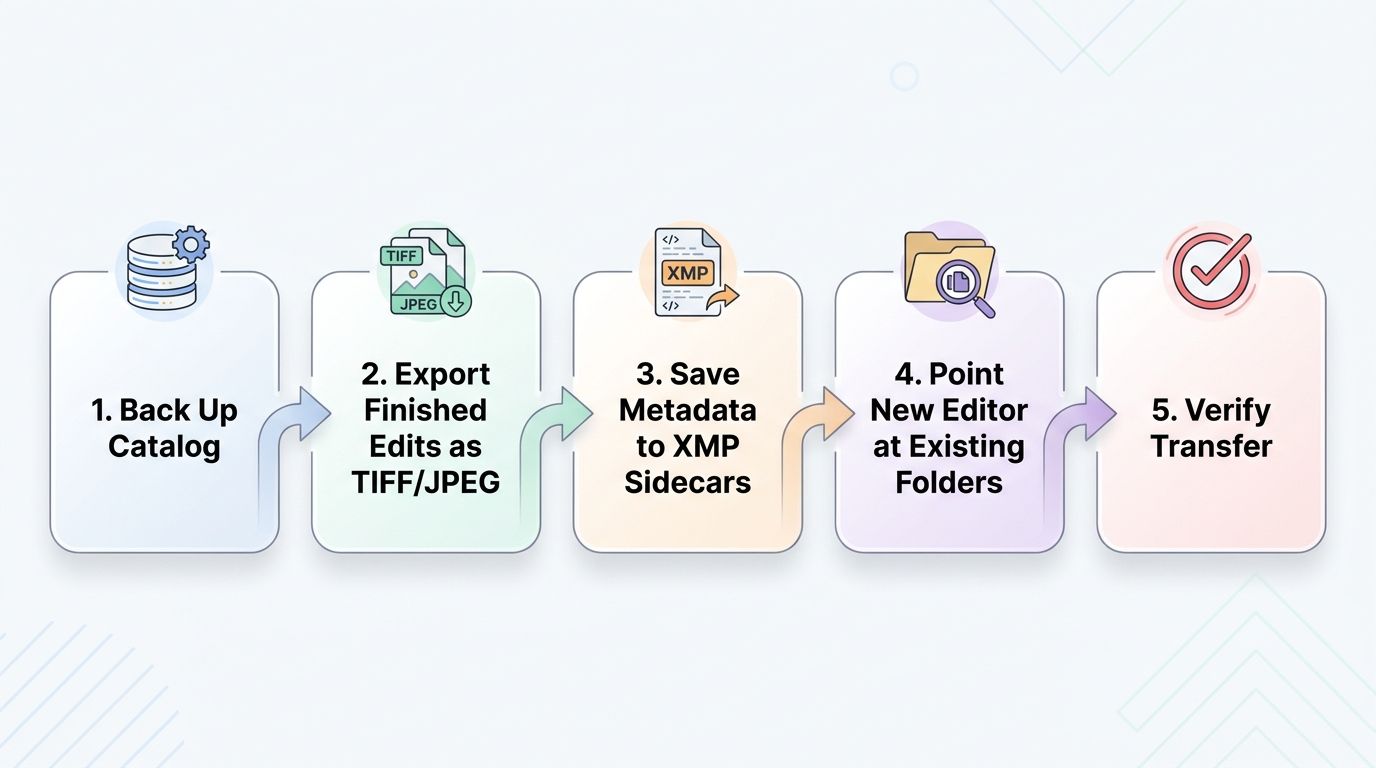
Here is the fix for moving your library, one step at a time. Before you start, understand what will and will not carry over.
⚠️ Develop edits do not transfer > Lightroom's Develop module adjustments are stored in Adobe's proprietary format and cannot be read by any other application. Only XMP-compatible metadata — star ratings, color labels, keywords, GPS — will carry over. Export finished images as TIFF before switching if preserving your edits matters. Note: this workflow assumes Lightroom Classic. Lightroom CC (cloud-only) stores metadata differently; you'll need to download originals and metadata first.
Pre-migration checklist:
- Back up your Lightroom catalog using File > Back Up Catalog
- Decide which photos need their edits preserved — Develop edits cannot transfer
- Export completed images as 16-bit TIFF or maximum-quality JPEG
- Save metadata to XMP sidecars via Metadata > Save Metadata to Files
- Note your folder structure so your new tool can point at the same directories
- Download your chosen alternative and test it on a small folder first
Step 1 — Back Up Your Lightroom Catalog
In Lightroom Classic, go to File > Back Up Catalog and choose a destination outside your photos folder (ideally on a separate drive). Keep this backup even after switching. If you ever need to reference an old edit history, this file is your only path back.
Step 2 — Export Finished Edits as TIFF or JPEG
Select every image with completed Develop edits that you want to preserve. Export as 16-bit TIFF (for maximum quality and future-proofing) or maximum-quality JPEG if storage is tight.
This freezes your creative work into a format any editor can open. Think of it as locking in your edits before the keys change.
Step 3 — Write Metadata to XMP Sidecar Files
In the Library module, select all photos (Ctrl+A / Cmd+A), then go to Metadata > Save Metadata to Files (Ctrl+S on Windows, Cmd+S on macOS). Lightroom will write a small .xmp file alongside each RAW containing your star ratings, color labels, keywords, flags, and GPS data.
This is the single most important step. Every alternative on this list — Capture One, DxO, ON1, Darktable, digiKam — can read these XMP sidecars.
Step 4 — Point Your New Editor at Your Existing Folders
Open your chosen alternative and browse to your existing photo library folder. Most applications will automatically detect and read the XMP sidecar files, pulling in your metadata on first import.
Do not move or rename your files or folders before this step. Changed paths break the link between sidecars and RAW originals, and recovering that connection is tedious.
Step 5 — Verify and Spot-Check Your Transfer
Browse a sample of images in your new application and confirm that star ratings, color labels, and keywords appear correctly. Check a few GPS-tagged shots to confirm location data transferred.
If metadata is missing, check two things: first, that XMP sidecars were actually saved (look for .xmp files next to your RAWs); second, that your new application is set to read external metadata on import — some apps default to reading only their internal database.
Frequently Asked Questions About Lightroom Alternatives
What is the best free alternative to Adobe Lightroom?
Darktable is the most fully featured free and open-source Lightroom alternative, offering non-destructive RAW editing and a built-in library module across Windows, macOS, and Linux. RawTherapee is a strong second choice for photographers who want advanced tone-mapping controls. Both are completely free with no subscription required.
Can I import my Lightroom catalog into another program?
No program can directly read Lightroom's proprietary catalog format or its Develop module edits. However, you can preserve star ratings, color labels, keywords, and GPS data by saving them as XMP sidecar files in Lightroom before switching. Most alternative editors — including Capture One, DxO PhotoLab, ON1, and Darktable — will read these XMP sidecars automatically on import.
Is Capture One better than Lightroom?
Capture One is widely regarded as superior for color science, tethered shooting, and professional studio workflows. Lightroom generally offers a smoother learning curve, deeper mobile integration, and a much larger ecosystem of presets and third-party plugins. Which is better depends on your specific priorities rather than any absolute measure.
Which Lightroom alternative works on Linux?
Darktable, RawTherapee, and digiKam are all fully featured, free, and open-source applications that run natively on Linux. Darktable is the closest to Lightroom in combining non-destructive RAW editing with library management. digiKam excels at catalog and metadata organization and pairs well with Darktable or RawTherapee as an external editor.
What are the best Lightroom alternatives for iPhone and iPad?
Photomator and Darkroom are the most capable paid options for iOS and iPadOS, both offering non-destructive RAW editing and iCloud integration. Snapseed is a strong free option available on both iOS and Android. All three support RAW files from most recent smartphones and cameras.
Why are photographers leaving Adobe Lightroom in 2026?
The most common reasons include Adobe's mandatory subscription model (there is no perpetual license option), concerns raised by changes to Adobe's Terms of Service, and the growing quality of competing tools that now match or exceed Lightroom in RAW rendering and noise reduction. Many photographers also prefer owning their software outright rather than paying indefinitely.
Do any Lightroom alternatives offer a one-time purchase instead of a subscription?
Yes. Capture One Pro, DxO PhotoLab, ON1 Photo RAW, Affinity Photo 2, and Luminar Neo all offer perpetual license purchase options as of 2026, though pricing varies by region and can change. Darktable and RawTherapee are completely free. Always check the vendor's current pricing page for the latest information.
Which Lightroom alternative has the best RAW processing quality?
DxO PhotoLab is frequently cited for class-leading noise reduction via DeepPRIME technology, and Capture One Pro is widely regarded for superior color science. RAW rendering quality is subjective and varies by camera model and shooting conditions. Most tools offer free trials so you can compare results using your own images — which is the only comparison that really matters.