
What is the best cloud storage for photographers in 2026?
Quick answer: The best cloud storage for photographers in 2026 is pCloud for most users — it offers a lifetime plan option, solid RAW file support, and AES-256 encryption. For maximum privacy, Sync.com's zero-knowledge encryption is unmatched, while Backblaze B2 is the most cost-effective solution for unlimited offsite backup of large RAW libraries.
Compare the best cloud storage for photographers in 2026 — RAW file support, zero-knowledge encryption, upload speeds, and lifetime vs subscription pricing for pros and hobbyists.
Key Takeaways
- pCloud is the top overall pick for photographers thanks to lifetime plans and broad RAW file support.
- Sync.com leads on privacy with true zero-knowledge encryption enabled by default.
- Backblaze offers the most affordable unlimited backup for large RAW and video archives.
- The 3-2-1 rule — three copies, two media types, one offsite — is the gold standard for photo safety.
- Lifetime cloud plans can cost less than three years of a comparable subscription at current pricing.
- iCloud Advanced Data Protection must be manually enabled; it is not on by default.
- Always verify that your chosen service preserves EXIF and XMP sidecar files before committing.
What Makes Cloud Storage Different for Photographers?
Here's the reality: hard drives fail, houses flood, and a single corrupted card reader can wipe out an entire shoot before you've even touched a slider in Lightroom. Generic cloud storage advice — pick Google Drive or iCloud, you're done — doesn't hold up when your "files" are 80 MB RAW frames stacked 2,000 deep per wedding, each carrying metadata that your editor depends on.
Photographers need a different buying lens. Not just storage capacity. Not just price per gigabyte. You need a service that stores RAW files losslessly, preserves EXIF and XMP sidecars, plays nicely with Lightroom or Capture One, and ideally offers zero-knowledge encryption so client galleries aren't sitting in plain text on someone else's server.
Before we get into provider rankings, a definition that trips up almost everyone new to this.
Cloud sync vs cloud backup for photos: Cloud sync mirrors a folder in real time — delete a file on your laptop and it's gone from the cloud too. Cloud backup keeps versioned copies of your files, including deleted ones, for a defined retention window. Photographers should use both: sync for active working files, backup for long-term safety.
Tip: Cloud Sync vs Cloud Backup > > Services like Dropbox, Google Drive, pCloud, and iCloud are sync-first. If your toddler drags your "Smith Wedding" folder to the trash, that deletion propagates. Services like Backblaze and IDrive are backup-first — they retain versions and deleted files for 30 days or longer. Serious photographers run both layers.
Why RAW Files Change the Math
RAW files are big, and they're getting bigger with every sensor generation. A single uncompressed RAW frame from a Sony A7R V can land between 65 MB and 120 MB depending on bit depth and compression settings, and Canon R5 RAW video can push roughly 2 GB per minute at the top-end codec — figures corroborated by DPReview coverage and manufacturer spec pages.
What that means in practice:
- A one-day wedding shoot commonly generates 20–60 GB of RAW files, before any video.
- A full-day commercial or portrait session can add another 10–30 GB.
- Unlike JPEGs, some consumer cloud services transcode or recompress RAW files silently. Confirm your service stores originals losslessly before you migrate anything irreplaceable.
- EXIF metadata (shutter speed, ISO, GPS, lens) and XMP sidecar files (your Lightroom adjustments) must survive the round-trip. If they don't, your edits break.
What to Look for in a Photographer-Focused Service
Before you compare brands, lock in your must-haves:
- Native RAW format support (CR3, NEF, ARW, RAF, ORF, DNG) with no transcoding.
- Zero-knowledge or client-side encryption, especially if you shoot paid client work.
- Reliable upload speed on multi-gigabyte batches, not just single-file demos.
- A desktop client that cooperates with Lightroom or Capture One working directories.
- File versioning plus deleted-file retention of at least 30 days.
- A pricing model you can live with for 5+ years — monthly, annual, or lifetime.
How We Evaluated Each Service
We're not going to pretend we ran six-month stress tests on every provider. We didn't. What we did is compare current provider documentation, published pricing pages, third-party benchmarks, and photographer community consensus from outlets like PetaPixel and DPReview. Every claim about pricing, encryption, or RAW handling links back to the provider's official source so you can verify it yourself.
Here's the framework we applied to every service:
- ✅ RAW file format support — lossless storage with no silent transcoding.
- ✅ Pricing — monthly, annual, and lifetime plan availability with transparent per-TB cost.
- ✅ Security — encryption standard, zero-knowledge availability, 2FA support.
- ✅ Capacity tiers — ability to scale from 500 GB to 10 TB+ without re-platforming.
- ✅ Client quality — desktop and mobile app stability, Windows/macOS/Linux coverage.
- ✅ Versioning — depth of file history and deleted-file retention window.
- ✅ Workflow compatibility — plays well with Lightroom, Capture One, and NAS devices.
- ✅ Performance — upload and download speed based on published independent benchmarks.
No single service wins on every axis. The provider reviews below call out the trade-offs honestly.
Top Cloud Storage Picks for Photographers at a Glance
If you want the short version before you keep reading, here are the picks that cover 90% of photographers:
- pCloud — best overall
- Sync.com — best for privacy
- Backblaze — best unlimited offsite backup
- IDrive — best for multi-device and NAS setups
- Amazon Photos — best free RAW storage (Prime members only)
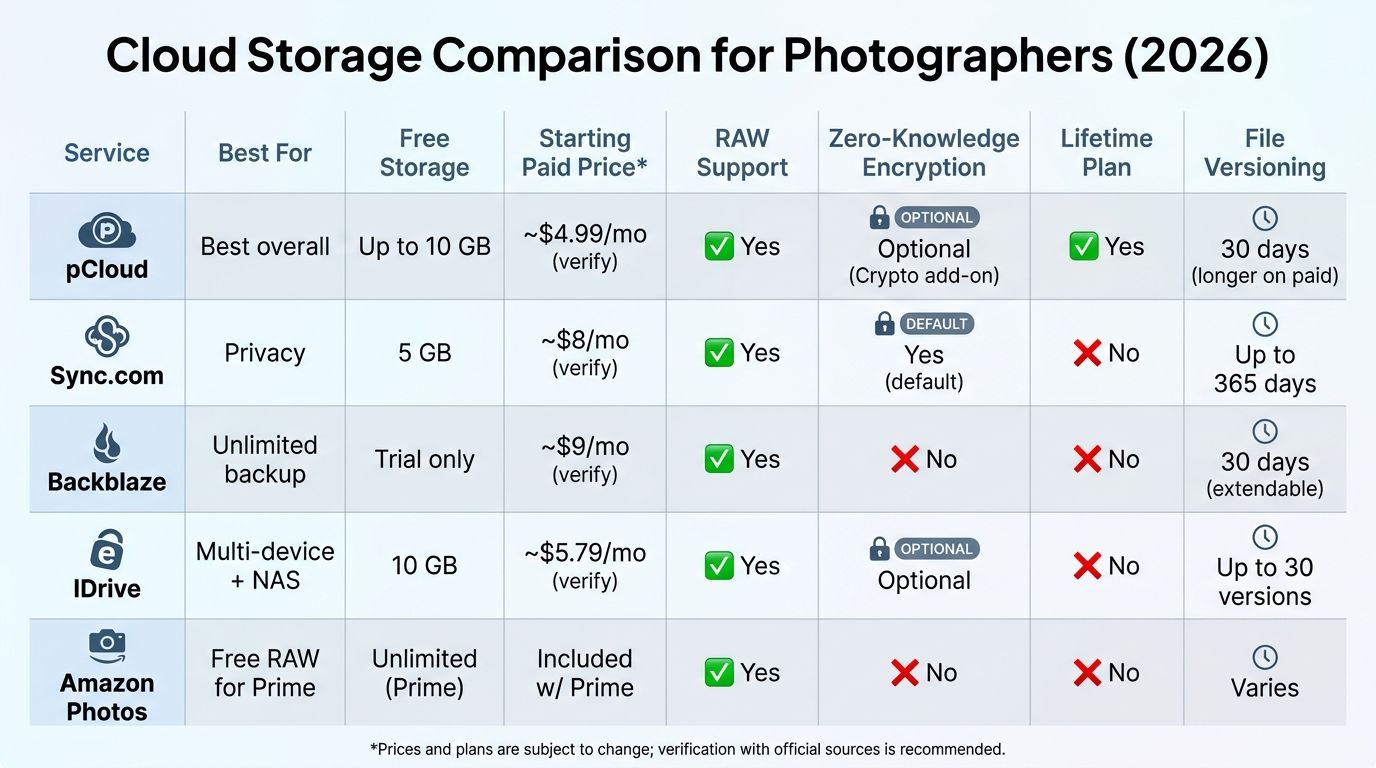
Cloud Storage Comparison for Photographers (2026)
| Service | Best For | Free Storage | Starting Paid Price* | RAW Support | Zero-Knowledge Encryption | Lifetime Plan | File Versioning |
|---|---|---|---|---|---|---|---|
| pCloud | Best overall | Up to 10 GB | ~$4.99/mo (verify) | Yes | Optional (Crypto add-on) | Yes | 30 days (longer on paid) |
| Sync.com | Privacy | 5 GB | ~$8/mo (verify) | Yes | Yes (default) | No | Up to 365 days |
| Backblaze | Unlimited backup | Trial only | ~$9/mo (verify) | Yes | No | No | 30 days (extendable) |
| IDrive | Multi-device + NAS | 10 GB | ~$5.79/mo (verify) | Yes | Optional | No | Up to 30 versions |
| Amazon Photos | Prime members | 5 GB (unlimited photos w/ Prime) | Included with Prime | Yes (unlimited for Prime) | No | No | Limited |
| Google One | Google ecosystem | 15 GB | ~$1.99/mo (verify) | Yes | No | No | Limited |
| iCloud+ | Apple ecosystem | 5 GB | ~$0.99/mo (verify) | Yes (incl. ProRAW) | Optional (ADP) | No | Limited |
| Proton Drive | Privacy + Swiss hosting | 5 GB | ~$4/mo (verify) | Yes | Yes (default) | No | Limited |
| Icedrive | Budget lifetime | 10 GB | ~$1.67/mo (verify) | Yes | Optional | Yes | Limited |
| Dropbox | Collaboration | 2 GB | ~$9.99/mo (verify) | Yes | No | No | Up to 180 days |
*All pricing approximate. Verify current pricing at the provider's official website.
Editor's Top 3 at a Glance > > - pCloud — Best overall. Lifetime plans eliminate recurring costs, RAW formats are stored losslessly, and the virtual-drive client keeps your SSD clean. > - Sync.com — Best privacy. Zero-knowledge encryption on by default, Canadian jurisdiction, excellent for client file confidentiality. > - Backblaze — Best unlimited backup. Flat-rate, unlimited storage for one computer and connected external drives at the time of backup.
Best Cloud Storage for Photographers: Detailed Reviews
⚠️ Pricing Disclaimer > > All pricing figures below are approximate and subject to change. Lifetime plan promotions vary by region and sale period. Always verify current pricing on the provider's official website before purchasing. Last verified at time of writing.
1. pCloud — Best Overall for Photographers
Best for: Photographers who want to escape recurring subscriptions and store RAW files in a polished interface.
pCloud is our top overall pick because it solves the two problems most photographers hate about cloud storage: ongoing bills and clunky RAW handling. All major RAW formats (CR3, NEF, ARW, DNG, RAF) are stored losslessly, and the built-in photo gallery generates thumbnail previews so you're not staring at opaque file icons.
The headline feature is the lifetime plan. For a one-time payment, you can lock in roughly 500 GB or 2 TB of storage with no renewal — see the current pricing at pCloud's official plans page, as promotional rates change frequently. If you plan to keep shooting for another decade, the math gets interesting fast (we cover this in the TCO section).
The desktop client creates a virtual drive rather than mirroring everything locally, which is a smart move if your working SSD is already 70% full. Files stream on demand and cache intelligently.
One caveat: zero-knowledge encryption isn't included by default. It's a paid add-on called pCloud Crypto. If client confidentiality matters — and if you shoot weddings or commercial work, it should — budget for it.
Pros: Lifetime pricing, broad RAW support, flexible sharing, clean photo gallery UI, choice of US or EU data region.
Cons: Zero-knowledge encryption costs extra; virtual drive model can require extra configuration for certain Lightroom Classic setups.
2. Sync.com — Best for Privacy-Conscious Photographers
Best for: Wedding, portrait, and commercial photographers handling confidential client files.
Sync.com's standout feature is zero-knowledge end-to-end encryption applied by default across every plan. The provider cannot read your files. Period. For client work — nudes, weddings, celebrity portraits, confidential commercial shoots — that matters.
Servers are based in Canada, with published pricing on Sync.com tiered by storage and user count. The platform aligns with PIPEDA (Canadian privacy law) and GDPR data handling expectations, though you should always consult your own legal counsel for compliance-critical work.
RAW files upload without transcoding. Secure sharing links let you deliver proofs to clients with password protection, download limits, and expiration dates. It's not a full gallery platform like Pixieset, but it's enough for secure delivery of raw files to editors, agencies, or publications.
Versioning is strong: up to 365 days of deleted-file retention on higher tiers.
Pros: Best-in-class default privacy, strong versioning, secure link sharing, 2FA.
Cons: No built-in photo gallery UI (RAW thumbnails are limited), upload speeds slower than pCloud in published third-party benchmarks.
3. Backblaze — Best Unlimited Backup for Large Archives
Best for: Photographers with 5 TB+ archives who need bulletproof offsite backup, not a sync tool.
Backblaze Personal Backup offers genuinely unlimited storage for one computer at a flat monthly or annual rate — see current pricing on the Backblaze Personal Backup page. That's the pitch, and it holds up for photographers with sprawling RAW archives spread across external drives.
Backblaze will back up external drives that are connected at the time of backup — a critical detail if your working storage lives on a Thunderbolt enclosure or a daisy-chain of SSDs. Disconnect a drive for 30 days and Backblaze will flag it as inactive, so plug it in at least monthly.
This isn't a sync service. Files aren't browsable as a live folder in real time. You restore on demand, either via download or (for massive restores) a shipped physical drive. For 3-2-1 compliance, that's fine. For daily access across devices, pair it with pCloud or Dropbox.
Pros: True unlimited storage, flat-rate pricing, external drive support, enterprise-grade infrastructure.
Cons: Backup-only (not sync), no zero-knowledge option, mobile access via separate app only.
4. IDrive — Best for Multi-Device and NAS Backup
Best for: Photographers with a desktop, a laptop, a phone, and a NAS all needing coverage.
IDrive's angle is coverage breadth. A single plan covers multiple computers, mobile devices, and NAS units (Synology, QNAP) — see IDrive's pricing page for current plan tiers. For a photographer with a studio desktop, a travel laptop, and a Synology NAS, this can be meaningfully cheaper than running three separate backup services.
NAS support is the standout. If you've invested in a DS923+ or similar, IDrive lets you push NAS contents directly to the cloud without routing through a client machine.
Versioning keeps up to 30 previous versions of each file by default. A separate IDrive Photos app handles photo-specific sync with AI-powered organization and face recognition.
Pros: Multi-device value, native NAS backup, solid versioning depth, optional end-to-end encryption.
Cons: Desktop UI feels dated compared to pCloud or Dropbox; initial backup of large RAW libraries is slow (true for any service, but IDrive's throttling is more noticeable).
5. Amazon Photos — Best Free RAW Storage for Prime Members
Best for: Prime subscribers who want a free secondary backup layer.
If you already pay for Prime, you already have unlimited full-resolution photo storage — including RAW formats like CR3, NEF, and ARW — plus 5 GB for video. Amazon's documentation confirms the unlimited RAW benefit is tied to an active Prime membership; cancel Prime and the perk goes with it.
The catch: this isn't a professional workflow tool. There's no Lightroom integration, no zero-knowledge encryption, and selective sync is limited. Browser and mobile apps handle browsing and albums, and the Android app in particular is excellent for automatic phone backup.
Treat Amazon Photos as a free bonus backup layer in your 3-2-1 stack, not as a primary service.
Pros: Included with Prime at no additional cost, unlimited RAW storage, strong mobile app.
Cons: Prime-dependent, no zero-knowledge encryption, limited desktop sync, no Lightroom workflow.
6–10. Also Considered: Google One, iCloud+, Proton Drive, Icedrive, Dropbox
- Google One — Deep ecosystem integration, competitive 2 TB pricing, and strong AI photo features through Google Photos. No zero-knowledge encryption, and Google's data policies make it a weak fit for confidential client work. Fine for personal archives.
- iCloud+ — Seamless for iPhone and Mac photographers, with native support for HEIC and Apple ProRAW. End-to-end encryption requires manually enabling Advanced Data Protection — it is not on by default. Confirm the setup steps in Apple's official support documentation before trusting iCloud with sensitive files.
- Proton Drive — Swiss jurisdiction, zero-knowledge encryption by default, strong for privacy-first photographers (especially ProtonMail users). Desktop client is improving but upload speed trails pCloud in published comparisons.
- Icedrive — Clean UI, lifetime plans, AES-256 with optional zero-knowledge. Pricing and plan availability shifted during 2026, so verify current terms at the provider's site before committing.
- Dropbox — Rock-solid sync and the best third-party app ecosystem in the category. Expensive per gigabyte and no zero-knowledge encryption. Better suited for collaboration than pure photo backup.
Pricing & TCO: Lifetime vs Subscription Plans
Here's where most buying guides fall short: they tell you the sticker price without doing the math on what you'll actually spend over 5 or 10 years. Let's break down the actual costs.
The lifetime plan question matters because the break-even point determines whether you're saving money or handing it to a provider that may not exist in 2036.
5-Year and 10-Year Total Cost of Ownership: Lifetime vs Subscription (2 TB tier, approximate)
| Service & Plan | Upfront / Annual Cost | Year 1 Total | Year 3 Cumulative | Year 5 Cumulative | Year 10 Cumulative |
|---|---|---|---|---|---|
| pCloud Lifetime 2 TB | ~$399 one-time | ~$399 | ~$399 | ~$399 | ~$399 |
| pCloud Annual 2 TB | ~$99/yr | ~$99 | ~$297 | ~$495 | ~$990 |
| Sync.com Annual 2 TB | ~$96/yr | ~$96 | ~$288 | ~$480 | ~$960 |
| Backblaze (unlimited) | ~$99/yr | ~$99 | ~$297 | ~$495 | ~$990 |
| Google One 2 TB | ~$100/yr | ~$100 | ~$300 | ~$500 | ~$1,000 |
All figures approximate — verify current pricing at provider websites. Promotional pricing may differ by region.
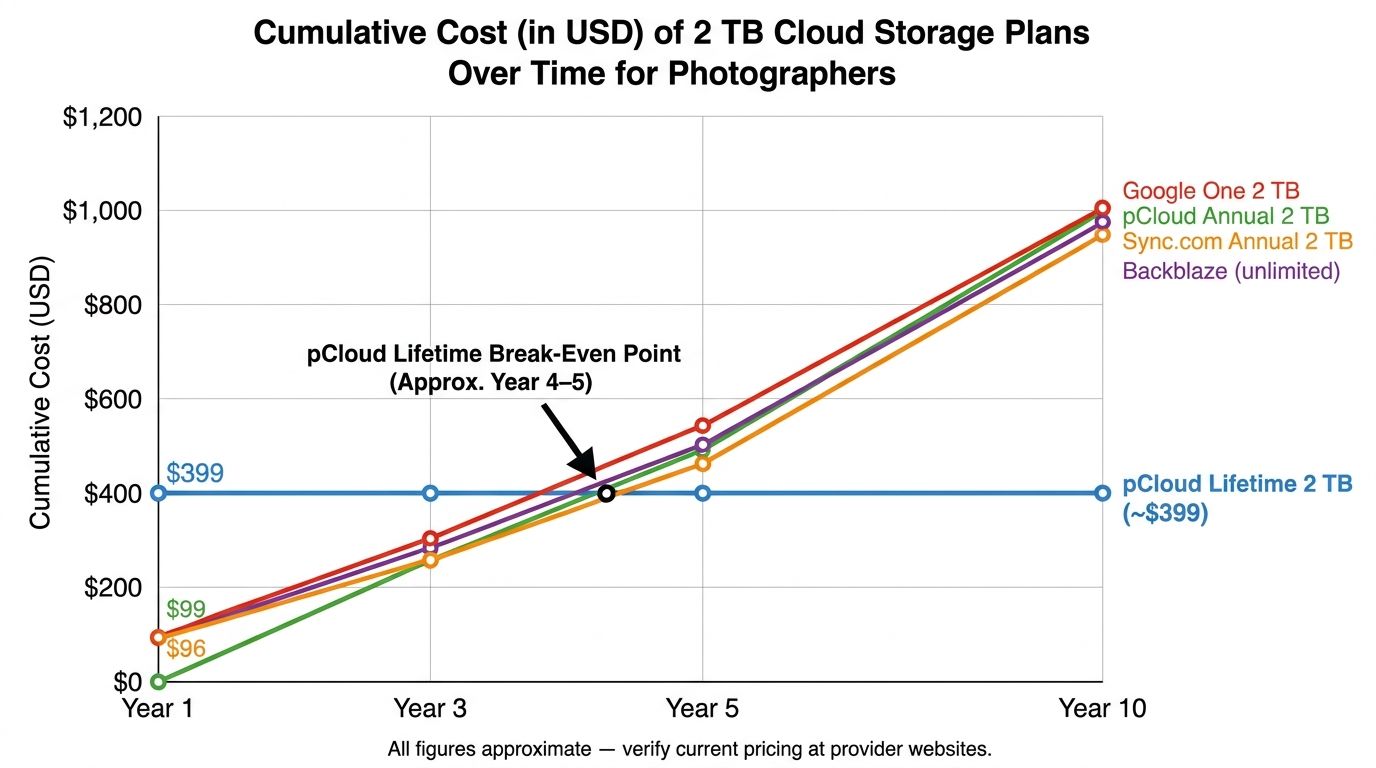
The crossover is usually between Year 2 and Year 4. If pCloud's lifetime 2 TB plan runs $399 and the annual is $99, you break even in Year 4 and every year after that is pure savings. Over a decade, you're saving roughly $590 compared to the equivalent subscription — assuming the provider stays in business and honors the plan.
Tip: When a Lifetime Plan Makes Sense > > Lifetime plans typically break even between Year 2 and Year 4 depending on current promotional pricing. They're a smart buy if you plan to stay on the same service long-term and have the upfront capital. They're risky if the company changes ownership, pricing models, or shuts down. Check the provider's history, refund policy, and data-export options before committing a few hundred dollars upfront.
⚠️ Watch for Regional Pricing Differences > > Cloud storage pricing often varies by country and may display in local currency. Lifetime plan promotions are frequently time-limited (Black Friday, Cyber Monday, back-to-school). Always verify the live price at the official provider pricing page before you buy.
Security & Privacy: Zero-Knowledge Encryption Explained
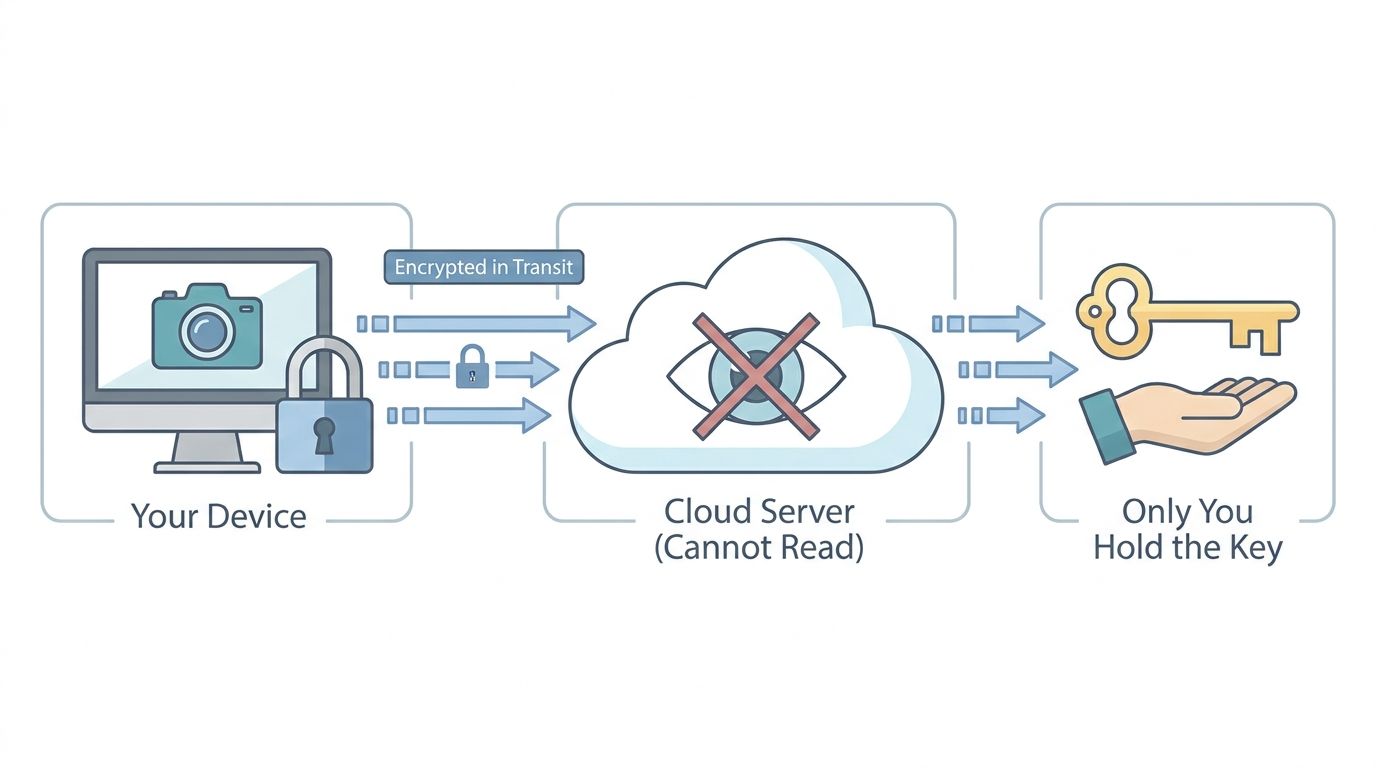
Which cloud storage offers zero-knowledge encryption for photos? Sync.com (by default), pCloud (via the paid Crypto add-on), Proton Drive (by default), and Icedrive (optional) all offer true zero-knowledge encryption. Most mainstream services — Google Drive, Dropbox, and standard iCloud — do not.
That matters more than most photographers realize. If you shoot client work, you're the custodian of images your clients consider private. A breach at a provider that holds decryption keys means those images are exposed. A breach at a zero-knowledge provider means attackers get encrypted blobs they can't read.
Encryption Comparison by Provider
| Service | Encryption at Rest | Encryption in Transit | Zero-Knowledge Option | Default or Add-On | 2FA Support |
|---|---|---|---|---|---|
| pCloud | AES-256 | TLS | Yes | Add-on (Crypto) | Yes |
| Sync.com | AES-256 | TLS | Yes | Default | Yes |
| Backblaze | AES-128/256 | TLS | No | — | Yes |
| Proton Drive | AES-256 | TLS | Yes | Default | Yes |
| Icedrive | Twofish | TLS | Yes | Optional | Yes |
| Google One | AES-128/256 | TLS | No | — | Yes |
| iCloud+ | AES-256 | TLS | Yes | Requires Advanced Data Protection | Yes |
| Dropbox | AES-256 | TLS | No | — | Yes |
AES-256 is considered the current industry standard for conventional security.
⚠️ Important: iCloud Encryption Is Not On by Default > > iCloud applies end-to-end encryption only when Advanced Data Protection is manually enabled in iOS or macOS settings. Without it, Apple retains the keys and can respond to lawful requests for your data. Walk through the setup steps in Apple's official support page on Advanced Data Protection before you treat iCloud as end-to-end encrypted.
Tip: AES-256 and Current Security Standards > > AES-256 is the current industry-standard encryption algorithm, considered secure against conventional attacks by cryptographic consensus. It's not quantum-proof — post-quantum cryptography is an active area of research, and NIST has been publishing candidate algorithms for standardization. For today's threat model, AES-256 is strong. For a 20-year archive, keep an eye on NIST guidance.
What Zero-Knowledge Encryption Actually Means
- The provider cannot read your files. Only you hold the decryption key.
- If you forget your zero-knowledge password, the provider cannot recover your files. Store your recovery key somewhere safe — a password manager, a hardware key, or offline paper backup.
- Zero-knowledge differs from standard server-side encryption, where the provider encrypts files but keeps the keys.
- For wedding, portrait, and commercial photographers, zero-knowledge is worth the extra setup. It protects your clients if the provider gets breached.
Workflow Integration: Lightroom, Capture One & Beyond
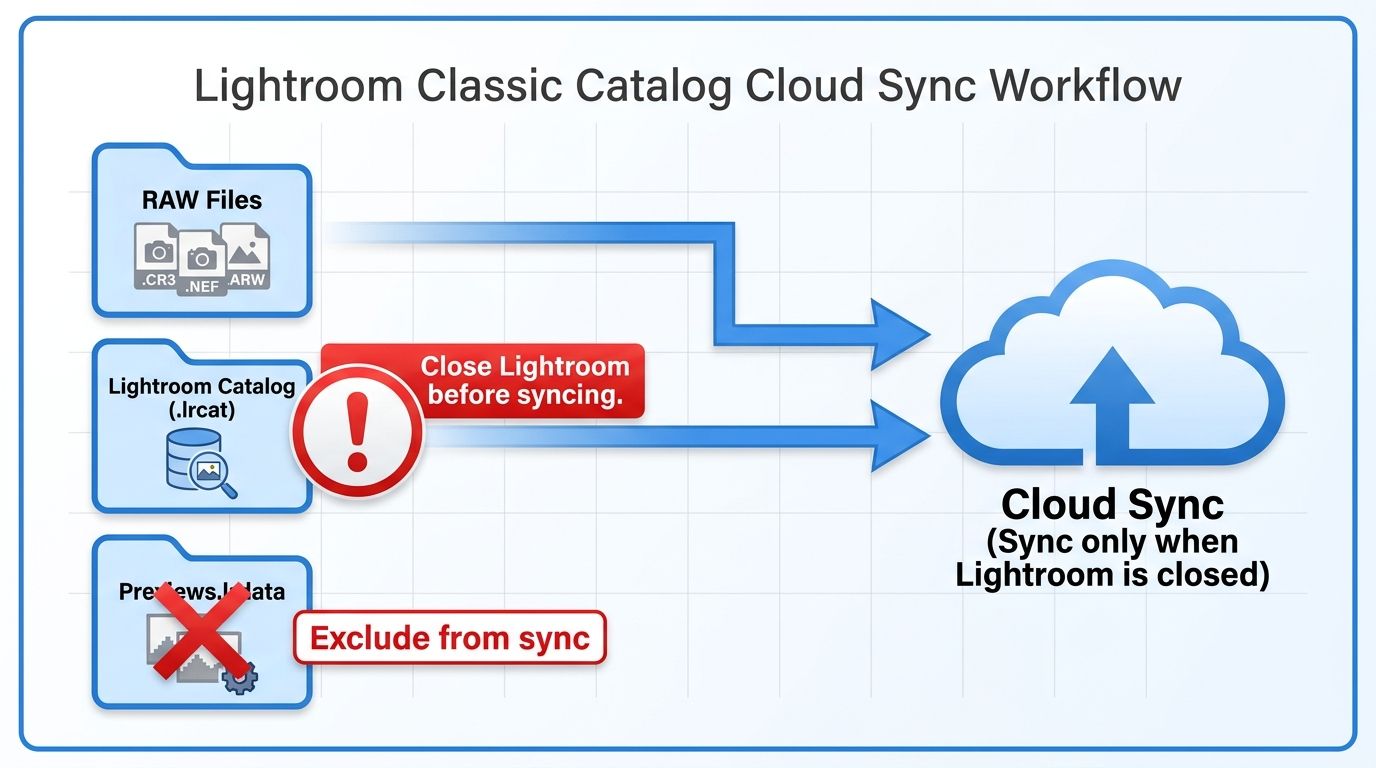
How do you sync Lightroom with cloud storage? Four steps:
- Install your cloud provider's desktop client and point it at your photos folder.
- Exclude Lightroom's preview cache (
Previews.lrdata) from sync — it's regenerable and wastes bandwidth. - Use selective sync to include RAW originals and XMP sidecars only.
- Test by closing Lightroom, letting sync run, reopening, and confirming the catalog loads cleanly.
Cloud Storage + Editing Software Compatibility
| Service | Lightroom Classic Sync | Lightroom CC Cloud | Capture One Compatible | Catalog File Safe to Sync | Notes |
|---|---|---|---|---|---|
| pCloud | Yes (virtual drive) | N/A | Yes | Only when LR closed | Virtual drive may need config |
| Sync.com | Yes | N/A | Yes | Only when LR closed | Standard folder sync |
| Dropbox | Yes | N/A | Yes | Only when LR closed | Fast sync, high cost |
| Google Drive | Yes | N/A | Yes | Only when LR closed | No zero-knowledge |
| Backblaze | Backup only | N/A | Backup only | Yes (backup, not sync) | Not real-time sync |
Lightroom CC (the fully cloud version) uses Adobe's own cloud infrastructure to sync originals — a separate cost from third-party cloud storage, and a different workflow from Lightroom Classic.
⚠️ Warning: Never Sync an Active Lightroom Catalog > > Syncing a Lightroom Classic .lrcat file while Lightroom is open can corrupt the catalog. Close Lightroom before sync runs, or back up the catalog separately using a dedicated backup tool like Backblaze. Lightroom CC's native cloud avoids this problem entirely but is a different product with different pricing.
Lightroom Classic: Syncing Your Working Folders
- Install your cloud provider's desktop client and point it at your photos folder — not at
Previews.lrdata. Preview caches are regenerable and uploading them wastes bandwidth. - Use selective sync to include only RAW source files and XMP sidecars, excluding cache and preview folders.
- Keep the
.lrcatcatalog in the synced folder only if you close Lightroom before sync runs. Best practice: back up the catalog separately to Backblaze or a dedicated catalog backup tool. - Lightroom CC (cloud-native) syncs originals to Adobe's cloud automatically. It's a separate subscription cost and a different workflow — choose one, not both.
Capture One and Other DAM Tools
- Capture One sessions and catalogs can be stored in any synced folder, but the same caution applies: never sync an open session file.
- The cleanest Capture One cloud workflow is to point a sync client at the Session folder and let it push after each shoot, with Capture One closed.
- NAS users can have Capture One reference files on a network volume, then run a cloud sync client on the NAS (IDrive, Synology Hyper Backup) for the offsite layer.
Building Your 3-2-1 Backup Strategy in 2026
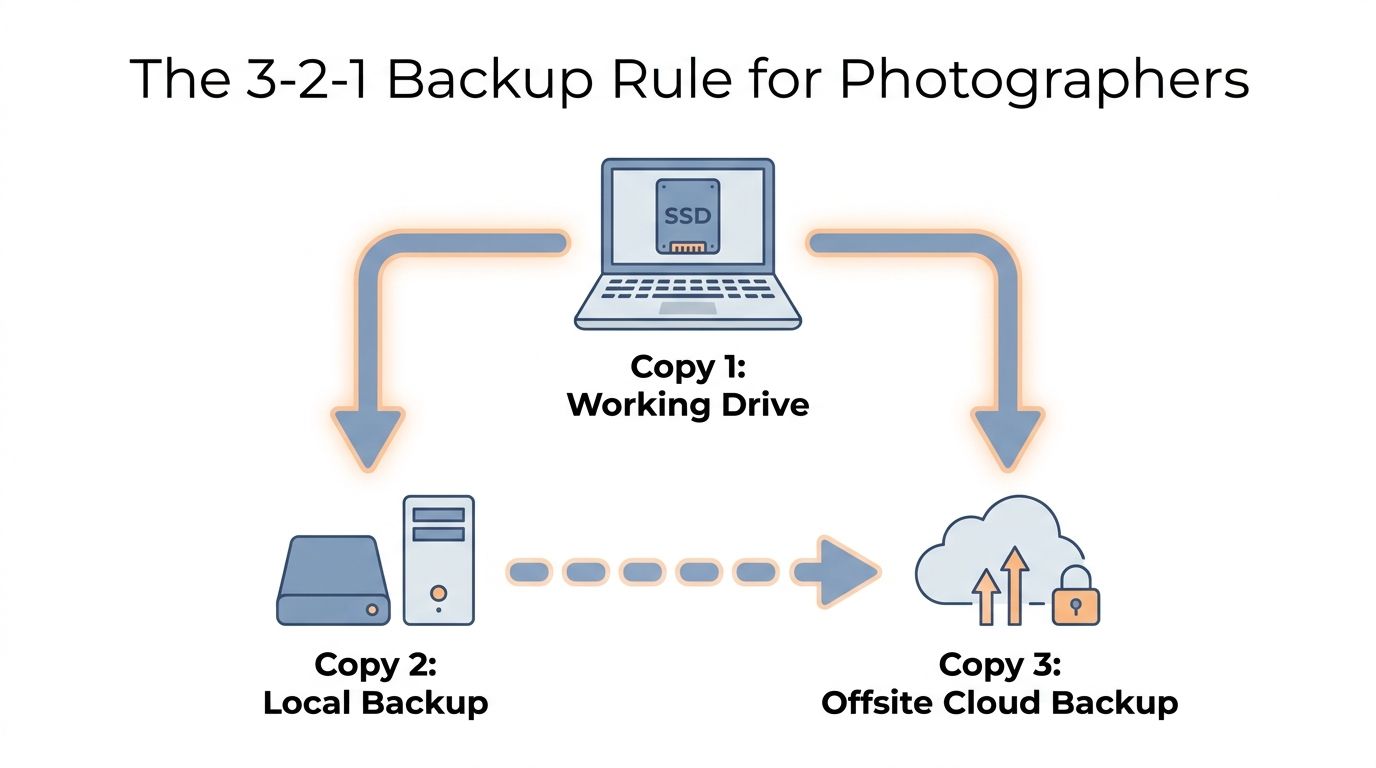
What is the 3-2-1 backup rule for photographers? The 3-2-1 rule means keeping three copies of every important photo, stored on two different types of media, with one copy offsite. For photographers, that typically maps to: RAW files on a working SSD (Copy 1), a duplicate on an external drive or NAS (Copy 2), and a third copy in a cloud backup service like Backblaze or pCloud (Copy 3, offsite).
It's the simplest, most durable backup philosophy in the industry. If any single layer fails — drive failure, theft, fire, ransomware, accidental deletion — the other two cover you.
⚠️ Hard Drives Do Fail — Even New Ones > > Backblaze's Drive Stats reports publish quarterly annualized failure rates based on enterprise drives in Backblaze data centers. Consumer drives in home studios operate under different thermal, duty-cycle, and vibration conditions, so rates may vary — but the broader point stands: drives fail, and a single-drive setup is not a backup strategy.
3-2-1 Backup Setup Checklist for Photographers
- ✅ Copy 1: RAW files on your primary working SSD or internal drive
- ✅ Copy 2: Full backup to an external hard drive or NAS (Synology, QNAP)
- ✅ Copy 3: Offsite cloud backup via Backblaze, IDrive, or pCloud
- ✅ Enable automatic backup on the cloud service so new shoots upload without manual action
- ✅ Enable 2FA on your cloud account to prevent unauthorized access
- ✅ Test a full restore every 6 months — download a folder and verify files open in your editing software
- ✅ Store your external drive in a separate physical location if possible (not the same room as your computer)
Step-by-Step: Implementing Your Photographer's Cloud Backup
- Ingest RAW files immediately after every shoot. Copy from the card to a working SSD before you do anything else — no "I'll do it tomorrow."
- Run an automated local backup to your external drive or NAS. Options: Time Machine (Mac), FreeFileSync (Windows/Mac/Linux), or Synology Hyper Backup for NAS users.
- Install your cloud backup client — Backblaze for unlimited offsite, IDrive for multi-device coverage, or pCloud if you want accessible cloud storage — and point it at your photos folder.
- Schedule uploads during off-hours or Wi-Fi only. Upstream bandwidth is precious during editing sessions. Overnight uploads are fine.
- Enable two-factor authentication on your cloud account and store recovery codes in a password manager or a sealed envelope in your fire safe.
- Calendar a 6-month restore test. Download a sample folder, open the files in Lightroom or Capture One, and confirm metadata survived the round-trip. A backup you've never tested is not a backup.
Best Cloud Storage by Photographer Type
Different shooting disciplines have different priorities. Here's the short version:
- Wedding photographers → pCloud (archive) + Backblaze (unlimited offsite insurance)
- Travel & landscape → pCloud or Google One (mobile sync) + Backblaze (home base)
- Commercial & product → Sync.com (zero-knowledge client delivery) + IDrive (multi-device)
- Hobbyists → Google One 2 TB or iCloud+ with Advanced Data Protection
- Mobile/smartphone → iCloud+ (iPhone) or Google One (Android), plus Amazon Photos if on Prime
Wedding Photographers
- Priority needs: large capacity, client confidentiality, long-term archive stability.
- Recommended stack: pCloud 2 TB lifetime (or Icedrive lifetime) for accessible archive + Backblaze for unlimited offsite backup insurance.
- How much storage do you need? A busy wedding photographer shooting 30–40 weddings per year at 50 GB average will accumulate roughly 1.5–2 TB annually. Plan for at least 2 TB with room to expand.
- Enable pCloud Crypto or use Sync.com for folders containing client galleries awaiting delivery.
Travel & Landscape Photographers
- Priority needs: mobile uploading from hotels and cafes, global data centers, affordable multi-week trip archives.
- Recommended stack: pCloud or Google One for mobile sync on the road + Backblaze running at home for comprehensive offsite backup when you reconnect.
- Mobile app matters: test background upload reliability on cellular before you rely on a service from a remote location.
Commercial & Product Photographers
- Priority needs: secure client delivery, high-speed uploads for tethered capture sessions, versioning for revision rounds.
- Recommended stack: Sync.com (zero-knowledge, secure link sharing for proofing) + IDrive for multi-device backup across studio and travel machines.
- Cloud storage is not a replacement for a dedicated client gallery platform like SmugMug, Pixieset, or Pic-Time. Use cloud for archive and backup; use gallery platforms for client delivery.
Hobbyist & Enthusiast Photographers
- Priority needs: easy setup, affordable pricing, automatic phone backup, good browsing UI.
- Recommended stack: Google One 2 TB for Android/Google Photos users, or iCloud+ with Advanced Data Protection enabled for iPhone/Mac users.
- If you already pay for Amazon Prime, add Amazon Photos as a free secondary backup — unlimited RAW storage at no additional cost.
Mobile & Smartphone Photographers
- Priority needs: seamless automatic camera roll backup, face/object recognition, free tier availability.
- Recommended: iCloud+ for iPhone users (enable Advanced Data Protection), Google One for Android and Pixel users. Both support HEIC and ProRAW.
- Supplement with Amazon Photos for unlimited RAW backup if you're a Prime member.
Risks, Limitations & Things to Watch Out For
No cloud service is perfect, and the marketing pages won't tell you where the edges are. Here's what to watch.
⚠️ Unlimited Plans Are Not Always Truly Unlimited > > Some "unlimited" plans impose fair-use throttling, eligibility requirements, or policy restrictions once you cross certain thresholds. Amazon Photos unlimited storage requires an active Prime membership — cancel Prime and the benefit goes. Backblaze requires drives to be reconnected periodically to avoid being marked inactive. Verify fair-use terms in writing before you rely on "unlimited" for a multi-terabyte archive.
Common Pitfalls to Avoid
- Treating cloud sync as a backup. If you delete a file locally, it deletes in a sync service too. Sync services like Dropbox, Google Drive, and iCloud are not backups. Pair them with a dedicated backup service like Backblaze.
- Syncing an active Lightroom catalog. Syncing an open
.lrcatfile can corrupt the catalog. Close Lightroom before sync runs, or switch to Lightroom CC's native cloud. - Assuming iCloud is end-to-end encrypted by default. It isn't. Advanced Data Protection must be manually enabled — confirm the steps via Apple's support documentation before you trust iCloud with sensitive client files.
- Overlooking metadata preservation. Some services strip or fail to preserve EXIF or XMP sidecars. Upload a test folder with known metadata, download it, and verify everything survived before migrating your full library.
- Skipping restore testing. A backup you've never tested is an untested backup. Download a sample folder every 6 months and verify files open correctly in your editing software.
- Betting everything on a small provider's lifetime plan. Smaller companies can be acquired, shut down, or change pricing models. Research the provider's history and read the data-export policy before committing a large upfront payment.
- Relying on a single cloud service as your only offsite copy. Cloud services experience outages and data loss events too. The 3-2-1 rule applies to cloud layers as well — a NAS or second cloud provider is worth considering for truly irreplaceable work.
Frequently Asked Questions About Cloud Storage for Photographers
What is the best cloud storage for professional photographers in 2026?
pCloud is the top overall pick for most professionals due to its lifetime plan option, broad RAW format support, and flexible desktop client. For maximum privacy with client files, Sync.com's default zero-knowledge encryption makes it the leading choice. Backblaze adds the most cost-effective unlimited offsite backup layer for large archives.
Does cloud storage support RAW files like CR3, NEF, and ARW?
Most major cloud storage and backup services — including pCloud, Sync.com, Backblaze, IDrive, and Amazon Photos — store RAW files in their original format without transcoding. Some services offer thumbnail previews of RAW files; others store them as opaque files. Always verify that EXIF metadata and XMP sidecar files are preserved before migrating a full library.
How much cloud storage does a wedding photographer need?
A single wedding shoot commonly generates 40–80 GB of RAW files. A busy wedding photographer shooting 30–40 weddings per year may accumulate 1.5–2 TB annually. Plan for at least a 2 TB starting tier with room to expand, and consider a second unlimited backup service like Backblaze as a safety net.
Is pCloud better than Google Drive for photographers?
For most photographers, pCloud offers better value: lifetime plan options eliminate recurring costs, zero-knowledge encryption (via the Crypto add-on) protects client files, and RAW files are stored losslessly. Google Drive integrates seamlessly with Android and Google Photos' AI features but does not offer zero-knowledge encryption and stores files under Google's data policies. Long-term cost savings and privacy favor pCloud; ecosystem convenience favors Google.
Are lifetime cloud storage plans worth it for photographers?
Lifetime plans from providers like pCloud and Icedrive typically break even against annual subscription costs between Year 2 and Year 4, depending on current promotional pricing. They make financial sense for photographers committed to the service long-term. The main risk is provider instability — research the company's history, financial backing, and data-export policy before committing a large upfront payment.
Which cloud storage services offer zero-knowledge encryption for photos?
Services offering zero-knowledge (client-side) encryption include Sync.com (enabled by default), pCloud (via the paid Crypto add-on), Proton Drive (default), and Icedrive (optional). iCloud offers end-to-end encryption only when Advanced Data Protection is manually enabled in settings. Google Drive and standard Dropbox do not offer zero-knowledge encryption.
What is the difference between cloud sync and cloud backup for photos?
Cloud sync (iCloud, Google Drive, Dropbox) mirrors a folder: if you delete a file locally, it deletes in the cloud too. Cloud backup (Backblaze, IDrive) retains versioned copies of files even after local deletion, for a defined retention window. Photographers should use both: cloud sync for active working files and cloud backup for comprehensive versioned archiving.
What is the 3-2-1 backup rule for photographers?
The 3-2-1 rule means keeping three copies of every important photo, stored on two different types of media, with one copy stored offsite. For photographers, that typically means original files on a working SSD (Copy 1), a duplicate on an external drive or NAS (Copy 2), and a third copy in a cloud backup service like Backblaze or pCloud (Copy 3, offsite).
Sources
- pCloud Official Pricing Plans
- Sync.com Official Pricing
- Backblaze Personal Backup
- Backblaze Drive Stats — Hard Drive Failure Rates
- IDrive Official Pricing & Plans
- Adobe Lightroom Cloud Sync — Official Overview
- Apple Support: Advanced Data Protection for iCloud
- Amazon Photos — Storage Policy for Prime Members
- DPReview — Camera & Photography Resource
- PetaPixel — Photography News & Guides