Last reviewed: January 2026
Researched and ranked: the best laptops for photo editing in 2026 — with display specs, RAM guidance, Lightroom and Photoshop performance, travel picks, and Mac vs. Windows breakdowns.
What is the best laptop for photo editing in 2026?
Quick answer: The best laptop for photo editing in 2026 depends on your editing software, file sizes, and whether you work at a desk or on the road. For most photographers, the ideal machine has a color-accurate display covering at least 99% sRGB with a Delta-E under 2, 32GB of RAM, a fast NVMe SSD, and enough GPU power to accelerate AI features in Lightroom and Photoshop. Apple Silicon MacBooks and Windows laptops with Intel Core Ultra or AMD Ryzen AI processors both represent strong choices in 2026, with the best pick depending on your budget and ecosystem preference.
Key Takeaways
- 32GB RAM is the recommended minimum for editing large RAW files in Lightroom or Photoshop in 2026.
- Display color accuracy (≥99% sRGB, Delta-E <2) matters more than resolution for photo editing.
- Apple Silicon (M4 Pro/Max) and Windows Core Ultra 200 series are the top chip platforms in 2026.
- Travel photographers should prioritize weight under 1.5 kg and verified battery life under editing load.
- A dedicated GPU accelerates AI Denoise in Lightroom and Neural Filters in Photoshop. Worth the investment if you use these tools.
- Budget editors can find capable laptops under $1,000, but display quality is often the trade-off.
- Pair any laptop with an external NVMe SSD via Thunderbolt 4 for backup and catalog storage.
What Makes a Great Photo Editing Laptop?
Here's the reality: a laptop built for photo editing is not the same thing as a fast laptop. A powerful chip and a slick chassis mean very little if the display can't show you accurate color. What separates a true photo editing laptop from a general-purpose machine is a factory-calibrated display with wide gamut coverage, enough RAM to keep Lightroom catalogs and layered Photoshop files responsive, fast NVMe storage, and GPU muscle to handle the AI features baked into modern editing apps.
Those four pillars (display, RAM, storage, GPU) form the backbone of every recommendation in this guide. Get them right and almost any workflow becomes manageable. Cut corners on the display and you'll be shipping edits that look wrong on client screens and in print.
The six specs that matter most
- Display color gamut (sRGB, AdobeRGB, DCI-P3 coverage percentages)
- Display Delta-E score — lower is more accurate; below 2 is the target
- RAM capacity and speed — affects Lightroom catalog handling and layer-heavy PSD files
- CPU generation — impacts export speeds and AI processing (Denoise, Neural Filters)
- GPU class — accelerates AI features in Lightroom Classic and Photoshop in 2026
- Internal SSD speed — faster NVMe reduces file load times and scratch disk latency
Specs that matter less than you might think
- Raw clock speed is a minor factor when comparing within the same chip generation.
- 4K display resolution is not necessary. Accurate color at 2K is more useful than high-res with poor gamut.
- Weight and build quality become critical only for travel photographers; desk-bound users can prioritize power.
Core photo editing laptop requirements
- Display: ≥99% sRGB coverage, Delta-E under 2
- RAM: 32GB minimum for RAW editing; 16GB acceptable for entry-level hobbyists
- Storage: 1TB NVMe SSD internal; Thunderbolt 4 port for external backup drive
- GPU: Dedicated GPU or Apple Silicon Pro/Max chip for AI-accelerated tools
- CPU: Apple M4 / Intel Core Ultra 200 / AMD Ryzen AI 300 series in 2026
- Battery: Verified 6+ hours under editing load for portable use
💡 Why display accuracy is the top priority > A miscalibrated display causes color grading errors you can't fix in post. You can edit a skin tone that looks perfect on your screen and have it print magenta or publish green. A laptop with great specs but weak gamut coverage will consistently produce edits that look wrong somewhere else, and you won't know until a client flags it.
Quick Picks: Best Laptops for Photo Editing at a Glance
If you'd rather skim than read every pick, start here. The table maps each use case to the spec tier that matters, plus the approximate price range you should expect to pay.
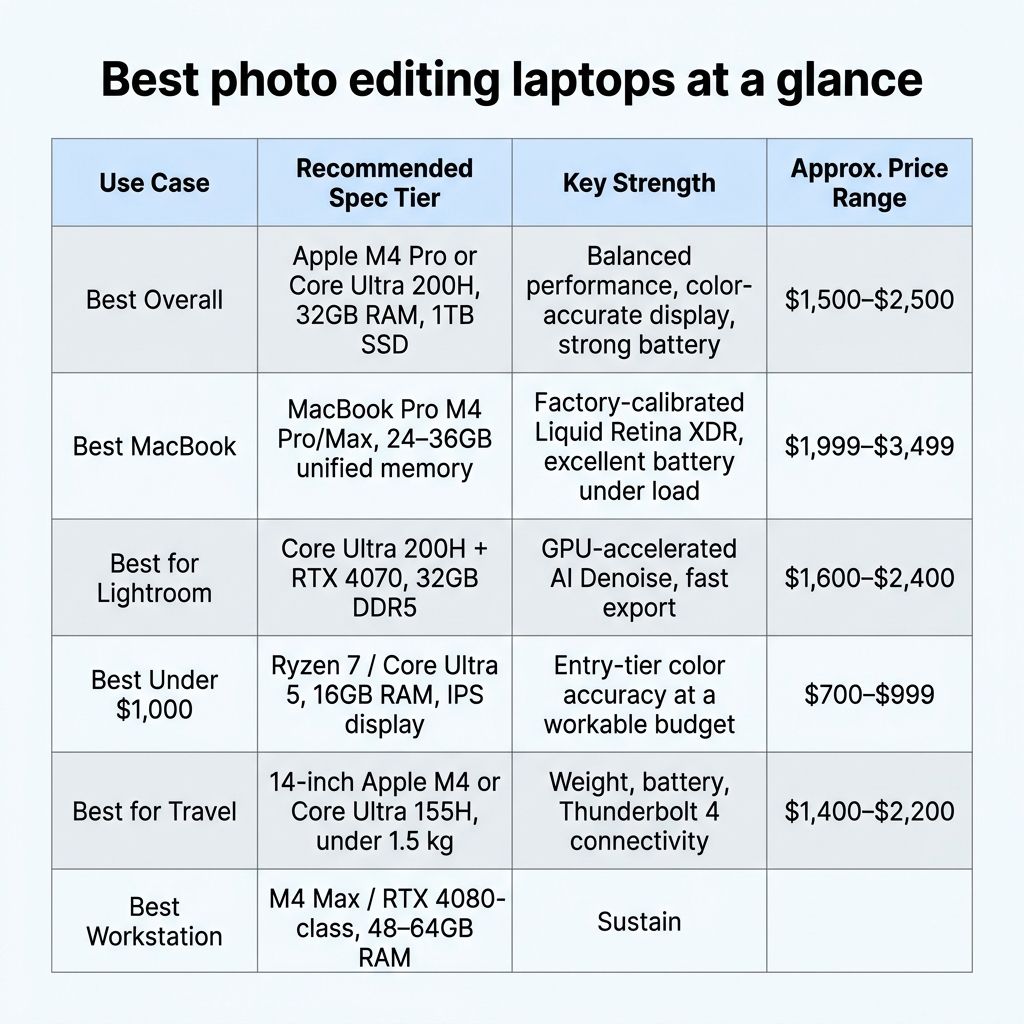
Best photo editing laptops at a glance
| Use Case | Recommended Spec Tier | Key Strength | Approx. Price Range |
|---|---|---|---|
| Best Overall | Apple M4 Pro or Core Ultra 200H, 32GB RAM, 1TB SSD | Balanced performance, color-accurate display, strong battery | $1,500–$2,500 |
| Best MacBook | MacBook Pro M4 Pro/Max, 24–36GB unified memory | Factory-calibrated Liquid Retina XDR, excellent battery under load | $1,999–$3,499 |
| Best for Lightroom | Core Ultra 200H + RTX 4070, 32GB DDR5 | GPU-accelerated AI Denoise, fast export | $1,600–$2,400 |
| Best Under $1,000 | Ryzen 7 / Core Ultra 5, 16GB RAM, IPS display | Entry-tier color accuracy at a workable budget | $700–$999 |
| Best for Travel | 14-inch Apple M4 or Core Ultra 155H, under 1.5 kg | Weight, battery, Thunderbolt 4 connectivity | $1,400–$2,200 |
| Best Workstation | M4 Max / RTX 4080-class, 48–64GB RAM | Sustained performance for 100MP+ files | $2,500–$4,000+ |
| Best 2-in-1 | Surface Pro or similar with pen, Core Ultra | Pen input for masking and retouching | $1,200–$2,000 |
⚠️ Prices change frequently > Laptop pricing moves with seasonal sales, chip refreshes, and currency shifts. Verify current pricing on retailer or manufacturer pages before you buy, and consider setting a price alert on the exact configuration you want.
Our Top Laptop Picks for Photo Editing, Reviewed
💡 How we evaluated these picks > Recommendations are based on published display measurements from calibrated independent lab sources like RTINGS and NotebookCheck, documented spec comparisons against official Adobe Lightroom Classic and Photoshop system requirements, and editorial consensus across established photography and hardware publications including DPReview and PetaPixel. We did not conduct physical testing of these machines; attribution is included wherever benchmark figures appear.
Best overall laptop for photo editing
For most working photographers, the sweet spot in 2026 is a 14- or 16-inch machine with an Apple M4 Pro chip or a Windows laptop built around the Intel Core Ultra 200H-class platform. Both deliver the four things you actually need: a factory-calibrated display covering at least 99% sRGB with Delta-E under 2, 32–36GB of memory, a fast NVMe SSD, and enough GPU performance to keep Lightroom's AI Denoise responsive.
- Chip tier: Apple M4 Pro or Intel Core Ultra 200H
- Display: factory-calibrated panel, ≥99% sRGB, Delta-E <2 out of the box
- RAM: 32–36GB unified or DDR5
- Price range: $1,500–$2,500 (verify current pricing)
- Best for: photographers who edit full-time and want one machine to handle everything
Best MacBook for photo editing
The MacBook Pro remains the default recommendation for photographers who want a predictable, calibrated-out-of-the-box display and long battery life under real editing load. Apple's spec sheet confirms the Liquid Retina XDR panel covers 100% of DCI-P3 and ships factory calibrated, which saves the cost of a colorimeter for most users.
The unified memory architecture is a genuine advantage in Lightroom Classic. Because the CPU, GPU, and Neural Engine all share the same memory pool, 24GB of unified memory can keep up with workloads that would push a 32GB DDR5 Windows machine. For 50MP+ RAW files, step up to M4 Max with at least 36GB.
- Chip: M4 Pro (most users) or M4 Max (heavy RAW, video crossover)
- Display: Liquid Retina XDR, 100% P3, factory calibrated
- Form factor: 14-inch for travel, 16-inch for desk use
- Price range: $1,999–$3,499 (verify current pricing)
Best Windows laptop for photo editing
On the Windows side, Intel Core Ultra 200 series and AMD Ryzen AI 300 series are the platforms to look at in 2026. The big advantage over Mac is GPU flexibility. You can spec in a dedicated NVIDIA RTX 40- or 50-series card with 8GB or more of VRAM, which materially helps Photoshop Neural Filters and Lightroom's AI tools.
Look for models that ship with a factory calibration report (ASUS ProArt, Dell XPS, and some Lenovo ThinkPad P-series machines commonly include one). If they don't, budget for a colorimeter. 16-inch chassis tend to have better thermal headroom for sustained exports.
- Platform: Intel Core Ultra 200 or AMD Ryzen AI 300
- GPU: NVIDIA RTX 40/50-series recommended for AI workflows
- Calibration: verified factory calibration or plan for a colorimeter
- Price range: $1,200–$2,200 (verify current pricing)
Best laptop for photo editing under $1,000
You don't need a $2,500 machine to start editing, you need a laptop that doesn't lie to you about color. At this budget, display quality is the compromise. Prioritize an IPS or OLED panel with verified ≥99% sRGB coverage over a slightly faster CPU with a weak screen. Published display tests from NotebookCheck and RTINGS are your best friend here because manufacturer spec sheets often overstate gamut.
- CPU: AMD Ryzen 7 or Intel Core Ultra 5 class
- RAM: 16GB (the realistic ceiling at this price)
- Display: IPS or OLED, verified gamut coverage
- Price range: $700–$999 (verify current pricing)
💡 If your editing is color-critical and the budget is firm, you may get more out of pairing a cheaper laptop with a calibrated external monitor than buying a mid-range laptop with a mediocre panel.
Best workstation-class laptop for photo editing
For photographers editing 100MP+ medium-format files, running Photoshop with hundreds of layers, or crossing over into video, you want a workstation-class chassis. That means 48–64GB of memory, a high-end discrete GPU (NVIDIA RTX 4080/5080-class on Windows, or Apple M4 Max on Mac), and active cooling that can sustain export workloads without thermal throttling.
- RAM: 64GB DDR5, or M4 Max with 48GB+ unified memory
- GPU: RTX 4080/5080-class or M4 Max integrated
- Cooling: check fan noise reviews if you shoot in a quiet studio
- Price range: $2,500–$4,000+ (verify current pricing)
Best 2-in-1 laptop for photo editing
If your workflow is retouching-heavy, pen input changes the game. Drawing masks, cloning, and dodging and burning directly on-screen with a stylus is dramatically faster than mouse work. The Microsoft Surface Pro with a Snapdragon X or Core Ultra chip is the leading option in 2026, but check the panel's factory calibration and pen latency (target under 10ms).
- Pen: latency under 10ms, pressure sensitivity 4,096 levels or higher
- Display: factory calibrated preferred
- Best for: retouchers, compositors, illustration crossover
- Price range: $1,200–$2,000 (verify current pricing)
Display Specs That Matter for Photo Editing
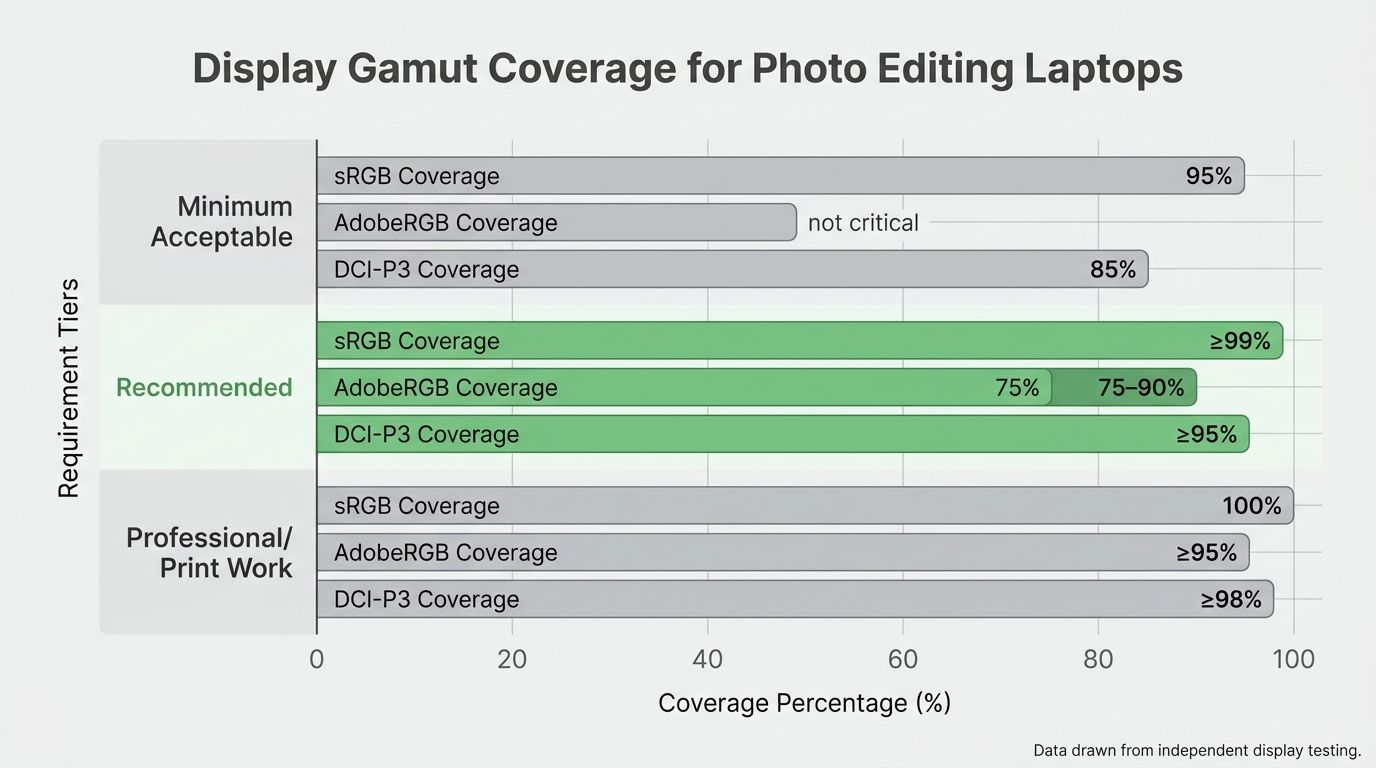
The display is the one component you can't fix later with a software update. If the panel can't physically reproduce a color accurately, no amount of calibration will save it. Here's what to look for.
Display specifications: minimum vs. recommended for photo editing
| Spec | Minimum Acceptable | Recommended | Professional / Print Work |
|---|---|---|---|
| sRGB coverage | 95% | ≥99% | 100% |
| AdobeRGB coverage | not critical | 75–90% | ≥95% |
| DCI-P3 coverage | 85% | ≥95% | ≥98% |
| Delta-E (average) | <4 | <2 | <1 |
| Peak brightness | 300 nits | 400–500 nits | 500+ nits |
| Panel type | IPS | IPS or OLED, factory calibrated | OLED or mini-LED, factory calibrated |
Values above reflect targets drawn from independent display testing methodology published by RTINGS and NotebookCheck. Specific laptop measurements vary by unit and should be verified against current reviews.
Understanding color gamut: sRGB, AdobeRGB, and DCI-P3
Color gamut is the range of colors a display can physically produce. Three standards matter for photographers:
- sRGB is the web standard. If you deliver work for Instagram, websites, or digital portfolios, ≥99% sRGB coverage is required for accurate output.
- AdobeRGB covers a wider range, particularly in cyans and greens. This matters if you sell prints, because many print workflows target AdobeRGB.
- DCI-P3 is the cinema standard. Useful if your work crosses into video, and most high-end 2026 laptops that cover 100% P3 also cover nearly all of sRGB.
For the full technical background on color profiles and how displays map to these standards, the International Color Consortium maintains the authoritative references.
What is Delta-E and why does it matter?
Delta-E measures the visible difference between the color a display is asked to show and the color it actually shows. It's a single number that tells you how honest your screen is.
- Delta-E < 2: indistinguishable from accurate to the human eye in most conditions
- Delta-E < 1: ideal for professional print work
- Delta-E > 4: visible color inaccuracy; not suitable for serious editing
Always source Delta-E figures from independent lab tests (RTINGS, NotebookCheck) rather than manufacturer marketing. Factory claims and lab measurements often don't match.
💡 OLED vs. IPS for photo editing > OLED panels deliver perfect blacks and wider effective color gamut, but they can have brightness limitations at sustained full-screen brightness, and static UI elements carry some long-term burn-in risk. IPS panels are more predictable for day-in, day-out color-critical work. Both are viable in 2026 with proper calibration.
💡 Factory calibration vs. self-calibration > Some laptops ship with a factory calibration report (MacBook Pro and ASUS ProArt are the most common examples). For everything else, plan on a hardware colorimeter (Calibrite Display or X-Rite i1Display Pro). Budget roughly $170–$280 for one, and treat it as part of the laptop's total cost.
RAM, Storage, and GPU: What You Actually Need
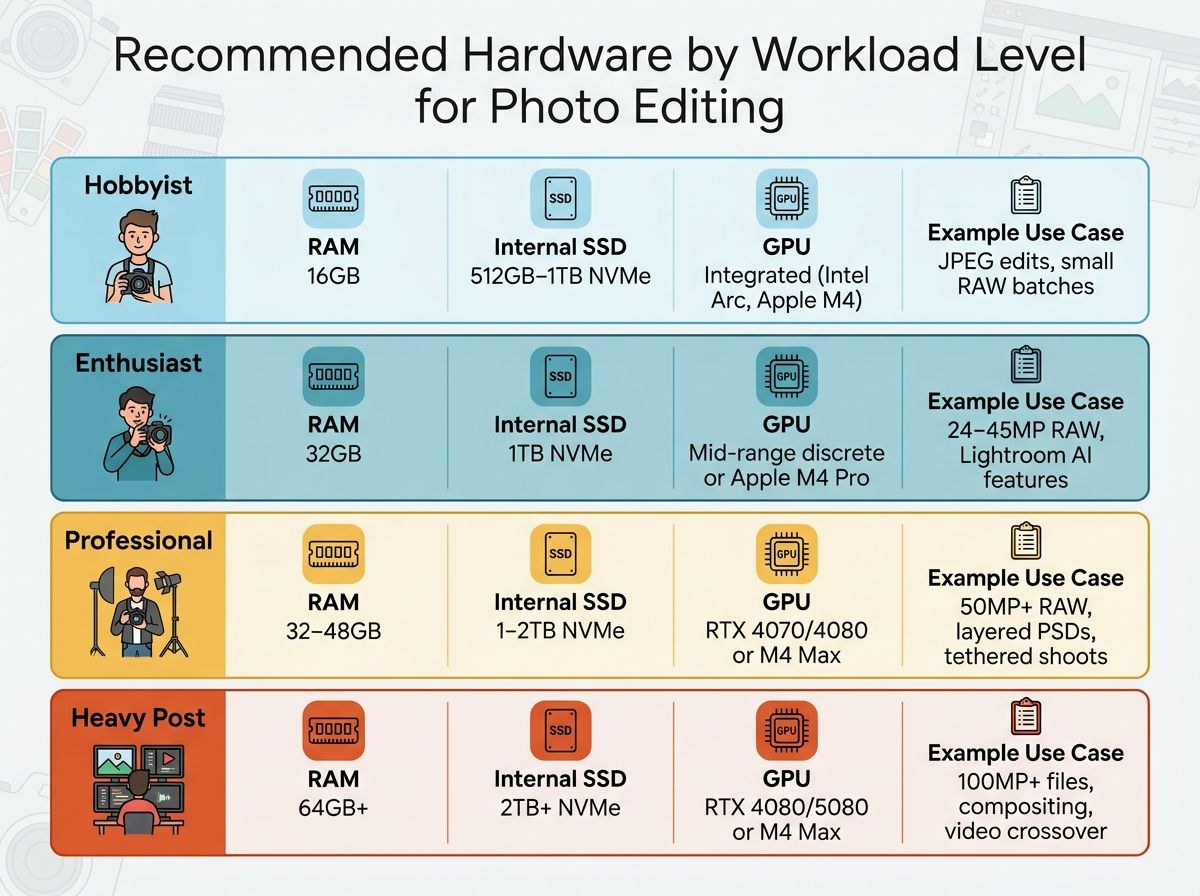
How much RAM do you need for photo editing? 16GB is the floor per Adobe's official requirements, 32GB is the recommended sweet spot for most 24–50MP RAW workflows and AI features, and 64GB is appropriate for 100MP+ medium-format files or heavy Photoshop compositing. Storage and GPU recommendations scale similarly with workload.
Recommended hardware by workload level
| Workload Level | RAM | Internal SSD | GPU | Example Use Case |
|---|---|---|---|---|
| Hobbyist | 16GB | 512GB–1TB NVMe | Integrated (Intel Arc, Apple M4) | JPEG edits, small RAW batches |
| Enthusiast | 32GB | 1TB NVMe | Mid-range discrete or Apple M4 Pro | 24–45MP RAW, Lightroom AI features |
| Professional | 32–48GB | 1–2TB NVMe | RTX 4070/4080 or M4 Max | 50MP+ RAW, layered PSDs, tethered shoots |
| Heavy Post | 64GB+ | 2TB+ NVMe | RTX 4080/5080 or M4 Max | 100MP+ files, compositing, video crossover |
Figures above are cross-referenced with Adobe's official Lightroom Classic requirements and Photoshop requirements.
💡 Check Adobe's official system requirements > Adobe updates its minimum and recommended specs with each major release. Before buying, cross-check the Lightroom Classic and Photoshop pages for the latest numbers.
How much RAM do you need for Lightroom and Photoshop?
- 16GB: the minimum Adobe specifies for both Lightroom Classic and Photoshop. Workable for hobbyists with smaller RAW files, but you'll notice slowdowns when AI Denoise kicks in or when you stack layers.
- 32GB: the recommended target for smooth performance with 24–50MP RAW files, Lightroom's AI features, and moderately complex Photoshop edits.
- 64GB: for 100MP+ medium-format files (Fujifilm GFX, Hasselblad), heavy compositing, or running Lightroom, Photoshop, and Capture One concurrently.
A quick note on Apple: unified memory is not a 1:1 swap for DDR5. Because the GPU shares the memory pool, 24GB of unified memory on an M4 Pro can match or beat 32GB of DDR5 in Lightroom catalog operations. Plan accordingly if you're cross-shopping platforms.
SSD speed and capacity: what matters
- 1TB NVMe is the practical minimum for a photographer. Your catalog, previews, and a few months of working files add up fast.
- SSD read/write speed affects Lightroom cache performance and Photoshop scratch disk latency. Gen 4 NVMe is the current standard; Gen 5 is nice to have but not essential.
- Plan for external storage. A Thunderbolt 4 NVMe SSD for backup and archive is non-optional if you shoot regularly. Internal storage fills quickly once you're archiving RAW folders.
Do you need a dedicated GPU for photo editing?
In 2026, if you use AI features, yes. Here's how it breaks down:
- Lightroom Classic uses the GPU to accelerate AI Denoise, Enhance Detail, and most Develop module operations.
- Photoshop Neural Filters (Sky Replacement, Generative Fill, Depth Blur) are GPU-accelerated and want 8GB+ VRAM on Windows for fast results.
- NVIDIA RTX 40/50-series with 8GB+ VRAM is the current Windows recommendation for AI-heavy editing.
- Apple M4 Pro/Max chips include a high-performance integrated GPU; no discrete GPU needed on Mac.
- Integrated Intel Arc or AMD RDNA graphics are acceptable for light editing but will bottleneck AI-heavy workflows.
Software Performance: Lightroom, Photoshop, and Capture One
The best laptop for Lightroom isn't necessarily the best laptop for Photoshop or Capture One. Each app leans on different parts of the system. Here's how to match hardware to your primary editor.
Key hardware drivers by editing application
| Application | Most CPU-Dependent Task | GPU Accelerated? | RAM Sweet Spot | SSD Impact |
|---|---|---|---|---|
| Lightroom Classic | Export, catalog operations | Yes (AI Denoise, Enhance Detail, Develop) | 32GB | High (previews, cache) |
| Lightroom (cloud) | Sync, local preview | Partial | 16–32GB | Medium |
| Photoshop | Smart Object rendering, filters | Yes (Neural Filters, acceleration) | 32–64GB | High (scratch disk) |
| Capture One | Tethering, live preview | Yes (heavily) | 32GB | Medium |
GPU and RAM references drawn from Adobe's system requirements and the Capture One system requirements page.
💡 Capture One users: check system requirements > Capture One has distinct hardware expectations from Adobe. It leans more heavily on the GPU, particularly during tethered shooting and live preview. Review the official Capture One system requirements before you decide between a Mac and Windows build for a tethering-heavy studio workflow.
What hardware matters most for Lightroom Classic
- GPU matters more than it used to. AI Denoise and Enhance Detail are genuinely GPU-bound, and the difference between integrated and discrete graphics is measurable in seconds per image.
- RAM drives catalog performance. 32GB is the sweet spot for catalogs with 50,000+ images.
- NVMe SSD speed affects preview rendering and export throughput.
- CPU core count matters most at export time, especially on batches of 500+ images.
What hardware matters most for Photoshop
- GPU VRAM matters for Neural Filters. 8GB+ is the current recommendation on Windows for fast Generative Fill and Sky Replacement.
- RAM matters for large layered files. 32GB handles most professional workflows; move to 64GB for heavy composites.
- Adobe currently specifies a GPU with 4GB VRAM minimum, 8GB recommended for AI-heavy feature use.
- On Mac, the M4 Pro and M4 Max handle Photoshop efficiently via unified memory, no discrete GPU required.
Lightroom vs. Photoshop vs. Capture One: which requires the most hardware?
- Lightroom Classic is the most RAM-sensitive app for catalog management and AI features.
- Photoshop is the most GPU-sensitive for AI filter work and complex compositing.
- Capture One is the most GPU-sensitive for live tethered sessions.
- All three share the same baseline: 32GB RAM, fast NVMe SSD, capable GPU. You don't need to optimize separately.
Best Laptops for Photo Editing While Traveling

Editing on the road changes the math. A 16-inch workstation that's perfect on your desk becomes a liability in a carry-on, and manufacturer battery claims rarely survive contact with a Lightroom export. Here's what actually matters when the laptop lives in your bag.
Travel photo editing laptop: key criteria comparison
| Criteria | What to Look For | Why It Matters for Travel Editing |
|---|---|---|
| Weight | Under 1.5 kg (3.3 lbs) | Daily carry comfort, carry-on weight limits |
| Battery life (editing load) | 6+ hours verified by independent review | Manufacturer claims are measured at low brightness |
| Port selection | Thunderbolt 4 / USB4, SD card slot | Fast card ingest and external SSD without dongles |
| Display accuracy | ≥99% sRGB, Delta-E <2 | Accurate edits regardless of location |
| Ruggedness | Aluminium chassis minimum, MIL-SPEC preferred | Survives in-bag wear and environmental stress |
| Internal storage | 1TB NVMe minimum | Buffer for a trip's shoot before offloading |
Battery figures should be cross-checked against published third-party tests (RTINGS, NotebookCheck), not manufacturer specifications.
Travel photographer laptop checklist
- Weight: under 1.5 kg (approximately 3.3 lbs) preferred
- Battery life: at least 6 hours under moderate editing load (verify with published reviews)
- Ports: at least one Thunderbolt 4 / USB4 port for fast card reader and external SSD
- SD card slot: built-in full-size SD card slot saves a dongle
- Display: factory calibrated with ≥99% sRGB. Don't compromise here, even on travel models
- Build: MIL-SPEC or at least aluminium chassis preferred for in-bag durability
- Storage: 1TB internal minimum. Supplement with a rugged external NVMe SSD
⚠️ Battery life claims vs. real editing use > Manufacturer battery figures are measured under light-use conditions (video playback at low brightness). Photographers commonly report that sustained Lightroom editing at 60–70% brightness delivers roughly 40–60% of the advertised number. When comparing models, look up editing-load or Lightroom-specific battery tests in independent reviews rather than trusting the spec sheet.
14-inch vs. 16-inch for travel editing
- 14-inch models are significantly lighter and pack into smaller bags. Better for hiking, street shooting, or airline carry-on.
- 16-inch models give you more screen real estate and better sustained thermal performance for long export sessions.
- The sweet spot for most travel photographers is a 14-inch chassis with an Apple M4 Pro or Intel Core Ultra 155H-class chip.
- If you'll connect to an external display at your destination, screen size matters less. Weight and battery should dominate the decision.
Connectivity and accessories for editing on the road
- Thunderbolt 4 or USB4 is essential. It powers fast card readers and external NVMe drives at speeds that keep ingest painless.
- A compact Thunderbolt 4 hub expands connectivity without adding much bulk.
- Rugged external SSD (ideally with an IP rating) protects your working files from dust, drops, and the occasional drink spill.
- Plan your backup workflow before you leave. Two copies on two drives is the minimum standard for irreplaceable work.
Mac vs. Windows for Photo Editing
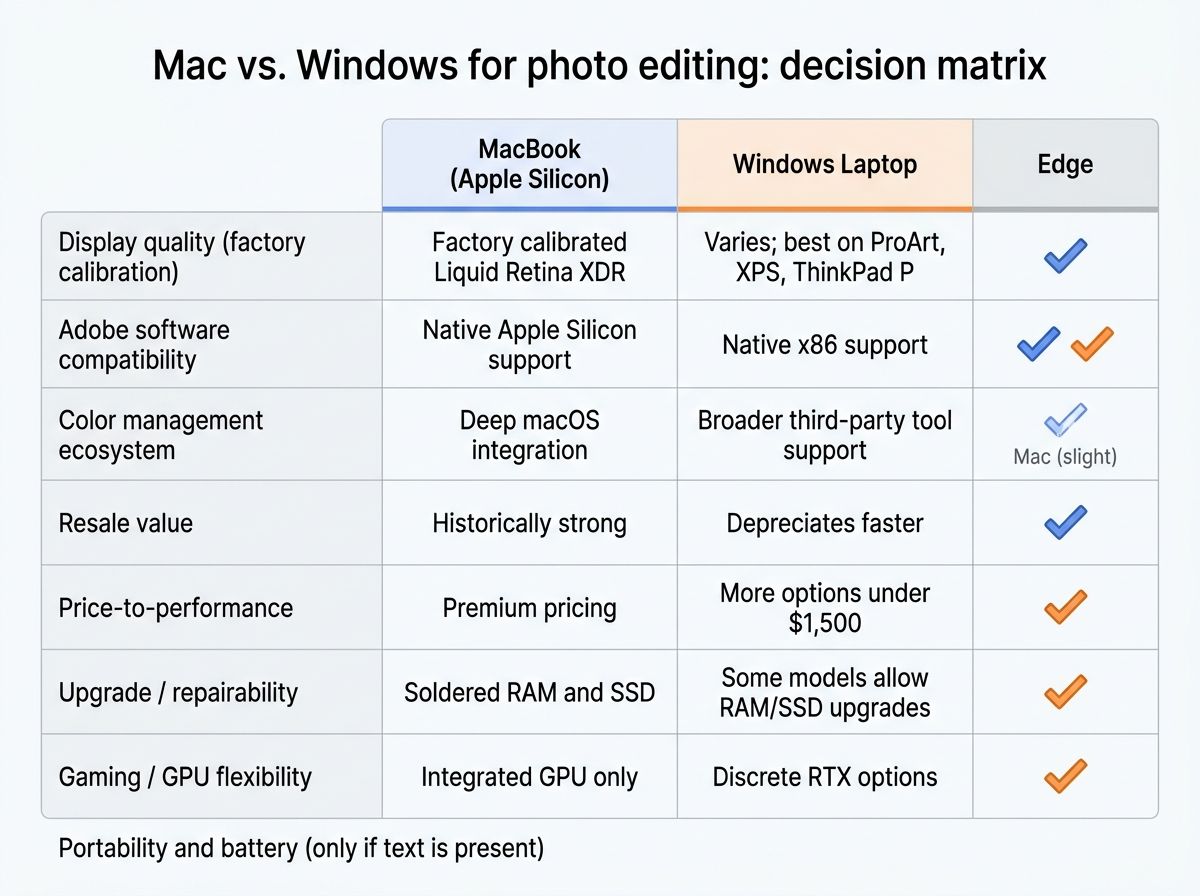
This is the question that comes up in every photography forum. The honest answer: both platforms are excellent in 2026, and the right choice depends on your budget, your ecosystem, and your workflow.
Mac vs. Windows for photo editing: decision matrix
| Dimension | MacBook (Apple Silicon) | Windows Laptop | Edge |
|---|---|---|---|
| Display quality (factory calibration) | Factory calibrated Liquid Retina XDR | Varies; best on ProArt, XPS, ThinkPad P | Mac |
| Adobe software compatibility | Native Apple Silicon support | Native x86 support | Tie |
| Color management ecosystem | Deep macOS integration | Broader third-party tool support | Mac (slight) |
| Resale value | Historically strong | Depreciates faster | Mac |
| Price-to-performance | Premium pricing | More options under $1,500 | Windows |
| Upgrade / repairability | Soldered RAM and SSD | Some models allow RAM/SSD upgrades | Windows |
| Gaming / GPU flexibility | Integrated GPU only | Discrete RTX options | Windows |
| Portability and battery | Industry-leading under editing load | Varies widely by model | Mac |
💡 Both platforms run the same Adobe apps > Lightroom Classic, Photoshop, and Capture One all run natively on macOS and Windows in 2026. The choice is about hardware, battery, color management, and workflow preferences, not software availability.
When to choose a MacBook for photo editing
- You're already in the Apple ecosystem and use iPhone for capture, iPad for culling, or AirDrop to move files.
- You want a factory-calibrated display and consistent color out of the box without adding a colorimeter.
- Long battery life under real editing load is a priority. Apple Silicon consistently leads independent benchmarks here.
- Your primary apps are Lightroom and Photoshop, both of which run natively and efficiently on Apple Silicon.
When to choose a Windows laptop for photo editing
- You need a dedicated NVIDIA GPU for AI-heavy Photoshop work, 3D, or video rendering alongside photo editing.
- Budget is a priority. Windows offers substantially more options in the $800–$1,500 range.
- You want hardware upgradability. Some business and workstation-class Windows laptops still allow RAM and SSD upgrades.
- You need flexibility for gaming or software that isn't available on macOS.
How to Choose the Right Photo Editing Laptop
If you want to actually land on the right machine instead of doom-scrolling spec sheets, use this seven-step framework. It works whether you're spending $800 or $4,000.
Pre-purchase decision checklist
- Identify your primary editing software (Lightroom Classic, Lightroom cloud, Photoshop, Capture One). Each has different hardware priorities.
- Estimate your typical file sizes and batch volumes. JPEG vs. RAW, megapixel count, and whether you edit in batches of 50 or 500.
- Set a minimum display spec floor: ≥99% sRGB coverage, Delta-E under 2. Non-negotiable.
- Choose your RAM tier: 16GB for hobbyist, 32GB for enthusiast and most pros, 64GB for heavy workloads.
- Determine GPU needs based on AI feature usage. If you use Denoise, Generative Fill, or similar, a discrete GPU or Apple Silicon Pro/Max tier matters.
- Match form factor to your workflow: 14-inch for travel, 16-inch for desk, 2-in-1 for retouching.
- Verify current pricing using retailer listings before purchasing. Prices move constantly.
💡 Do not over-spec unnecessarily > A photographer editing 24MP RAW files in Lightroom as a hobbyist doesn't need a $3,500 workstation. Match the spec to the actual workload. The money you don't spend on surplus RAM can go toward a calibrated external monitor, a colorimeter, or a fast external SSD, all of which will improve your editing more than a faster chip.
Common mistakes to avoid when buying a photo editing laptop
- Prioritizing raw CPU speed over display accuracy. A faster chip cannot compensate for a poorly calibrated panel.
- Buying based on manufacturer battery claims instead of verified third-party editing-load tests.
- Underestimating storage. 512GB fills quickly once your RAW archive starts growing.
- Skipping GPU consideration for Lightroom or Photoshop AI features in 2026.
- Buying a laptop without Thunderbolt 4. It limits your card reader and external SSD options for the life of the machine.
Frequently Asked Questions
How much RAM do I need for photo editing? 16GB is the minimum for Lightroom Classic and Photoshop per Adobe's official requirements. 32GB is recommended for editing 24–50MP RAW files and using AI features like Lightroom Denoise. Photographers working with 100MP+ files or heavy Photoshop composites should consider 64GB.
Is a MacBook or Windows laptop better for photo editing? Both are capable in 2026. MacBooks with Apple Silicon offer excellent battery life under editing load and factory-calibrated displays. Windows laptops provide more options at mid-range price points and support dedicated NVIDIA GPUs for heavy AI workloads. The best choice depends on budget, ecosystem, and software workflow.
What screen specs matter most for photo editing? The most important display specs are color gamut coverage (at least 99% sRGB) and Delta-E accuracy (below 2). Higher resolution is secondary to color accuracy. OLED and factory-calibrated IPS panels are both strong choices in 2026.
Do I need a dedicated GPU for Lightroom and Photoshop? In 2026, yes, if you use AI features. Lightroom Classic uses the GPU for AI Denoise and Enhance Detail. Photoshop uses it for Neural Filters including Generative Fill. On Windows, an NVIDIA RTX 40/50-series GPU with 8GB+ VRAM is recommended. Apple M4 Pro and Max chips include a capable integrated GPU.
What is the best laptop for photo editing while traveling? Look for a laptop under 1.5 kg with verified battery life of at least 6 hours under real editing conditions, a Thunderbolt 4 port for fast external SSDs and card readers, and a factory-calibrated display. 14-inch MacBooks and select Windows ultrabooks are the leading categories.
How much storage do I need on a photo editing laptop? 1TB internal NVMe SSD is the practical minimum. A 24MP camera produces RAW files of 25–40MB each, and 2,000 images from a single shoot can exceed 60GB. Plan to supplement internal storage with an external Thunderbolt 4 NVMe SSD for backup and archive.
Can I use a budget laptop under $1,000 for photo editing? Yes, with caveats. At under $1,000, display color accuracy is often the trade-off. Look for IPS or OLED panels with verified gamut coverage. Expect 16GB RAM at this budget, which is workable for hobbyists. For serious color-accurate work, consider pairing a budget laptop with an external calibrated monitor.