What is the best computer for photo editing in 2026?
Quick answer: For most working photographers in 2026, an Apple Mac Studio with an M4 Max chip delivers the fastest Lightroom Classic export speeds and excellent color management in a compact desktop form factor, with pricing starting around $2,000. Windows photographers who run CUDA-accelerated AI tools like Topaz Photo AI or DxO PureRAW will find that a mid-tower PC with an NVIDIA RTX 4070 or higher offers comparable throughput and a wider budget range. The right choice ultimately depends on your primary software, camera resolution, and whether you need portability.
Researched Mac and PC picks for photo editing in 2026, with benchmark comparisons, RAM guidance by camera, and clear verdicts for Lightroom, Photoshop, Capture One, and Topaz.
Key Takeaways
- Apple Silicon Macs lead on power efficiency and Lightroom speed at the laptop and compact-desktop price points.
- Windows PCs with NVIDIA RTX GPUs have a significant edge for AI-based denoising in Topaz Photo AI and DxO PureRAW.
- Match RAM to your camera: 16 GB for up to 33 MP, 32 GB for up to 60 MP, 64 GB+ for 100 MP medium format.
- An NVMe SSD for your OS and active catalog is the single highest-impact hardware upgrade for Lightroom speed.
- Refurbished Apple M1 Max or M2 Pro machines offer strong value and typically carry a one-year warranty from certified sellers.
- GPU matters less for Lightroom and Photoshop than for AI batch tools; don't overspend on a GPU if you only use Adobe apps.
- Prices shift frequently — always verify current pricing and treat figures in this guide as approximate at time of research.
Last updated: 2026. Prices referenced are approximate at time of research — verify before purchasing.
What Makes a Computer Good for Photo Editing?
Here's the reality: a good photo editing computer is one with a fast single-core CPU for responsive Lightroom develop module sliders, enough RAM to hold your camera's RAW previews and history states without swapping to disk, and an NVMe SSD for the operating system and active catalog. A dedicated GPU matters only if you run AI-based denoising and upscaling tools like Topaz Photo AI or DxO PureRAW.
That's the whole decision in one paragraph. The rest of this guide shows you how to apply it to your camera, software, and budget.
Tip — The single biggest upgrade: If you're still running your Lightroom catalog from a spinning hard drive or an older SATA SSD, switching to an NVMe SSD will deliver a bigger perceived speed boost than almost any CPU upgrade. Photographers routinely report that catalog browsing, preview generation, and develop module responsiveness all improve noticeably after the move.
CPU: The Core Workhorse
The CPU does most of the heavy lifting in a photo editing workflow, and two different specs matter for different reasons.
- Single-core speed governs Lightroom Classic's develop module responsiveness. When you drag a slider and feel the lag, that's usually single-core throughput at work. Higher clock rates reduce that lag.
- Multi-core count matters when you're exporting batches, running AI processing in Topaz or DxO, or stitching panoramas. More cores finish the job faster.
- Apple M4 and M4 Max chips offer a strong combination of single-core speed and energy efficiency as of 2026, which is why they dominate the Mac recommendations below.
- For Windows, AMD Ryzen 9000-series and Intel Core Ultra Series 2 are the current-generation benchmarks worth comparing against.
RAM: Matching Memory to Your Camera
RAM is where your active work lives. Lightroom Classic loads full previews and history states into memory, and when you run out, the OS starts swapping to disk — which is the main cause of that sluggish, molasses-like feeling in the develop module.
- RAM needs scale with RAW file size, which scales with camera megapixels. A 24 MP Sony A7 IV file is a different beast than a 61 MP Sony A7R V file.
- 16 GB is a workable minimum for cameras up to roughly 33 MP.
- 32 GB is the comfortable recommendation for most professional workflows.
- The dedicated camera-to-RAM table further down maps this to specific bodies.
Storage: NVMe First, Then Capacity
Storage decisions should go in this order: speed first, capacity second.
- Put the OS, applications, and your active Lightroom catalog on an NVMe SSD — the M.2 form factor that plugs directly into the motherboard and delivers read speeds of 3,000–7,000 MB/s.
- Use a secondary large-capacity NVMe or SATA SSD for active project files. External drives or a NAS handle archive.
- In Photoshop, the scratch disk is where files overflow when they exceed available RAM. Keep it on your fastest drive, and if possible, separate from the OS drive.
GPU: When It Matters and When It Doesn't
This is where a lot of photographers overspend. Here's what you actually need to know:
- Lightroom Classic and Photoshop use the GPU primarily for display rendering and certain filters — not core RAW processing. Integrated graphics are often sufficient, per Adobe's Lightroom Classic GPU FAQ.
- AI-based denoising tools like Topaz Photo AI and DxO PureRAW on Windows benefit significantly from a dedicated NVIDIA RTX GPU with CUDA acceleration.
- Apple Silicon's unified memory architecture means the GPU and CPU share the same fast memory pool, which helps Metal-accelerated tools on Mac.
- If you only use Lightroom and Photoshop without AI batch processing, don't blow your budget on a high-end GPU. Put that money into RAM or a better monitor.
How We Evaluated These Computers
Photography Launchpad doesn't run a hardware lab. What we do is compare published benchmark data, official manufacturer specs, and third-party review sources against the real workflows photographers deal with daily.
Here's the specific framework used to build this guide:
- Published benchmark data from Puget Systems PugetBench, manufacturer spec sheets, and third-party sources such as PetaPixel and DPReview
- Official system requirements from Adobe (Lightroom Classic, Photoshop), Capture One, Topaz Labs, and DxO
- Representative price tiers checked at time of research (prices fluctuate — verify before purchasing)
- Long-term value factors including software support window estimates, upgradeability, and typical resale value
- Real-world workflow relevance across wedding, landscape, studio, and hybrid photographer use cases
- Refurbished and budget options evaluated against certified seller warranty terms
⚠️ Disclosure: Photography Launchpad does not physically test hardware in a lab. All performance comparisons are based on published third-party benchmark data and official specifications, with sources cited inline. Benchmark results vary by software version, OS build, and driver — treat comparisons as directional guidance, not absolute values.
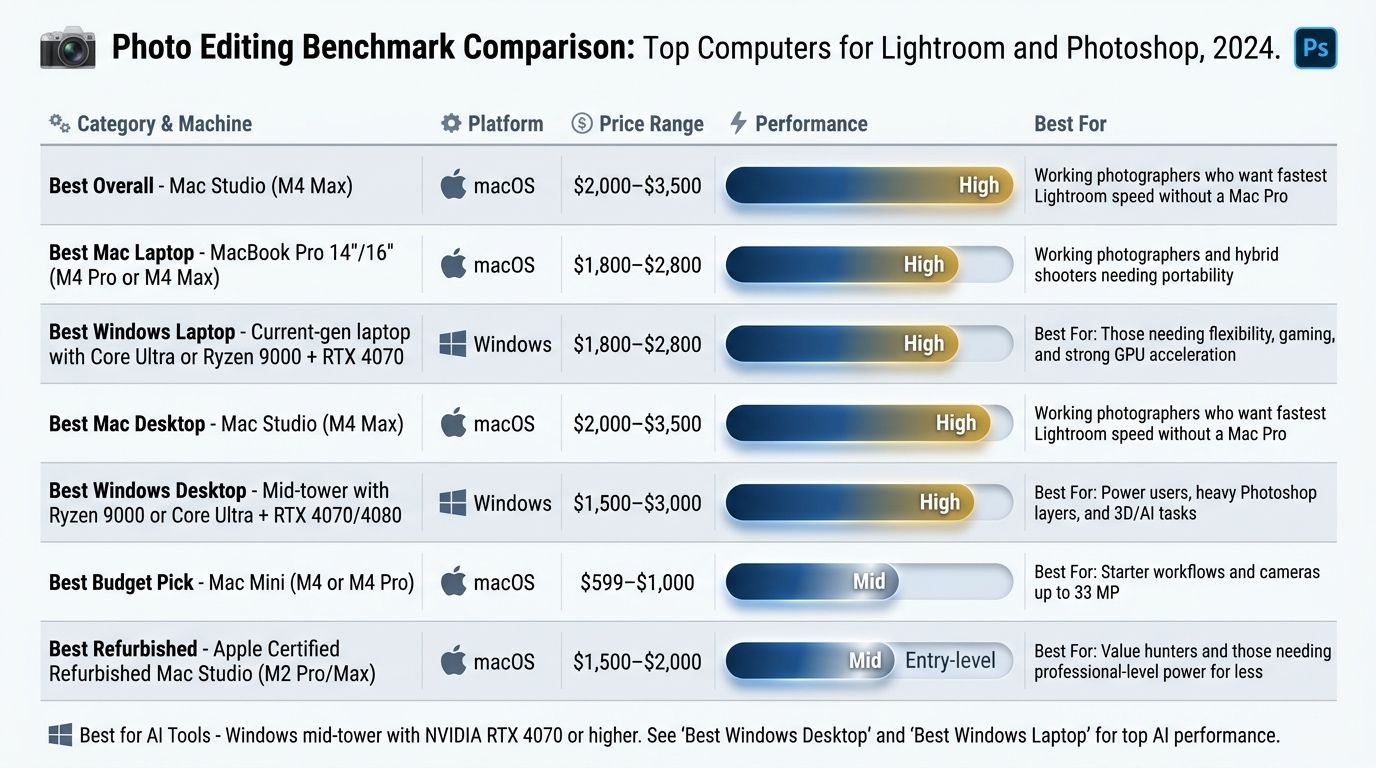
Top Picks at a Glance: Comparison Table
If you want to jump straight to the shortlist, here it is.
| Category | Machine | Platform | Approx. Price (at time of research) | Best For |
|---|---|---|---|---|
| Best Overall | Mac Studio (M4 Max) | macOS | $2,000–$3,500 | Working photographers who want fastest Lightroom speed without a Mac Pro |
| Best Mac Laptop | MacBook Pro 14"/16" (M4 Pro or M4 Max) | macOS | $2,000–$3,500 | Hybrid photographers editing across home, studio, and location |
| Best Windows Laptop | Current-gen laptop with Core Ultra or Ryzen 9000 + RTX 4070 | Windows | $1,800–$2,800 | Mobile editors running CUDA AI tools |
| Best Mac Desktop | Mac Studio (M4 Max) | macOS | $2,000–$3,500 | Studio-based Mac photographers |
| Best Windows Desktop | Mid-tower with Ryzen 9000 or Core Ultra + RTX 4070/4080 | Windows | $1,800–$3,500 | Heavy AI batch workflows and upgradeability |
| Best Budget Pick | Mac Mini (M4 or M4 Pro) | macOS | $599–$1,000 | Starter workflows and cameras up to 33 MP |
| Best Refurbished | Apple Certified Refurbished Mac Studio (M2 Pro/Max) | macOS | $1,400–$2,200 | Value-focused buyers who want Apple Silicon performance |
| Best for AI Tools | Windows mid-tower with NVIDIA RTX 4070 or higher | Windows | $2,000–$3,200 | Topaz Photo AI and DxO PureRAW primary users |
⚠️ Prices change: All prices listed are approximate at the time of research and may have changed. Always verify current pricing on the manufacturer or retailer site before purchasing.
Best Computers by Category
Each pick below includes a Buy-if / Skip-if verdict so you can decide fast.
Best Mac Laptop for Photo Editing
The current MacBook Pro in 14" or 16" sizes — configured with an M4 Pro for most photographers, or an M4 Max for those running heavy batch exports — is the strongest all-around photo editing laptop available. Apple's Liquid Retina XDR display covers a wide color gamut and ships factory-calibrated, which reduces the urgency of pairing it with an external monitor for location and travel work.
The M4 Pro tier is the sweet spot for most working photographers. The M4 Max is worth the jump only if you're regularly exporting 500+ image weddings or running AI denoising on every file.
- Buy if: You edit on location, in studios, and at home, and want one machine for every context.
- Skip if: You edit exclusively at a fixed desk and prioritize maximum RAM at the lowest cost — a Mac Mini or Mac Studio gives you more memory per dollar.
Best Windows Laptop for Photo Editing
The right Windows laptop for photo editing in 2026 pairs a current-generation AMD Ryzen 9000 or Intel Core Ultra Series 2 CPU with at least 32 GB RAM, a calibration-friendly OLED or IPS display, and — critically — an NVIDIA RTX 4070 or higher if AI tools are part of your workflow.
That GPU is what separates a Windows laptop from a comparable MacBook Pro for Topaz Photo AI and DxO PureRAW users. On CUDA-accelerated batches, a discrete RTX GPU pulls ahead meaningfully.
- Buy if: You need portability and want CUDA-accelerated AI tools on the go.
- Skip if: Battery life is your top priority. Windows laptops still generally consume more power than Apple Silicon equivalents.
Best Mac Desktop for Photo Editing
The Mac Studio with an M4 Max chip is the top compact desktop recommendation for Mac photographers. It delivers near-Mac-Pro performance in a small, silent form factor, and its unified memory configurations scale comfortably into the professional range.
If your budget is tighter or your camera resolution is lower, the Mac Mini with an M4 Pro is a legitimately compelling value play. For photographers shooting up to 60 MP who don't run heavy AI batches, it covers the workflow at roughly half the Mac Studio's cost.
- Buy if: You want the fastest Mac desktop performance without paying for a Mac Pro.
- Skip if: Your workflow demands more than 128 GB unified memory or you need PCIe expansion slots.
Best Windows Desktop for Photo Editing
A current-generation mid-tower PC built around AMD Ryzen 9000 or Intel Core Ultra Series 2, with 32–64 GB DDR5 RAM, an NVMe SSD, and an NVIDIA RTX 4070 or higher is the top Windows desktop pick. Puget Systems publishes workstation configurations tuned specifically for creative apps and is a strong reference point for build decisions.
The real Windows desktop advantage is upgradeability. You can swap RAM, GPU, and storage as your workflow and budgets evolve — something that's essentially impossible on current Mac desktops.
- Buy if: You run heavy CUDA AI batches or want to upgrade components over time.
- Skip if: You primarily use Lightroom and Photoshop and are comfortable in the Apple ecosystem — a Mac Studio may deliver comparable performance at similar cost.
Best Budget Computer for Photo Editing (Under $1,000)
The Mac Mini (M4, or M4 Pro if you can stretch) is the best value compact desktop in this range. Low power draw, fast NVMe storage, and the full Apple Silicon performance profile make it a genuine workstation at starter pricing.
For Windows, look at pre-built or self-built configurations with at least a Ryzen 7 or Core i7, 16 GB DDR5 (upgradeable to 32 GB), and a 512 GB NVMe SSD. Budget machines benefit the most from adding RAM and an external NVMe drive as a first upgrade — plan that into your total spend.
- Buy if: You're starting out or shooting cameras with 24 MP or fewer.
- Skip if: You shoot 45 MP or above or run AI denoising on large batches regularly.
Best Refurbished Computer for Photo Editing
Apple Certified Refurbished machines carry the same one-year limited warranty as new and go through the same quality inspection process, which makes them the lowest-risk refurbished option for photographers. A refurbished Apple M2 Pro Mac Studio or M2 Pro MacBook Pro is the strongest value play in this segment — the M2 Pro still outperforms most current mid-tier Windows competition on Lightroom and Photoshop workflows.
Third-party certified refurbishers like Back Market also carry Mac models with their own warranty programs. Look for grade "A" or "like new" condition, and verify current warranty terms before buying.
For refurbished Windows desktops, be more cautious. Non-certified sellers may have reduced warranties and unknown drive health. Run a drive health check with CrystalDiskInfo on arrival and don't commit to a mission-critical machine without one.
- Buy if: You want Apple Silicon performance at a reduced upfront cost.
- Skip if: You need the latest chip generation for maximum longevity.
What to Look for: CPU, RAM, GPU, and Storage Explained
Here's a component-by-component framework you can apply to any machine — not just the ones recommended above.
| Component | Minimum (casual / up to 24 MP) | Recommended (professional / up to 60 MP) | High-end (medium format / AI-heavy) |
|---|---|---|---|
| CPU | 6-core, 3.5 GHz+ single-core (Apple M4, Ryzen 7, Core Ultra 5) | 8–12 core, 4.0 GHz+ single-core (Apple M4 Pro, Ryzen 9, Core Ultra 7) | 12+ core, 4.5 GHz+ (Apple M4 Max, Ryzen 9 X-series, Core Ultra 9) |
| RAM | 16 GB | 32 GB | 64–128 GB |
| Primary SSD (NVMe) | 512 GB | 1 TB | 2 TB+ |
| GPU | Integrated (Apple Silicon, Intel Arc, Radeon) | Integrated or mid-tier dedicated (RTX 4060) | NVIDIA RTX 4070 or higher |
Tip — NVMe vs SATA SSD: NVMe SSDs (M.2 form factor) deliver read speeds of 3,000–7,000 MB/s versus SATA SSDs at around 500–550 MB/s. For Lightroom catalog and cache, NVMe makes a noticeable day-to-day difference. If your current machine still runs a SATA SSD, an NVMe upgrade is the cheapest, highest-ROI move you can make.
How Much RAM Do You Need? A Camera-to-RAM Guide
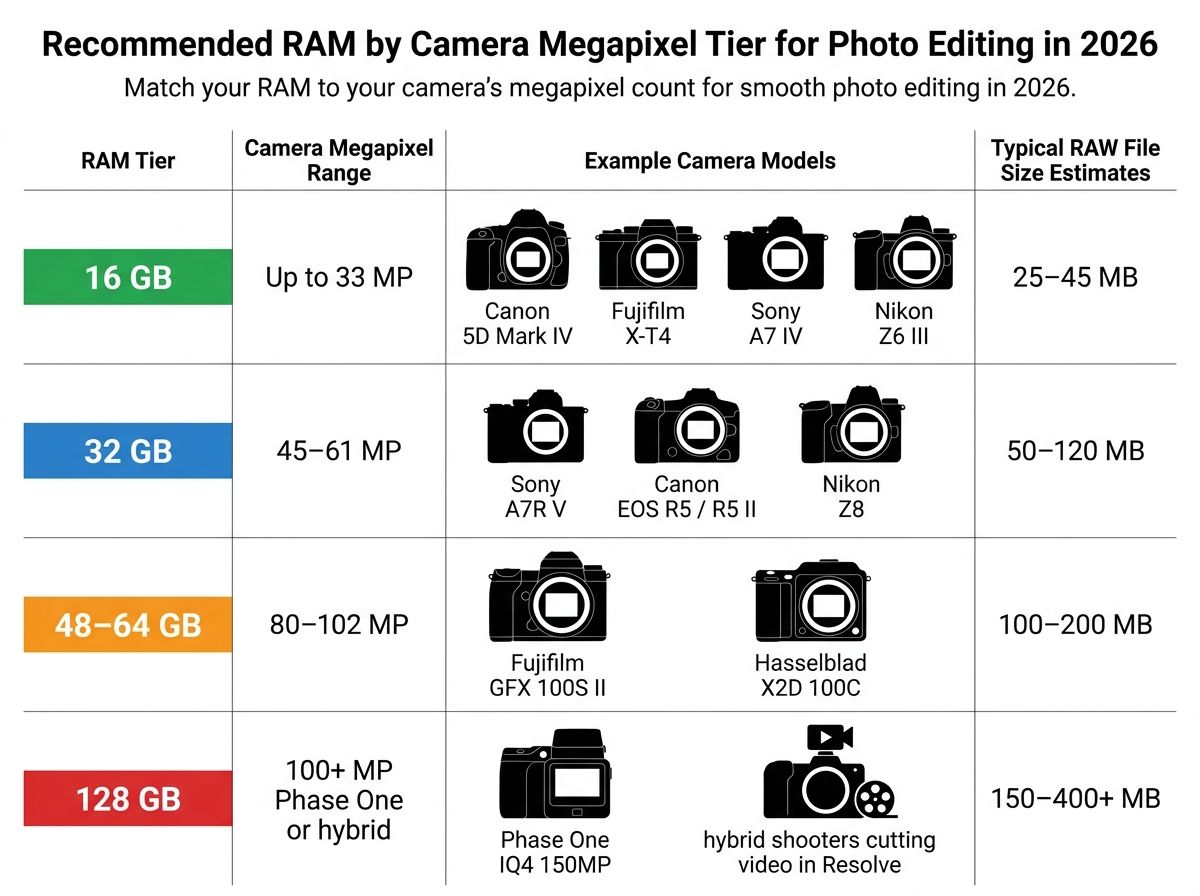
The single most common question in this category: how much RAM do I actually need? The answer depends on your camera's RAW file size, which scales with megapixel count. Here's the practical mapping.
| RAM Tier | Camera Megapixel Range | Example Camera Bodies | Typical RAW File Size |
|---|---|---|---|
| 16 GB | Up to 33 MP | Canon 5D Mark IV, Fujifilm X-T4, Sony A7 IV, Nikon Z6 III | 25–45 MB |
| 32 GB | 45–61 MP | Sony A7R V, Canon EOS R5 / R5 II, Nikon Z8 | 50–120 MB |
| 48–64 GB | 80–102 MP | Fujifilm GFX 100S II, Hasselblad X2D 100C | 100–200 MB |
| 128 GB | 100+ MP Phase One, or combined photo + 4K/8K video workflows | Phase One IQ4 150MP, hybrid shooters cutting video in Resolve | 150–400+ MB |
RAW file size estimates draw on manufacturer specs and sample files published by DPReview. Actual file sizes vary by scene complexity, ISO, and compression mode (lossless compressed vs uncompressed).
Tip — Also factor in layers and open applications: RAM consumption in Photoshop scales with the number of layers and open documents. If you work with composites of 20+ layers at high resolution, add 8–16 GB to your camera-based estimate. If you keep Lightroom, Photoshop, and a browser full of client galleries open simultaneously, add another 8 GB.
Performance by Software: Lightroom, Photoshop, Capture One, Topaz, and DxO
Hardware priorities shift based on which editing application you actually live in. If you've already chosen your software, use this matrix to weight your spending.
| Software | Most Important Hardware Factor | Minimum RAM | GPU Acceleration? | Mac or PC Advantage |
|---|---|---|---|---|
| Lightroom Classic | CPU single-core speed + NVMe SSD | 16 GB | Limited (display + some tools) | Mac (Apple Silicon efficiency) |
| Photoshop | RAM + CPU | 16 GB (32 GB recommended) | Yes (neural filters, Camera Raw AI) | Roughly equal |
| Capture One | CPU + RAM; GPU helps browsing | 16 GB (32 GB recommended) | Yes (more than Lightroom) | Roughly equal |
| Topaz Photo AI | NVIDIA CUDA GPU (Windows) / Metal (Mac) | 16 GB | Critical | PC (CUDA throughput) |
| DxO PureRAW | NVIDIA CUDA GPU (Windows) / Metal (Mac) | 16 GB | Critical | PC (CUDA throughput) |
| Luminar Neo | RAM + GPU | 16 GB | Yes | Roughly equal |
⚠️ AI tool GPU warning: Topaz Photo AI and DxO PureRAW process significantly faster with a dedicated NVIDIA RTX GPU on Windows. On Mac, Metal acceleration is supported but throughput varies by M-chip generation. Always check the developer's current system requirements page before purchasing, as support details change with software updates.
Lightroom Classic
- Single-core CPU speed is the dominant performance driver for develop module responsiveness.
- NVMe SSD for the catalog and preview cache produces the most dramatic real-world speed improvement.
- GPU acceleration in Lightroom Classic is used for display rendering and some tools but does not replace CPU for core RAW processing, per Adobe's Lightroom Classic GPU FAQ.
- 16 GB RAM is workable for cameras under 33 MP; 32 GB is recommended for large catalogs or 45 MP+ bodies.
Photoshop
- RAM is the primary constraint for large layered files. Photoshop lets you allocate a percentage of system RAM in its performance preferences.
- Scratch disk speed (NVMe preferred) matters when files exceed available RAM.
- Photoshop's neural filters and some Camera Raw AI features leverage GPU acceleration, so a mid-range discrete GPU helps for those specific workflows.
- 32 GB RAM is the practical minimum for professional retouching with high-resolution composites.
Capture One
Capture One has historically been more GPU-aware than Lightroom. A capable GPU improves catalog browsing speed and tethering responsiveness. Check Capture One's official system requirements for minimum and recommended GPU VRAM on your current version.
Mac and PC performance is broadly comparable on modern hardware, and Capture One supports Apple Silicon natively with full optimization.
Topaz Photo AI and DxO PureRAW
These are the tools that genuinely change the hardware math.
- Both perform batch AI denoising, sharpening, and upscaling — tasks that are highly parallelizable and benefit enormously from GPU compute.
- On Windows, an NVIDIA RTX 4070 or higher dramatically reduces per-image processing time versus CPU-only or integrated graphics, based on published benchmark data from Puget Systems and Topaz Labs.
- On Mac, both tools use Metal acceleration. M3 Pro and above show strong throughput for typical batch sizes, with Metal optimization continuing to improve through software updates.
- If AI denoising is a primary part of your workflow, weight GPU selection heavily when budgeting — it's the single biggest performance lever for these tools.
Mac or PC for Photo Editing?
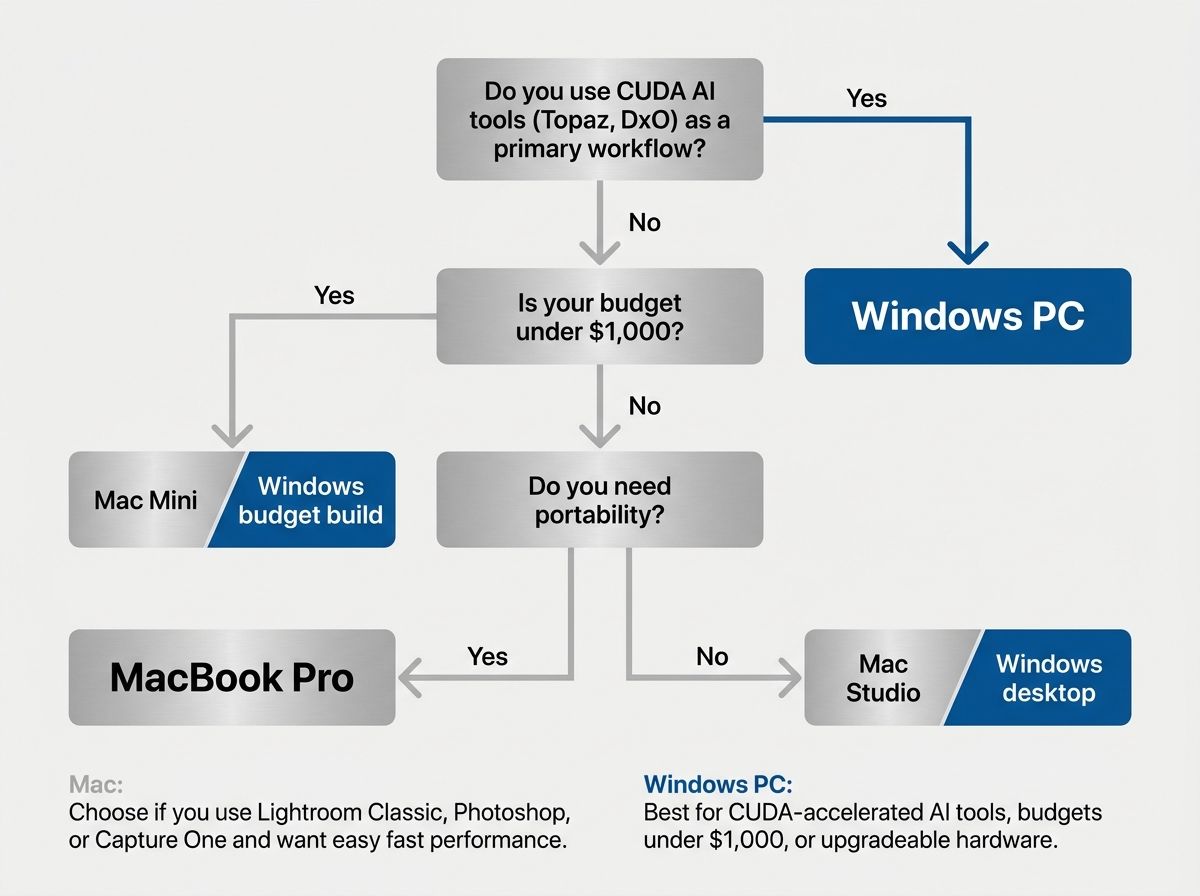
Choose a Mac if your primary workflow is Lightroom Classic, Photoshop, or Capture One and you want fast, efficient performance without configuring drivers or managing a tower. Choose a Windows PC if you run CUDA-accelerated AI tools as a primary workflow, your budget is under $1,000, or you want the ability to upgrade components over time. Both platforms produce professional results — the right answer depends on your software mix, not platform loyalty.
Here's the head-to-head breakdown:
| Factor | Mac (Apple Silicon) | Windows PC |
|---|---|---|
| Performance per watt | ✅ Excellent | Moderate |
| AI tool GPU acceleration | Good (Metal) | ✅ Best-in-class (NVIDIA CUDA) |
| Lightroom Classic speed | ✅ Strong single-core performance | Strong on current Ryzen/Core Ultra |
| Budget options (sub-$1,000) | Mac Mini only | ✅ Wide range of pre-builts and DIY |
| RAM upgradeability | ❌ Soldered unified memory | ✅ Upgradeable on desktops |
| Display color management defaults | ✅ Factory calibration on Pro displays | Varies by manufacturer |
| Software ecosystem | Strong for photo-first workflows | ✅ Broader third-party compatibility |
| Long-term support window | ~7 years historically | Varies by Windows version |
Tip — Support window context: Apple has historically supported Mac models for approximately 7 years before classifying them as vintage. This suggests M1 Macs will likely receive macOS and security updates through roughly 2027–2028, though Apple has not committed to any specific end-of-support date.
Choose Mac If…
- You primarily use Lightroom Classic, Photoshop, or Capture One and want fast performance without driver fuss.
- You need a laptop with long battery life for location shooting.
- You want a compact desktop (Mac Mini, Mac Studio) with low noise and low energy consumption.
- You value integrated workflows with iPhone, iPad, and iCloud for backup.
Choose PC If…
- You run CUDA-accelerated AI tools (Topaz Photo AI, DxO PureRAW) as a primary workflow and want maximum GPU performance.
- Your budget is under $800 and you want the most RAM and storage for the price.
- You want to upgrade RAM, GPU, or storage over the life of the machine.
- You need Windows-only software integrations with studio management or tethering tools.
Budget Guidance and Cost Considerations
Let's break down the actual costs by tier, so you know what to realistically expect before you shop.
| Budget Range | Realistic Capability | Limitations | Recommended Direction |
|---|---|---|---|
| Under $1,000 | Up to 33 MP cameras, single-app workflows, light retouching | Limited RAM headroom; AI tools will be slow | Mac Mini (M4) or budget Windows desktop with 32 GB RAM upgrade path |
| $1,000–$2,000 | 45 MP comfortably, multi-app workflows, occasional AI batches | AI-heavy batches still feel slow on integrated graphics | Mac Mini M4 Pro, base Mac Studio, or mid-tier Windows build with RTX 4060 |
| $2,000–$3,500 | Medium format capable, full AI tool support, large catalogs | Minimal for most working pros | Mac Studio M4 Max or Windows mid-tower with RTX 4070/4080 |
| Over $3,500 | Medium format, 4K/8K video hybrid, maximum RAM | Diminishing returns for pure photo workflows | High-tier Mac Studio or Threadripper/Xeon workstation for hybrid shooters |
Tip — Total cost of ownership: Factor in peripherals when budgeting. A calibrated monitor adds $300–$1,200, a colorimeter $150–$300, an NVMe external drive $80–$200, and a UPS battery backup $80–$200. These accessories are often more impactful than incremental CPU speed upgrades for color-critical work — and they should be budgeted at the same time as the computer, not six months later.
Pairing Your Computer with the Right Monitor
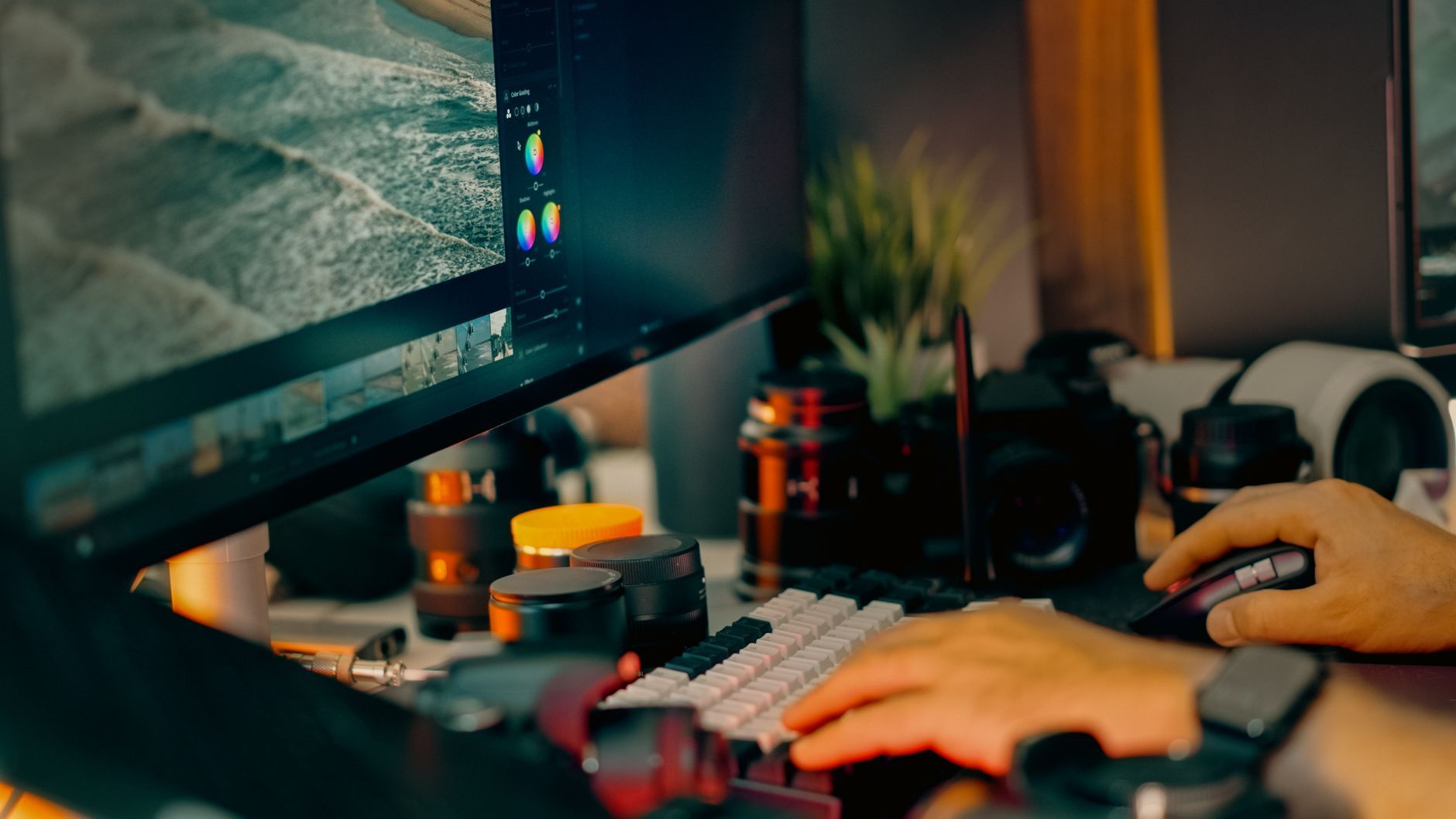
Pair your photo editing computer with an IPS or OLED monitor that covers at least 99% sRGB — and 95%+ Adobe RGB or 98%+ DCI-P3 if you deliver prints or commercial work. Factory calibration is a useful starting point, but a hardware colorimeter like the Calibrite Display Pro or Datacolor Spyder is what keeps your colors accurate week to week. RTINGS publishes lab-measured color accuracy data that's genuinely useful when narrowing down options.
Use this checklist when shopping:
- 99% sRGB coverage as a minimum; 95%+ Adobe RGB or 98%+ DCI-P3 for print and commercial work
- IPS or OLED panels — better color accuracy and viewing angles than TN or VA for most photo editing use cases
- Factory calibration report included (indicates the manufacturer has tuned the panel before shipping)
- A hardware colorimeter calibrates the monitor to a known standard — plan to calibrate every 2–4 weeks
- Match your monitor's color space to your primary output: sRGB for web delivery, Adobe RGB for wide-gamut print workflows
Tip — MacBook Pro display note: The MacBook Pro's Liquid Retina XDR display is factory calibrated and covers a wide color gamut, which reduces the urgency of an external monitor for travel photographers. For studio-based color-critical retouching, though, a dedicated external display is still recommended — a 27" or 32" screen simply gives you the real estate that a laptop can't match.
Limitations, Caveats, and What to Watch Out For
A few honest warnings before you spend the money.
⚠️ Benchmarks are directional, not absolute: Performance varies by software version, OS build, background processes, and driver updates. Any benchmark figures referenced in this guide reflect published third-party data at a specific point in time. Always check the source date and software version noted alongside any benchmark result.
⚠️ Prices are approximate: All prices referenced in this guide are approximate at the time of research and may have changed. Verify current pricing directly on the manufacturer or retailer site before purchasing.
RAM Is Not Upgradeable on Most Macs
- Apple Silicon Macs use unified memory soldered to the chip. You cannot add RAM after purchase.
- Choose your RAM tier carefully at the time of configuration. If your budget allows, err on the side of more — you can't come back and fix it later.
- Windows desktops and some Windows laptops allow post-purchase RAM upgrades, which is a meaningful long-term cost advantage.
AI Tool Performance Claims Shift Quickly
- Topaz Photo AI and DxO PureRAW update their GPU acceleration backends regularly. A machine that feels slow today may gain significant speed from a software update next quarter.
- Check the developer's current release notes and system requirements page rather than relying solely on benchmark data from previous software versions.
- Apple Silicon support in AI tools has improved substantially through 2024–2026 as developers continue to optimize for Metal.
Refurbished Buyer Cautions
- Verify the seller's certification status and warranty terms before buying refurbished hardware.
- Apple Certified Refurbished carries a one-year limited warranty and the option to purchase AppleCare — confirm current terms on Apple's refurbished store before buying.
- For Windows refurbished machines from third-party sellers, run a drive health check with CrystalDiskInfo (Windows) before trusting the machine with your catalog.
- Avoid refurbished machines from non-certified individual sellers for mission-critical workflows without a thorough inspection and warranty in writing.
Frequently Asked Questions
What is the best computer for photo editing in 2026? For most working photographers, an Apple Mac Studio with an M4 Max chip offers the best balance of Lightroom speed, color management, and longevity. Windows photographers running CUDA-heavy AI tools like Topaz Photo AI benefit from a mid-tower PC with an NVIDIA RTX 4070 or higher. The right choice depends on your software, camera resolution, and whether you need portability.
How much RAM do I need for Lightroom and Photoshop? 16 GB is a workable minimum for cameras up to roughly 33 MP. 32 GB is recommended for professional workflows with 45–61 MP cameras. 48–64 GB suits medium-format shooters (80–102 MP). 128 GB is relevant only for 100+ MP Phase One systems or combined photo-and-video workflows.
Is a Mac or PC better for photo editing? Mac wins on power efficiency, default color management, and performance per dollar at the laptop midrange. PC wins on NVIDIA CUDA acceleration for AI tools, sub-$1,000 budget builds, and hardware upgradeability. Choose Mac for travel and integrated workflows; choose PC for CUDA-heavy AI batches or tight budgets under $1,000.
Do I need a dedicated GPU for photo editing? Not for Lightroom Classic or Photoshop with cameras up to 45 MP — integrated graphics on Apple Silicon or modern Intel processors are generally sufficient for display rendering. Yes for Topaz Photo AI and DxO PureRAW on Windows, where an NVIDIA RTX GPU with CUDA acceleration significantly reduces AI batch processing time.
Is a desktop or laptop better for photo editing? Desktops offer more RAM, better thermals, and lower cost for equivalent performance — ideal for studio-based photographers. Laptops offer portability for location shooters and hybrid pros. Modern Apple Silicon laptops have closed much of the performance gap with compact desktops, making them a strong choice for photographers who edit in multiple locations.
What storage setup is best for Lightroom catalogs? Place your Lightroom catalog and preview cache on an NVMe SSD — this single change produces the most noticeable speed improvement in the develop module. Store active project files on a secondary SSD. Use external hard drives or a NAS for archive storage. Avoid storing the catalog on a spinning hard drive or external drive over USB 2.0.
Should I buy a refurbished computer for photo editing? Yes, with caveats. Apple Certified Refurbished machines carry a one-year warranty and pass the same quality checks as new units, making them a reliable option. For third-party refurbished Windows machines, verify the seller's certification, run a drive health check, and confirm warranty terms before purchasing for professional use.
How much should I spend on a photo editing computer? Under $1,000 covers casual workflows and cameras up to 33 MP. $1,000–$2,000 handles professional 45 MP workflows comfortably. $2,000–$3,500 covers medium-format and AI-heavy batches. Over $3,500 is relevant for high-volume studios, medium-format, or combined photo-video workflows. Factor in monitor, colorimeter, and storage when calculating total setup cost.
Sources
- Best Workstation PC for Adobe Lightroom Classic — Puget Systems
- Lightroom Classic GPU FAQ — Adobe Help Center
- DPReview
- Apple Vintage and Obsolete Products — Apple Support
- Topaz Photo AI System Requirements — Topaz Labs
- DxO PureRAW — DxO Official
- Capture One System Requirements — Capture One Official
- Back Market — Certified Refurbished Electronics
- PetaPixel
- Best Monitors for Photo Editing — RTINGS