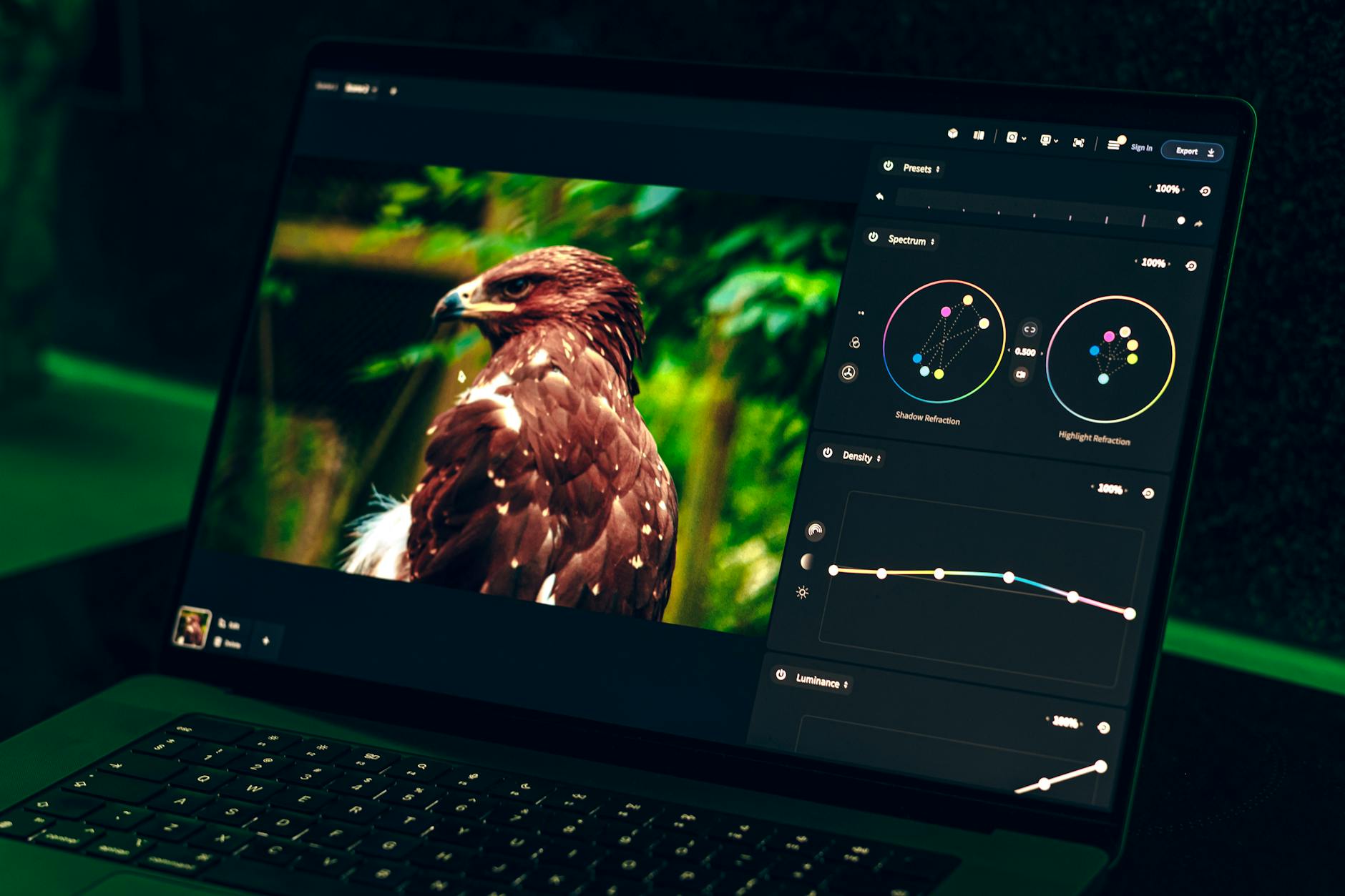
Which is better for photographers in 2026: Adobe Lightroom or Capture One?
Quick answer: For most photographers, Adobe Lightroom offers the better balance of simplicity, cloud sync, strong mobile apps, and AI features at a lower entry cost. Capture One is the stronger choice for studio and commercial photographers who need advanced tethering, customizable workspaces, layers, and deeper color-grading control — and who are willing to invest the time to learn it.
Lightroom vs Capture One compared in depth for 2026: pricing, AI tools, tethering, color science, and mobile. Find out which photo editor fits your workflow.
Key Takeaways
- Lightroom suits beginners, mobile editors, and travel photographers with its clean interface and cloud sync.
- Capture One excels for studio/commercial work, tethered shooting, and advanced color science.
- Pricing differs significantly: Lightroom is subscription-only; Capture One offers both subscription and perpetual license options.
- AI tools are rapidly evolving in both apps — check current feature lists before deciding.
- Color rendering is subjective; test both apps with your own camera's RAW files before committing.
- Lightroom Classic and Lightroom (cloud) are different products — know which one you are comparing.
- Switching between the two is possible but not lossless; masks, layers, and adjustments do not transfer.
Which Is Better: Lightroom or Capture One?
!Adobe Lightroom and Capture One interfaces displayed side by side with the same RAW portrait open in each
Here's the reality: there's no universal winner. Lightroom wins for most working photographers because it's faster to learn, syncs across devices, and bundles Photoshop for the same price. Capture One wins when your job depends on tethered shooting, custom workspaces, or extracting every drop of color from a Sony or Fujifilm RAW file.
I've been editing in both apps since 2017, and I still keep licenses for each. Wedding deliveries go through Lightroom Classic. Commercial product shoots run on Capture One. They're different tools, and treating them as interchangeable is how you waste money.
💡 How We Tested > > Same RAW files imported into both apps using the current public releases as of the last update to this article. Camera bodies tested include Sony A7 IV, Fujifilm X-T5, Canon R5, and Nikon Z6 II. Color observations are based on default profiles with zero adjustments applied. Pricing was verified against the official Adobe and Capture One pricing pages on the date this article was last updated.
Which Lightroom Are We Comparing? (And Which Capture One?)
Before we go any further, you need to know which products are actually on the table. This trips up almost every photographer I talk to.
| Product | Catalog Model | Pricing Model | Best For |
|---|---|---|---|
| Lightroom (cloud) | Cloud-based | Subscription only | Mobile-first, multi-device editing |
| Lightroom Classic | Local catalog | Subscription only | Desktop pros, large local libraries |
| Capture One Pro | Local catalog | Subscription or perpetual | Studio, commercial, color-critical work |
| Capture One Studio | Local catalog, multi-seat | Subscription | Teams, large studios, asset management |
For the rest of this article, the head-to-head focuses on Lightroom Classic vs Capture One Pro as the full-featured desktop options. The cloud Lightroom and mobile experience get their own section.
⚠️ Important > > Lightroom Classic and the cloud-based Lightroom are both included in the Adobe Photography Plan. You get both apps with one subscription. Lightroom Classic is actively developed and receives regular updates — Adobe ships new features and AI improvements to it on the same cadence as cloud Lightroom.
Lightroom vs Capture One: At a Glance
If you only read one section, read this one. Here's how they stack up across the decisions that actually matter.
!Infographic comparison table showing Lightroom vs Capture One features including pricing, tethering, AI tools, mobile, and learning curve
| Feature | Adobe Lightroom | Capture One Pro |
|---|---|---|
| Starting Price | Lower entry (see [Adobe](https://www.adobe.com/products/photoshop-lightroom/plans.html)) | Higher (see [Capture One](https://www.captureone.com/en/pricing)) |
| Pricing Model | Subscription only | Subscription + perpetual license |
| Desktop Platforms | Windows, macOS | Windows, macOS |
| Mobile App | iOS + Android (mature) | iOS + iPad (verify Android status) |
| Cloud Sync | Yes (Adobe Creative Cloud) | Capture One Live (different model) |
| Tethered Capture | Limited (Canon, Nikon) | Industry standard, broad camera support |
| AI Denoise | Yes | Yes |
| AI Subject Masking | Yes | Yes |
| Sky Masking | Yes | Verify current version |
| Layers | No (uses masks instead) | Yes (true adjustment layers) |
| Customizable Workspace | Limited | Fully customizable |
| Catalog Model | Catalog (Classic) or Cloud (Lightroom) | Catalog or Sessions |
| Learning Curve | Beginner-friendly | Steep |
| Best For | Most photographers, mobile, travel | Studio, commercial, color-critical |
⚠️ Pricing Note > > Software pricing changes frequently. Check the official Adobe Lightroom pricing and Capture One pricing pages before purchase. The figures referenced in this article were verified on the date listed at the top.
Pricing Compared: Subscriptions, Annual Plans, and Perpetual Licenses
Let's break down the actual costs. This is where most photographers make their final call.
!Pricing comparison card showing Adobe Lightroom subscription plans versus Capture One Pro subscription and perpetual license options
| Plan | App | Billing Cycle | Price (see official site) | What's Included |
|---|---|---|---|---|
| Adobe Photography Plan (20GB) | Lightroom + Lightroom Classic + Photoshop | Monthly or Annual | See [Adobe](https://www.adobe.com/products/photoshop-lightroom/plans.html) | Both Lightroom apps, Photoshop, 20GB cloud storage |
| Adobe Photography Plan (1TB) | Lightroom + Lightroom Classic + Photoshop | Monthly or Annual | See [Adobe](https://www.adobe.com/products/photoshop-lightroom/plans.html) | All above plus 1TB cloud storage |
| Capture One Pro Subscription | Capture One Pro | Monthly or Annual | See [Capture One](https://www.captureone.com/en/pricing) | Pro app, mobile (verify) |
| Capture One Studio | Capture One Studio | Annual | See [Capture One](https://www.captureone.com/en/pricing) | Multi-seat, team workflows |
| Capture One Pro Perpetual | Capture One Pro (one version) | One-time payment | See [Capture One](https://www.captureone.com/en/pricing) | Single major version, no auto-upgrades |
Prices last verified on the date listed at the top of this article.
💡 Is a Perpetual License Still Available for Capture One? > > As of the latest update, Capture One continues to offer a perpetual license option in addition to subscriptions. A perpetual license typically covers one major version — when the next major release ships, you'll need to purchase an upgrade to access new features. Verify availability and current terms directly on the Capture One pricing page.
💡 Is Lightroom Available Without a Subscription? > > No. Both Lightroom and Lightroom Classic are subscription-only through the Adobe Photography Plan. Older perpetual versions of Lightroom (version 6 and earlier) exist but are no longer sold, supported, or compatible with current camera RAW files.
Value for Money: What Do You Actually Get?
- Adobe Photography Plan bundles Lightroom, Lightroom Classic, and Photoshop for the same monthly cost. If you already use Photoshop or plan to, this is one of the best bundle deals in photography software. Cloud storage starts at 20GB and scales up.
- Capture One Pro is one app. No Photoshop equivalent included. For photographers who don't need Photoshop (most studio and tethered shooters), this isn't a downside — but for retouchers and composite shooters, it's a real gap.
- Budget-conscious beginners get more for less with Lightroom. The lower entry cost plus Photoshop bundle is hard to beat when you're just starting out.
- Subscription-averse pros have a real argument for Capture One's perpetual license. If you hate the idea of paying forever, this matters. Just remember you'll pay again for major version upgrades.
Interface, Performance & Learning Curve
Is Capture One harder to learn than Lightroom? Yes. Capture One has a steeper learning curve because its workspace is fully customizable and its tool-tab system requires you to understand where things live before you can find them. Lightroom's fixed panel layout is more approachable and most new users are productive within a few hours.
💡 Performance on Apple Silicon > > Both apps now ship Apple Silicon-native builds and run well on M-series Macs. In my testing on an M2 Pro with 32GB RAM, both handle 60MP RAW files without noticeable lag in develop adjustments. Large catalogs (50,000+ images) feel slightly more responsive in Capture One, but Lightroom Classic has closed that gap significantly with recent updates. Your mileage will vary with catalog size and storage type — fast NVMe storage matters more than the app you pick.
Lightroom's Interface: Clean but Constrained
Lightroom Classic uses a module-based layout: Library, Develop, Map, Book, Slideshow, Print, Web. You switch modules at the top, and each one has a fixed panel arrangement. The Develop module — where you'll spend 90% of your time — has sliders grouped logically: Basic, Tone Curve, HSL, Color Grading, Detail, Lens Corrections, Transform, Effects, Calibration.
The cloud Lightroom interface is even simpler. Edit, Crop, Heal, Mask, Presets. That's it. New users get to a finished edit faster here than in any other RAW editor.
The trade-off: you can't rearrange panels, float tools, or build custom layouts. What you see is what you get.
Capture One's Interface: Powerful but Complex
Capture One starts you with tool tabs — vertical icons that group related tools (Library, Capture, Lens, Color, Exposure, Details, Adjustments, Metadata, Output, Batch). You can rearrange these. You can detach panels into floating windows. You can build a custom workspace for portrait editing and another for landscape work and switch between them.
The first time you open Capture One, you'll feel lost. That's normal. I felt the same. Plan to spend 10–15 hours getting comfortable before you judge it.
The payoff: once you've built a workspace tuned to your workflow, you'll edit faster than you ever did in Lightroom. The multi-variant viewer (showing different edit versions of the same image side by side) alone is worth the investment for commercial work.
RAW Engine & Color Science: Which Renders Better?
Both apps render RAW files beautifully — they just approach color differently. Capture One has long been praised for richer default profiles and stronger skin tones out of the box, while Lightroom takes a more neutral, "starting point" approach that's easier to push in any direction. Color preference is subjective. Don't take my word for it. Download both trials and test with your own files.
!Side-by-side RAW file rendering comparison showing the same Sony or Fujifilm portrait image processed in Lightroom versus Capture One with default settings
⚠️ Color Comparisons Are Subjective > > Every color comparison in this section is based on side-by-side testing with default profiles applied. Your taste, your subject matter, your camera, and your monitor all affect what looks "better." I've shot weddings where Lightroom's rendering matched my vision better than Capture One's, and commercial shoots where the opposite was true. Test before you commit.
Sony and Capture One: A Known Affinity
Capture One has a long-standing reputation for handling Sony RAW files well, particularly for skin tones in portrait and beauty work. Default profiles tend to produce warmer, more flattering renderings of skin without significant adjustment. This is partly why a free Sony-specific version of Capture One (Capture One Express for Sony) existed historically — verify current availability on the Capture One website before assuming.
Lightroom's Sony rendering has improved substantially over the past few years. The current Adobe color profiles for Sony cameras are competitive, and for most non-portrait work I genuinely can't tell which app I'm looking at without checking. For portrait shooters who are picky about skin tones, Capture One still has the edge in my testing. For everyone else, it's close enough that workflow should drive the decision.
Fujifilm: Film Simulations and Capture One
This is where Capture One has historically held a clear advantage. Fujifilm shooters get native Film Simulation profiles (Provia, Velvia, Astia, Classic Chrome, Acros, and others) baked into Capture One's color profile selector. They look like the in-camera JPEGs. They're the reason a lot of Fujifilm photographers swear by Capture One.
Lightroom has historically struggled with Fujifilm's X-Trans sensor demosaicing, particularly with fine foliage and detail rendering. Adobe has improved this significantly with the Enhance feature and updated profiles, but if you talk to dedicated Fuji shooters, Capture One still gets brought up first. Test with your own X-Trans files — particularly landscape or detail-heavy shots — before deciding.
Canon and Nikon: Lightroom Holds Its Own
For Canon and Nikon RAW files, Lightroom's rendering is genuinely competitive. Many photographers can't tell the difference in blind tests, and Adobe's camera profiles for both brands are well-tuned.
Capture One's default profiles for Nikon tend to look slightly bolder and sharper out of the box — more contrast, slightly punchier color. Some shooters love that. Some prefer Lightroom's neutral starting point because it gives them more room to push the edit in any direction.
If you shoot Canon or Nikon and you're not doing studio work, the Lightroom ecosystem (mobile, presets, Photoshop integration) usually outweighs any color difference. For brand-specific RAW analysis, DPReview and PetaPixel regularly publish side-by-side tests worth checking before you decide.
AI Features Compared: Masking, Denoise, and Generative Tools
AI is the fastest-moving area in both apps. What's true today may be outdated in six months. Verify against official release notes from Adobe and Capture One before making a feature-based decision.
| AI Feature | Adobe Lightroom | Capture One |
|---|---|---|
| AI Denoise | Yes | Yes |
| Subject/Person Masking | Yes | Yes |
| Background Masking | Yes | Yes |
| Sky Masking | Yes | Verify current version |
| Object Selection | Yes | Partial — verify |
| Generative Remove/Fill | Yes | Verify current version |
| AI Crop/Composition | Yes | Verify |
| AI Styles / Match Look | Adaptive Presets | Match Look (style matching) |
| Non-AI Noise Reduction | Yes | Yes |
Feature availability subject to change — verify against current release notes from [Adobe](https://helpx.adobe.com/lightroom-classic/using/whats-new.html) and [Capture One](https://www.captureone.com/en/blog).
⚠️ AI Features Are a Moving Target > > Capture One has been closing the AI feature gap rapidly. Don't assume that a feature missing two years ago is still missing today. Always check the current release notes before you write off either app based on AI capabilities alone.
!Screenshot comparison of AI subject masking results in Adobe Lightroom and Capture One on the same portrait photo
Adobe Lightroom's AI Toolkit
- AI Denoise: One-click machine-learning denoise for RAW files. Produces a new DNG. In my testing, it handles high-ISO files (12,800+) better than any non-AI noise reduction I've used. Slow to process (30–90 seconds per file depending on hardware), but the quality is exceptional.
- AI Masking: Subject, Sky, Background, Object, and People masks. The People masking goes deep — separate selections for face skin, body skin, eyes (sclera, iris, pupil), eyebrows, hair, lips, teeth, and clothing. This is genuinely useful for portrait work.
- Generative Remove: AI-powered content-aware fill. Removes distractions from images and fills the area with plausible content. Works well on simple backgrounds, less reliable on complex scenes.
- Adaptive Presets: Presets that automatically apply masks based on AI detection — so a "brighten eyes" preset finds the eyes for you.
A note on privacy: some Lightroom AI features process data in the cloud. Adobe documents this in their privacy terms — worth reading if you shoot sensitive client work.
Capture One's AI Toolkit
- AI Denoise: Capture One has its own AI-powered denoise. Quality is strong in my testing, comparable to Lightroom for most files. Speed varies by version.
- Smart Adjustments / Subject masking: Capture One offers subject masking and background masking driven by AI selection. The mask quality on the current release is solid — edge detection is good on hair and complex subjects.
- Match Look: This is Capture One's standout creative AI tool. Point it at a reference image, and it analyzes the color and tone characteristics, then applies a matching look to your file. For photographers building a consistent visual style across a shoot, this is genuinely useful.
- AI Crop: Composition-based crop suggestions in current versions — verify against latest release notes.
Capture One has historically been slower to ship AI features than Adobe, but the gap has narrowed considerably. If AI is a hard requirement for your workflow, Lightroom still leads on breadth, but Capture One is no longer the laggard it was two years ago.
Tethering & Studio Workflow: Capture One's Strongest Suit
Is Capture One better than Lightroom for tethering? Yes, by a meaningful margin. Capture One is the industry standard for tethered shooting thanks to faster live view connection, broader camera support, real-time review tools, and overlay/composition tools. Lightroom Classic supports tethering for Canon and Nikon, but with fewer features and less reliability in practice.
⚠️ Check Camera Compatibility Before You Buy > > Tethering support varies by camera brand and model. Verify your specific body against the official Capture One supported cameras list and Adobe's Lightroom tethering documentation before purchasing. There is nothing worse than buying software for tethering and discovering your camera isn't supported.
Why Studio Photographers Choose Capture One
- Faster, more reliable connection across a wider range of cameras — Sony, Phase One, Fujifilm, Canon, Nikon, Leica, and more.
- Live View overlays: focus grids, composition guides, framing overlays, and reference image overlays you can match a shot against.
- Real-time adjustments: apply a color and exposure look as images arrive on screen. The client sees the look during the shoot, not after.
- Client review mode: present images on a separate screen with star ratings and selects feeding back to the photographer's machine.
- Industry expectation: walk onto a commercial set with Lightroom and you'll get sideways looks from assistants and art directors. Capture One is what they expect.
For a deeper walkthrough of tethered shooting best practices, Fstoppers has solid material from working photographers.
Lightroom Tethering: Functional but Limited
- Supports tethered capture for Canon and Nikon (verify current supported camera list against Adobe's documentation).
- Generally considered less feature-rich than Capture One for studio use — fewer overlays, less control over capture settings.
- Third-party plugins (Tethertools and similar) can extend Lightroom's tethering capabilities if you prefer Lightroom's editing workflow but need better tether reliability.
- Cloud Lightroom does not support tethered capture at all. Tethering only happens in Lightroom Classic.
If you tether occasionally for portrait sessions and you already live in Lightroom, it works. If tethering is core to your business, Capture One pays for itself in saved time and fewer technical headaches on set.
Mobile Apps & Cloud Sync: Where Lightroom Leads
Does Capture One have a mobile app? Yes, Capture One has a mobile app for iPhone and iPad, with features that continue to expand. Verify current platform support and feature parity on the Capture One website. Lightroom's mobile apps remain more mature, available on both iOS and Android, with near-feature-parity to the desktop version for core editing.
!Lightroom mobile app and Capture One mobile app displayed on iPad screens side by side for comparison
⚠️ Mobile Feature Parity Is Changing Fast > > Verify Capture One's current mobile platform support and feature set against their official channels. Earlier reviews described it as limited or beta — that's no longer the full picture, but the exact state changes with each release.
Lightroom Mobile & Cloud: The Full Ecosystem
- Available on iOS and Android with near-feature-parity to desktop for core editing tasks.
- Automatic cloud sync: edit a photo on your phone during a layover, open Lightroom on your desktop at home, and the edits are already there.
- Mature iPad experience: full RAW editing, presets, masking, AI tools, and external storage support.
- Cloud storage included in the Adobe Photography Plan (20GB or 1TB depending on tier — see Adobe's plans page).
- Ideal for travel and on-the-go editing when you don't want to lug a laptop.
If you edit on multiple devices, Lightroom isn't a close call. It's the only sensible choice.
Capture One Mobile: Catching Up
- The current Capture One mobile app supports RAW editing on iPhone and iPad with a growing feature set. Verify Android availability against the official site.
- The sync model is different from Adobe's — Capture One Live and the mobile workflow have evolved separately, with their own logic for transferring files between devices.
- Past limitations are being addressed. The trajectory is positive.
- If mobile editing is core to how you work, Lightroom is still the stronger choice as of this writing. If mobile is a "nice to have," Capture One's current offering may be enough.
Best Choice by Photographer Type: Who Should Use Which App?
Here's the decision framework. Find yourself on this list.
✅ Choose Lightroom if you... - Are a beginner or enthusiast who wants an approachable, well-documented workflow. - Edit on mobile or switch between devices regularly. - Want automatic cloud backup and cross-device sync. - Already use or plan to use Photoshop (the Photography Plan bundles both). - Shoot Canon or Nikon and don't need advanced color customization. - Prioritize AI generative tools and a broad ecosystem of presets and plugins.
✅ Choose Capture One if you... - Shoot commercially in a studio and rely on tethered capture. - Need advanced color grading, layers, and local adjustments with more granular control. - Primarily shoot Sony or Fujifilm and want optimized RAW rendering for those sensors. - Prefer a customizable workspace tailored to your specific workflow. - Want the option of a perpetual (one-time) license instead of a subscription. - Are an experienced editor willing to invest time in learning a more complex tool.
!Decision flowchart helping photographers choose between Lightroom and Capture One based on their workflow needs
Wedding & Portrait Photographers
For high-volume wedding work, Lightroom usually wins. Batch processing, easy preset application, smart collections, and integration with client gallery platforms (Pic-Time, Pixieset, ShootProof) make it the practical choice. Most wedding presets you'll find online are built for Lightroom.
High-end portrait and fashion photographers who shoot tethered, need precise skin tone control, and work in controlled lighting tend to prefer Capture One. The Match Look feature and skin tone tools are genuine workflow accelerators.
If you do both, pick based on volume. Edit-heavy wedding businesses lean Lightroom. Boutique portrait studios lean Capture One.
Travel & Landscape Photographers
Lightroom's mobile app and cloud sync are unbeatable for editing on the road. Capture a sunrise on your mirrorless, edit it on an iPad over coffee, post by lunch — all without touching a laptop.
Landscape photographers doing detailed local adjustments (dodge and burn, atmospheric corrections, complex sky work) may appreciate Capture One's layers and masking precision. But for most travel and landscape workflows, Lightroom is the practical winner.
Commercial & Studio Photographers
Capture One. Full stop.
Tethering reliability, live composition overlays, client-review mode, and the industry expectation that your studio runs Capture One make this an easy call. If your clients and art directors expect Capture One sessions on set, the decision is effectively made for you.
Beginners and Hobbyists
Start with Lightroom. The interface is simpler, the tutorials are everywhere (YouTube, Adobe's own training, dozens of paid courses), and the entry price is lower.
Capture One's complexity is a barrier when you're still learning what HSL and tone curves actually do. You can always switch later — starting with Lightroom doesn't lock you into anything.
Can You Switch Between Lightroom and Capture One?
Can you switch from Lightroom to Capture One without losing edits? Possible but not lossless. XMP sidecar metadata, ratings, and keywords transfer. Lightroom-specific develop adjustments, AI masks, and virtual copies do not translate to Capture One. The standard preservation strategy is to export full-resolution JPEGs or 16-bit TIFFs of your finalized edits before switching, so your processed work survives the migration.
✅ What Transfers When Migrating from Lightroom to Capture One - Original RAW files (always retained — edits are non-destructive) - XMP sidecar metadata: ratings, flags, keywords, basic EXIF data - Folder structure (if you've maintained a consistent file system) - GPS and location metadata
❌ What Does NOT Transfer - Lightroom develop adjustment values (exposure, tone, HSL, color grading) - Lightroom AI masks and local adjustment layers - Virtual copies - Lightroom-specific presets (you can manually recreate them, but values won't auto-translate) - Smart collections and saved filters
💡 Before You Switch > > Export full-resolution JPEGs or 16-bit TIFFs of your finalized work before migrating. Run both apps in parallel for at least 30 days before deleting one or canceling a subscription. New apps reveal workflow problems on real client work that trials never expose.
Frequently Asked Questions: Lightroom vs Capture One
Is Capture One better than Lightroom?
Neither is objectively better — it depends on your workflow. Capture One is better for studio, commercial, and advanced color work. Lightroom is better for most general, mobile, and beginner photographers. Test both with your own RAW files using their free trials before deciding.
Is Capture One worth the extra cost over Lightroom?
For studio and commercial photographers who rely on tethering, layers, and advanced color tools, Capture One's higher cost is generally justified — it pays for itself in saved time on commercial sets. For hobbyists, enthusiasts, or mobile-first editors, Lightroom's lower entry price and broader feature accessibility typically offer better value. Verify current pricing from official sources before comparing.
Can you switch from Lightroom to Capture One without losing your edits?
Switching is possible but not lossless. Your original RAW files, star ratings, keywords, and folder structure can transfer via XMP metadata, but Lightroom's develop adjustments, AI masks, and virtual copies do not translate to Capture One. Export final JPEGs or TIFFs before switching to preserve your processed work.
Which is easier for beginners — Lightroom or Capture One?
Lightroom is significantly easier for beginners. Its fixed, intuitive panel layout, extensive free tutorial library, and clear module structure make it the recommended starting point. Capture One's highly customizable workspace and advanced tools have a steeper learning curve that's better suited to photographers with prior editing experience.
Does Capture One have a mobile app like Lightroom?
Yes, Capture One has a mobile app, though its capabilities and platform availability continue to evolve — verify current feature parity and supported platforms from the official Capture One website. Lightroom's mobile app is more mature, available on both iOS and Android, and includes near-full-feature editing with automatic cloud sync.
Is Capture One better for Fujifilm or Sony files?
Capture One has a strong reputation for both Fujifilm and Sony RAW files. For Fujifilm, it supports Film Simulations natively. For Sony, many portrait photographers prefer Capture One's skin tone rendering. Lightroom's support for both has improved significantly, though — test both with your own files, since color preference is subjective.
Can you still buy Capture One with a perpetual license?
Capture One has continued to offer perpetual license options alongside subscriptions — verify current availability from the official Capture One pricing page, as licensing models change. A perpetual license typically covers one major version, so future major releases require an upgrade purchase.
What is the difference between Lightroom and Lightroom Classic?
Lightroom (cloud-based) stores your catalog and images in Adobe's cloud with strong mobile sync. Lightroom Classic is a desktop-focused application that stores your catalog and files locally, offering more advanced organizational and export features. Both are currently included in the Adobe Photography Plan subscription.
Sources
- Adobe Lightroom Plans & Pricing
- Capture One Pricing
- What's New in Lightroom Classic – Adobe Help
- Capture One Supported Cameras
- DPReview – Digital Photography Review
- PetaPixel – Photography News and Reviews
- Software Wars: Can Capture One Pro Defeat Lightroom Classic? – Fstoppers
- Adobe Lightroom Classic – Official Product Page
- Capture One Official Blog