What is the best AI photo editing software for photographers in 2026?
Quick answer: The best AI photo editing software in 2026 depends on your workflow. Adobe Lightroom with AI Masking and Denoise leads for professional RAW editing, Luminar Neo excels at one-click creative enhancements, and Aftershoot is the top choice for AI-powered culling and batch editing. For web-based or mobile editing, BeFunky, PhotoRoom, and Photoleap offer strong AI features with low learning curves. Pricing ranges from free tiers to roughly $10–$20 per month for premium plans, though you should verify current pricing on each vendor's website.
Researched and ranked: the best AI photo editing software in 2026. Compare features, pricing, pros and cons, and find the right AI editor for your photography workflow.
Key Takeaways
- No single AI photo editor is best for everyone. Match the tool to your use case and shooting volume.
- AI culling software (Aftershoot, Narrative Select) and AI editors are separate but complementary categories.
- Most top AI editors offer free tiers, though usually with watermarks or export limits before requiring a paid plan.
- Privacy matters. Check whether each tool processes images on-device or uploads them to cloud servers.
- Adobe Lightroom and Luminar Neo lead for professional RAW workflows. BeFunky and Canva suit beginners.
- Pricing changes often. Always confirm current plans directly on vendor pricing pages.
- An end-to-end AI workflow (cull → edit → export) can cut editing time significantly on high-volume shoots.
What Is AI Photo Editing Software?
AI photo editing software uses machine learning algorithms to automate tasks like background removal, noise reduction, object erasing, sky replacement, and upscaling. These tools can produce results in seconds that previously required skilled manual work in Photoshop or Lightroom. Instead of masking by hand or painting out distractions pixel by pixel, you let a trained model do the heavy lifting and then refine the output.
The category has expanded fast. What started as basic auto-enhance filters now includes generative tools that can fill in missing parts of an image, swap entire skies, or retouch portraits with a single click. Adobe, Skylum, and a wave of newer vendors like Aftershoot and PhotoRoom have pushed the technology forward across both desktop and mobile.
💡 AI Editing vs. AI Culling: What's the Difference? > > AI editing enhances or transforms images. AI culling automatically sorts and selects the best shots from a large batch, flagging blurry frames, closed eyes, and duplicates. Both categories are covered in this guide because professional photographers typically need both working together.
What Tasks Can AI Photo Editors Automate?
- Background removal and replacement
- Object and blemish removal
- Automatic exposure, color, and white balance correction
- Noise reduction and image upscaling
- Sky replacement and scene enhancement
- Portrait retouching including skin smoothing and eye enhancement
- Style transfer and creative filter application
- Generative fill for content-aware gap filling
How We Evaluated These AI Photo Editors
Here's the reality: most "best of" lists for AI editors are thinly disguised affiliate pages. We wanted a transparent framework so you can see exactly why each tool landed where it did. This comparison is based on published vendor documentation, independent reviews from outlets like DPReview and PetaPixel, and widely reported photographer consensus on forums and community reviews.
The criteria below are the seven factors we researched and weighted when ranking the tools in this guide.
| Criterion | What We Looked At | Why It Matters |
|---|---|---|
| Output Quality | Reviewer consensus on edit accuracy, artifact handling, and refinement controls | Poor AI output costs more time than it saves |
| Processing Speed | Vendor-published benchmarks and reviewer-reported performance | Batch workflows live or die by throughput |
| Ease of Use | Interface clarity, onboarding, and learning curve as reported by users | Determines who the tool actually fits |
| Pricing and Value | Published plans, free tier limitations, and feature set per dollar | Affects long-term cost of your workflow |
| Platform Support | Mac, Windows, iOS, Android, web availability | Must fit how and where you work |
| AI Feature Depth | Range of AI tasks supported (masking, culling, generative fill, etc.) | Broad toolsets reduce app-switching |
| Privacy and Data Handling | Cloud vs. local processing, retention policy, training-data use | Critical for client work |
⚠️ A Note on Pricing > > Pricing for AI software changes frequently. All pricing ranges cited in this article were researched at the time of writing. Always verify current plans directly on the vendor's official pricing page before purchasing.
Top Picks at a Glance
If you just want the shortlist, here it is.
- Adobe Lightroom — Best for professional RAW editing
- Luminar Neo — Best for one-click creative enhancements
- Aftershoot — Best AI culling and editing combo
- Narrative Select — Best for photographers who want culling control
- BeFunky — Best web-based AI editor for beginners
- PhotoRoom — Best for e-commerce and product photography
- Canva — Best for designers and social media creators
- Photoleap — Best mobile AI photo editor
| Tool | Best For | Platform | Free Tier | Starting Price (verify on vendor site) |
|---|---|---|---|---|
| Adobe Lightroom | Professional RAW editing | Mac, Win, iOS, Android, Web | No (trial only) | ~$10–$12/mo |
| Luminar Neo | Creative AI enhancements | Mac, Win | Trial only | Subscription or one-time |
| Aftershoot | AI culling + editing | Mac, Win | Trial | ~$10–$20/mo range |
| Narrative Select | AI-assisted culling | Mac, Win | Trial | Subscription |
| BeFunky | Beginner web editing | Web | Yes (limited) | ~$5–$10/mo range |
| PhotoRoom | Product/e-commerce | Web, iOS, Android | Yes (watermark) | ~$10/mo range |
| Canva | Design + social content | Web, iOS, Android | Yes (limited AI) | ~$12/mo range |
| Remini | Photo restoration | iOS, Android, Web | Yes (limited) | Subscription |
| Photoleap | Mobile creative AI | iOS, Android | Yes (limited) | Subscription |
| Pixlr | Free browser editing | Web | Yes (with ads) | ~$5–$10/mo range |
Prices are approximate and change often. Verify on each vendor's official site before purchasing.
The Best AI Photo Editing and Culling Tools in 2026
This is the core of the guide. Each tool below gets a short write-up covering what it does well, where it falls short, and who should actually use it. Tools are ordered roughly by professional photographer relevance, starting with pro RAW editors, then culling tools, then specialized and mobile options.
💡 Editor's Note on Tool Selection > > Tools were selected based on AI feature depth, user base size, and relevance across multiple photographer types. No vendor paid for inclusion. All pricing must be verified on official sites before you buy.
Adobe Lightroom with AI Tools — Best for Professional RAW Editing
Lightroom is the default for working photographers, and its AI toolset has caught up fast. AI Masking, Denoise, and Select Subject are built directly into the catalog workflow, and Photoshop ties in with Adobe Firefly for generative fill and expand. Check Adobe's model documentation page for the current Firefly version, since it updates regularly.
Best for: photographers already in the Adobe ecosystem who shoot RAW.
Platforms: Mac, Windows, iOS, Android, web.
Pricing: subscription-based. Verify current Creative Cloud Photography plan pricing at adobe.com.
Pros: industry-standard RAW handling, deep AI feature set, non-destructive editing, catalog sync across devices.
Cons: subscription-only, steeper learning curve for beginners, Denoise can be slow on older machines.
Luminar Neo — Best for One-Click Creative Enhancements
Luminar Neo is where you go if you want AI results that look impressive with almost no manual work. Sky AI, Relight AI, Portrait Background Removal, and Noiseless AI are the headline features. It also runs as a plugin inside Lightroom or Photoshop, so you don't have to abandon your existing catalog to use it.
Best for: photographers who want powerful creative AI without a steep learning curve.
Platforms: Mac, Windows.
Pricing: one-time purchase and subscription options available. Verify at skylum.com.
Pros: visually striking AI output, standalone or plugin use, no subscription required on the perpetual plan.
Cons: can be slow on older hardware, some AI effects look over-processed if you don't pull the sliders back. Manual refinement is recommended before client delivery.
Aftershoot — Best AI Culling and Editing Combo
If you shoot weddings or events and dread the cull, this is the tool to look at first. Aftershoot specializes in AI culling, automatically flagging blurry, closed-eye, and duplicate frames across thousands of images. It also offers AI editing profiles that apply your base edits to the keepers after culling is done.
Best for: wedding, event, and portrait photographers with high-volume shoots.
Platforms: Mac, Windows (desktop only).
Pricing: subscription-based. Verify at aftershoot.com.
Pros: major time savings on culling, learns your preferences over time, integrates cleanly with Lightroom.
Cons: desktop only (no web or mobile), and culling accuracy improves as it sees more of your library. Check Aftershoot's own documentation for any specific speed or accuracy figures before relying on them.
Narrative Select — Best for Photographers Who Want Culling Control
Narrative Select takes a different philosophy than Aftershoot: AI assists, but the photographer makes the final call. Face detection, sharpness scoring, and duplicate grouping are strong, especially for portrait and event work where you need to compare similar frames of the same person side by side.
Best for: photographers who want AI suggestions but prefer manual final approval.
Platforms: Mac, Windows.
Pricing: subscription. Verify current pricing at narrativeselect.com.
Pros: photographer-first approach, excellent face-grouping for portraits and events.
Cons: culling only, no editing. You'll still need a separate editor for retouching and export.
BeFunky — Best Web-Based AI Editor for Beginners
BeFunky runs entirely in the browser with no download, and offers AI background removal, an object eraser, and a one-click image enhancer. If you're a blogger, small business owner, or hobbyist who doesn't want to install anything, it's a fast, friendly starting point.
Best for: bloggers, social media creators, hobbyist photographers.
Platforms: web (browser-based). No desktop app.
Pricing: free tier available with limitations; premium plan available. Verify at befunky.com.
Pros: no installation, quick results, all-in-one design and photo editing workspace.
Cons: not built for RAW file editing, limited precision for professional retouching.
PhotoRoom — Best for E-Commerce and Product Photography
PhotoRoom is AI-first and purpose-built for product imagery. Background removal is near-instant, and the product staging tools let you drop items onto branded or AI-generated scenes. There's also an API for teams processing large product catalogs.
Best for: e-commerce sellers, product photographers, small business owners.
Platforms: web, iOS, Android.
Pricing: free tier with watermark; paid plans available. Verify at photoroom.com.
Pros: extremely fast background removal, batch processing, purpose-built for product work.
Cons: limited artistic editing features beyond background and staging.
Canva with AI Tools — Best for Designers and Social Media Creators
Canva's Magic Edit, Magic Eraser, and AI background removal are integrated into the same workspace you use for design. If your output is Instagram carousels, pitch decks, or thumbnails rather than gallery prints, Canva covers both the editing and the layout in one tab.
Best for: social media managers, marketers, content creators.
Platforms: web, iOS, Android.
Pricing: free tier available; Canva Pro subscription unlocks the full AI feature set. Verify at canva.com.
Pros: combines photo editing and design in one tool, collaborative features, large template library.
Cons: not built for precision photo retouching or RAW files.
Remini — Best for AI Photo Restoration
Remini is a specialist. It takes low-resolution, blurry, or damaged source images and uses AI upscaling to restore detail. The results on genuinely old scans and smartphone photos from a decade ago can be striking. Portrait enhancement is a secondary mobile use case.
Best for: users restoring family archives or old scanned prints.
Platforms: iOS, Android, web.
Pricing: freemium with subscription options. Verify at remini.ai.
Pros: impressive results on low-resolution source images, easy mobile workflow.
Cons: limited scope beyond restoration and enhancement. Heavily damaged images produce mixed results.
Photoleap — Best Mobile AI Photo Editor
Photoleap is the strongest mobile-first option we researched. It brings generative AI, sky replacement, background removal, and style transfer into a smartphone-native interface. The generative prompt tools in particular punch above what most mobile apps can do.
Best for: mobile-first photographers and social content creators.
Platforms: iOS, Android.
Pricing: free tier available; subscription unlocks AI generative tools. Verify on the App Store or Google Play.
Pros: powerful AI features for a mobile app, generative AI prompts, intuitive UX.
Cons: not built for large RAW workflows. Export options are limited compared to desktop tools.
Pixlr — Best Free Browser-Based AI Editor
Pixlr gives you a Photoshop-style interface in the browser with AI-powered Remove BG, Generative Fill (beta), and auto-enhance. The free tier is genuinely usable, which is rare in this category.
Best for: users who need quick edits without installing software and prefer not to pay.
Platforms: web.
Pricing: free tier with ads and limitations; premium plans available. Verify at pixlr.com.
Pros: no installation, familiar interface, functional free tier.
Cons: free tier has ads and export limits, AI features are less mature than desktop counterparts.
⚠️ Accuracy Note: AI Results Vary > > AI editing results depend heavily on image quality, subject complexity, and your hardware. Tools that promise to handle tasks "automatically" still benefit from manual review and refinement. Always check AI output before client delivery.
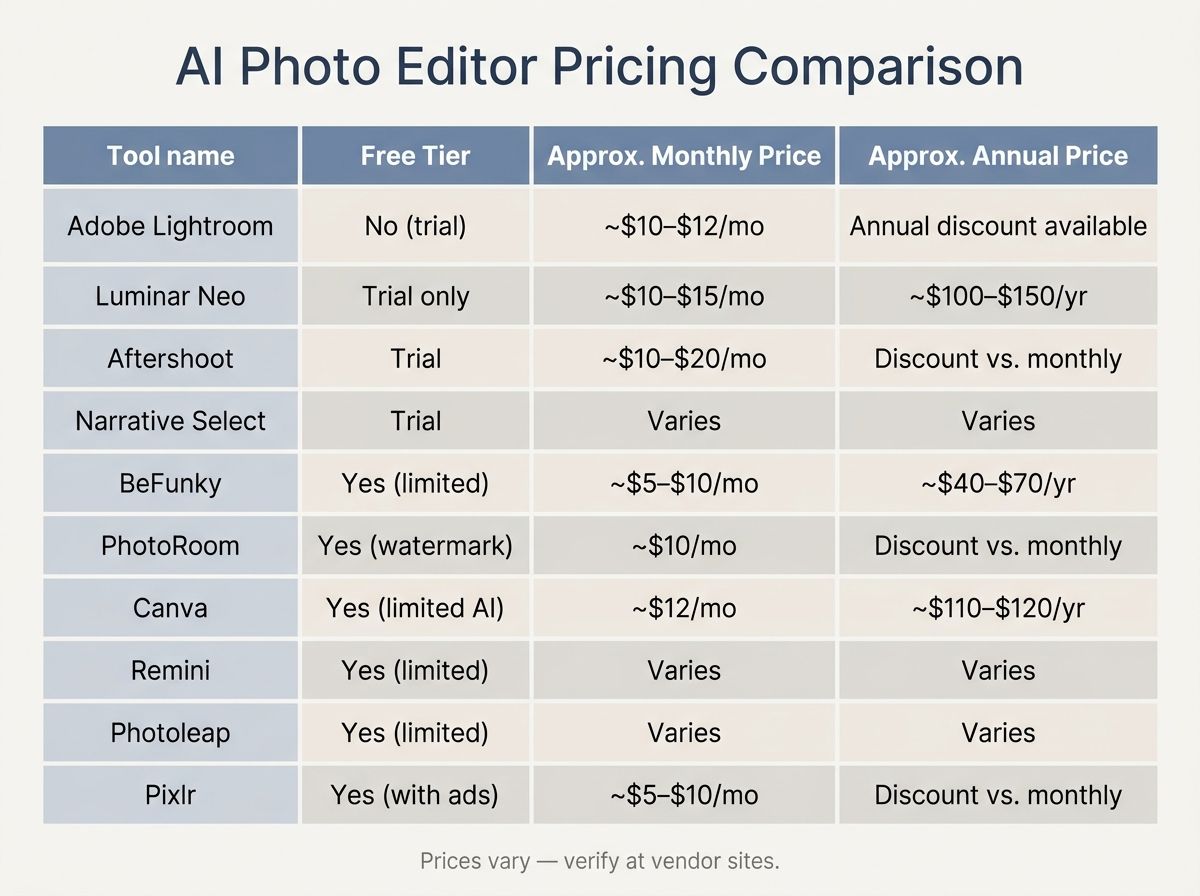
AI Photo Editing Software Pricing Comparison
Let's break down the actual costs. Most competing guides either skip pricing entirely or cite numbers that are already out of date. Here's a researched snapshot you can use as a starting point, but confirm every figure on the vendor's own pricing page before you commit.
| Tool | Free Tier | Approx. Monthly Plan | Approx. Annual Plan | One-Time Option | Verify At |
|---|---|---|---|---|---|
| Adobe Lightroom | No (trial) | ~$10–$12/mo | Annual discount available | No | adobe.com |
| Luminar Neo | Trial only | ~$10–$15/mo | ~$100–$150/yr | Yes | skylum.com |
| Aftershoot | Trial | ~$10–$20/mo | Discount vs. monthly | No | aftershoot.com |
| Narrative Select | Trial | Varies | Varies | No | narrativeselect.com |
| BeFunky | Yes (limited) | ~$5–$10/mo | ~$40–$70/yr | No | befunky.com |
| PhotoRoom | Yes (watermark) | ~$10/mo | Discount vs. monthly | No | photoroom.com |
| Canva | Yes (limited AI) | ~$12/mo | ~$110–$120/yr | No | canva.com |
| Remini | Yes (limited) | Varies | Varies | No | remini.ai |
| Photoleap | Yes (limited) | Varies | Varies | No | App Store / Play Store |
| Pixlr | Yes (with ads) | ~$5–$10/mo | Discount vs. monthly | No | pixlr.com |
All prices researched at time of writing. Prices change often. Always verify on the vendor's official site.
⚠️ Free Tiers Often Include Watermarks or Export Limits > > Most AI photo editors with free tiers add watermarks to exported images or cap the number of AI operations per month. Check the specific limitations before committing to a workflow on a free plan. A workflow that breaks the moment you need to export a client file isn't a free workflow.
Is There Truly Free AI Photo Editing Software?
Yes, but with caveats. Several tools offer genuinely functional free tiers:
- Pixlr — browser-based with free access to core AI tools (ad-supported)
- BeFunky — free tier covers basic AI editing with limits on advanced features
- Canva — free plan includes some AI features; most sit behind Canva Pro
- PhotoRoom — free background removal with a watermark on exports
Free tiers typically restrict export resolution, number of AI operations per month, watermark-free downloads, and advanced AI features. For professional or commercial use, a paid plan is almost always required. Luminar Neo offers a trial period rather than an ongoing free tier. Verify current terms at skylum.com.
End-to-End AI Photography Workflow: Cull → Edit → Export
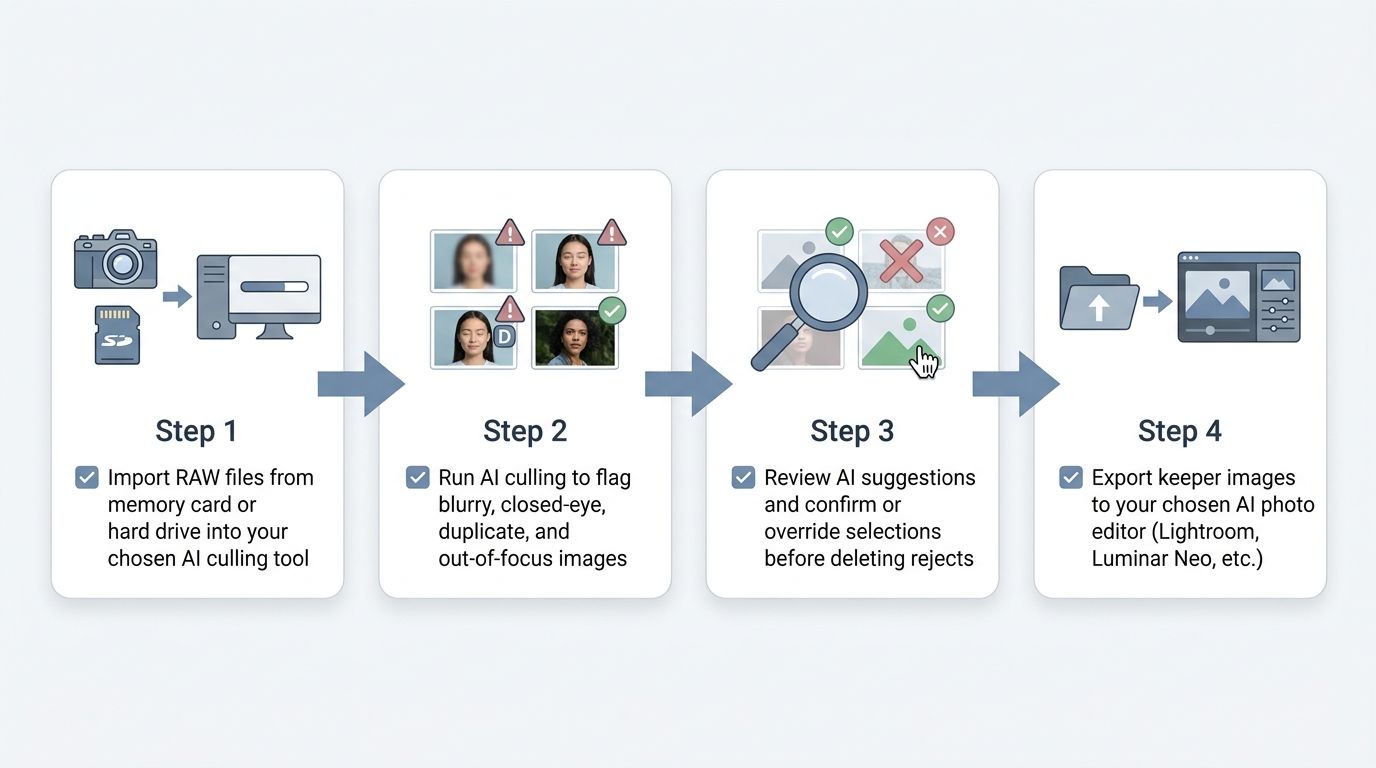
Here's how these tools fit together in a real session. You don't need one app for everything. Most working photographers use a dedicated culling tool, then hand the keepers off to a dedicated editor.
💡 You Do Not Need One Tool for Everything > > Many professional photographers use a dedicated AI culling tool (like Aftershoot or Narrative Select) alongside a separate AI editing tool (like Lightroom or Luminar Neo). These tools are designed to complement each other, not compete.
AI Photography Workflow Checklist
- Import RAW files from memory card or hard drive into your chosen AI culling tool
- Run AI culling to flag blurry, closed-eye, duplicate, and out-of-focus images
- Review AI suggestions and confirm or override selections before deleting rejects
- Export keeper images to your chosen AI photo editor (Lightroom, Luminar Neo, etc.)
- Apply AI-powered base edits: exposure correction, noise reduction, color grading
- Use targeted AI tools for specific tasks: background removal, sky replacement, portrait retouching
- Review before-and-after comparisons and apply manual refinements where needed
- Export final images at the appropriate resolution and format for delivery or publishing
Step 1: Import and Organize Your Images
Transfer files from your memory card to a working drive before importing them anywhere. AI culling tools work best when you import the full unedited batch, including the rejects, because that's what they're trained to sort. Some tools support direct card import, but a copy-first habit saves you when things go wrong.
Step 2: Run AI Culling to Select Your Best Shots
Point your culling tool at the batch and let it analyze each image for sharpness, focus, exposure, closed eyes, and duplicates. Aftershoot and Narrative Select rank or flag images rather than deleting them automatically, so the photographer keeps final control.
Review AI selections before deleting anything. Culling AI improves with more data from your library, so the first few sessions will need more oversight than the tenth. For any specific accuracy or speed figures, check each vendor's documentation rather than taking generic marketing claims at face value.
Step 3: Apply AI Enhancements and Targeted Edits
Export your keepers into your chosen editor and apply base corrections with AI auto-enhance. From there, reach for targeted AI tools based on the subject:
- Products: background removal in PhotoRoom or Luminar Neo
- Landscapes: sky replacement and Relight AI in Luminar Neo
- Portraits: skin, eye, and portrait retouching in Luminar Neo or Photoshop
- High-ISO shots: Denoise in Lightroom
AI results are a starting point. Manual review and refinement are recommended before anything leaves your machine for a client. Batch editing in Lightroom and Luminar Neo lets you apply consistent edits across the full gallery.
Step 4: Review, Refine, and Export
Compare before-and-after previews to confirm AI edits meet your standard. If an effect looks over-processed, pull the strength slider back. AI tools often default to maximum effect for demo purposes, not for taste.
Export in the appropriate format:
- JPEG for web and client delivery
- TIFF for print lab submission
- DNG for archiving with edits preserved
For client delivery, confirm any watermarking rules and that your export resolution matches your contract.
Which AI Photo Editor Is Right for Your Use Case?
The right tool depends on who you are and what you shoot. Here's a direct mapping.
Wedding and Event Photographers
Your priority is speed. High-volume shoots need fast culling and consistent edits across hundreds of frames.
- Culling: Aftershoot or Narrative Select
- Editing: Adobe Lightroom or Luminar Neo
- Features to prioritize: face grouping, duplicate detection, batch editing with consistent color profiles
Portrait and Studio Photographers
Your priority is retouching quality. Skin smoothing, blemish removal, and portrait-specific AI tools matter more than batch throughput.
- Recommended: Luminar Neo (Portrait AI), Adobe Photoshop (Generative Fill for compositing)
- Watch for: tools that let you dial back AI retouching intensity to avoid the "plastic skin" look
Wildlife and Sports Photographers
Your priority is culling accuracy on burst sequences with unpredictable motion.
- Recommended: Aftershoot (sharpness detection across bursts), Lightroom AI Select Subject for masking
- Reality check: AI culling accuracy on birds in flight or fast sports action usually needs more manual review than portrait culling. Budget for that.
E-Commerce Sellers and Product Photographers
Your priority is fast, consistent background removal and clean product staging.
- Recommended: PhotoRoom (purpose-built for product photos), Canva for adding branded backgrounds
- Consider: batch processing capability if you're editing large catalogs regularly
Beginners and Casual Photographers
Your priority is ease of use and low or no cost to start.
- Web: BeFunky (beginner-friendly), Pixlr (free), Canva (design plus editing)
- Mobile: Photoleap for iOS/Android
Start free. Upgrade only when a specific limitation (watermarks, export caps) is actually slowing you down.
Social Media Content Creators
Your priority is speed, creative filters, and platform-specific aspect ratios.
- Recommended: Canva (templates plus AI editing), Photoleap (mobile AI creative tools)
- Look for: direct export in platform-optimized sizes (Reels, Stories, YouTube thumbnails)
Privacy, Data Handling, and Limitations to Know
This is the section most AI editor roundups skip entirely. If you handle client images under contract, where those images get processed matters. Here's the short version: safety depends on where images are processed (on-device vs. cloud), the tool's data retention policy, and whether the vendor uses uploaded images for model training. Check each tool's privacy policy before uploading client work.
| Question | Why It Matters | Where to Find the Answer |
|---|---|---|
| Are images processed on-device or on cloud servers? | Determines who has physical access to your files | Vendor privacy policy / technical docs |
| Does the vendor retain uploaded images after processing? | Affects client confidentiality and contract compliance | Privacy policy / data retention clause |
| Are images used to train AI models? | May conflict with client contracts and NDAs | Terms of service / AI training clause |
| Is the vendor GDPR-compliant? | Required for processing EU subjects' images | Vendor compliance page or DPA |
| What is the data retention period? | Tells you how long your files sit on their servers | Privacy policy |
⚠️ Professional Photographers: Check Your Privacy Policy Before Uploading > > If you're a professional handling client images under contract, confirm that contract permits uploading those images to third-party cloud services. Some AI tools process on external servers and may retain data temporarily. When in doubt, choose desktop tools with local processing (Luminar Neo or desktop Lightroom) for sensitive client work.
Cloud Processing vs. Local Processing
- Web-based tools (BeFunky, PhotoRoom, Pixlr, Canva) process images on remote servers. Your files get uploaded.
- Desktop tools with local AI (Luminar Neo, Lightroom desktop) generally keep image data on your machine.
- Hybrid tools may upload thumbnails or metadata to the cloud while running inference locally. Check vendor documentation.
For GDPR compliance when handling EU client images, verify the vendor's data processing agreement and server locations. The GDPR overview at gdpr.eu gives you the plain-language context, and USA.gov's privacy page covers the US framework. This is a questions-to-ask-your-lawyer area, not a questions-to-ask-your-blog area.
AI Model Training: Are Your Photos Used?
Some AI tools include clauses in their terms of service allowing uploaded images to be used for AI model training. Read those clauses before uploading anything sensitive.
Adobe and several other major vendors have updated their terms to offer opt-out or explicit opt-in for training data use. Verify on each vendor's current terms, since this is a moving target. When client confidentiality is non-negotiable, prefer tools with explicit "no training use" policies and local processing. Bookmark vendor privacy pages and check them periodically.
Understanding AI Editing Limitations
AI is good. It's not magic. Based on widely reported photographer consensus and reviewer coverage:
- Background removal struggles with fine hair, transparent objects, and cluttered backgrounds. Manual refinement is usually needed.
- Noise reduction can soften fine detail if pushed to maximum. Use moderate levels and compare before/after.
- Generative fill works best on images with clear, unambiguous context. Complex scenes may need multiple attempts.
- Culling AI doesn't understand artistic intent. A deliberately motion-blurred creative shot may get flagged as a reject.
💡 AI Editing Has Real Limitations > > AI tools work best on technically sound source images. Heavily corrupted, extremely low-resolution, or complex multi-subject images produce inconsistent results. Manual review is always recommended before client delivery. Think of AI as a very fast junior editor, not a finished product.
Frequently Asked Questions About AI Photo Editing Software
What is the best AI photo editing software in 2026?
The best AI photo editing software depends on your use case. Adobe Lightroom leads for professional RAW editing with AI Masking and Denoise, Luminar Neo is top-rated for creative one-click enhancements, and Aftershoot is the strongest option for AI culling combined with editing. Web-based options like BeFunky and Canva suit beginners and social media creators. Always verify current pricing and features on each vendor's official site.
Is there free AI photo editing software?
Yes. Several tools offer free tiers, including Pixlr, Canva, BeFunky, and PhotoRoom. Free tiers typically add watermarks to exports, limit the number of AI operations per month, or restrict access to advanced AI features. For professional or commercial use, a paid plan is usually required to remove limitations.
What is AI culling software and how does it work?
AI culling software automatically analyzes large photo batches and flags images based on sharpness, focus, closed eyes, exposure quality, and duplicate detection. Tools like Aftershoot and Narrative Select present AI-ranked selections for the photographer to review and approve, so the final decision stays with you. This can reduce culling time on a large event shoot from hours to minutes.
Can AI photo editors replace Photoshop?
AI photo editors can automate many tasks that previously required Photoshop, such as background removal, object erasing, and noise reduction. Photoshop's depth, precision, and flexibility for complex compositing and retouching remain unmatched for professional use cases. For most everyday edits and social content, AI-first tools are a practical and efficient alternative.
Are AI photo editors safe to use with client images?
Safety depends on how each tool handles your data. Web-based AI editors upload images to cloud servers, while desktop tools like Luminar Neo and Lightroom can process locally. Some vendors' terms of service permit using uploaded images for AI model training. Before uploading client work, review the tool's privacy policy, data retention practices, and GDPR compliance, especially if you're working with EU-based clients.
Which AI photo editor is best for mobile?
Photoleap is widely regarded as the strongest AI photo editor for mobile, offering generative AI, background removal, sky replacement, and style transfer on iOS and Android. Canva and PhotoRoom also offer strong mobile apps with AI tools. For restoration of old photos specifically, Remini is a popular mobile-first choice.
What is the difference between AI photo editing and AI culling?
AI photo editing refers to tools that enhance, transform, or retouch images, such as background removal, noise reduction, or sky replacement. AI culling refers to software that automatically sorts and ranks large photo batches to identify the best shots and reject blurry, duplicate, or poorly exposed images. Many professional photographers use both: a culling tool to select keepers, then an editing tool to enhance them.
Do AI photo editors work with RAW files?
Not all of them. Desktop tools like Adobe Lightroom, Luminar Neo, and Aftershoot are designed to work with RAW formats from major camera brands. Web-based tools such as BeFunky, Canva, and Pixlr typically only work with JPEG, PNG, and other compressed formats. If RAW editing is part of your workflow, verify format compatibility on the vendor's official site before choosing a tool.
Sources
- Adobe Photoshop AI Features — Official Adobe Page
- Luminar Neo — Official Skylum Product Page
- Aftershoot — AI Culling and Editing Software
- DPReview
- PetaPixel
- Narrative Select — AI Photo Culling Tool
- BeFunky AI Photo Editing Features
- PhotoRoom — AI Background Removal and Product Photography
- GDPR Overview — gdpr.eu
- Privacy Laws and Protections — USA.gov